Tag: HTML

  • If It Looks Like a Duck: A Cautionary Tale

    “If it looks like a duck, swims like a duck, and quacks like a duck, then it’s probably a duck.”

    I recently worked on putting a plan together for improving the accessibility of a search component on WordPress.com. The existing interaction worked like a combobox where the focus was kept on the search input and you could navigate through the results with the down/up arrows.
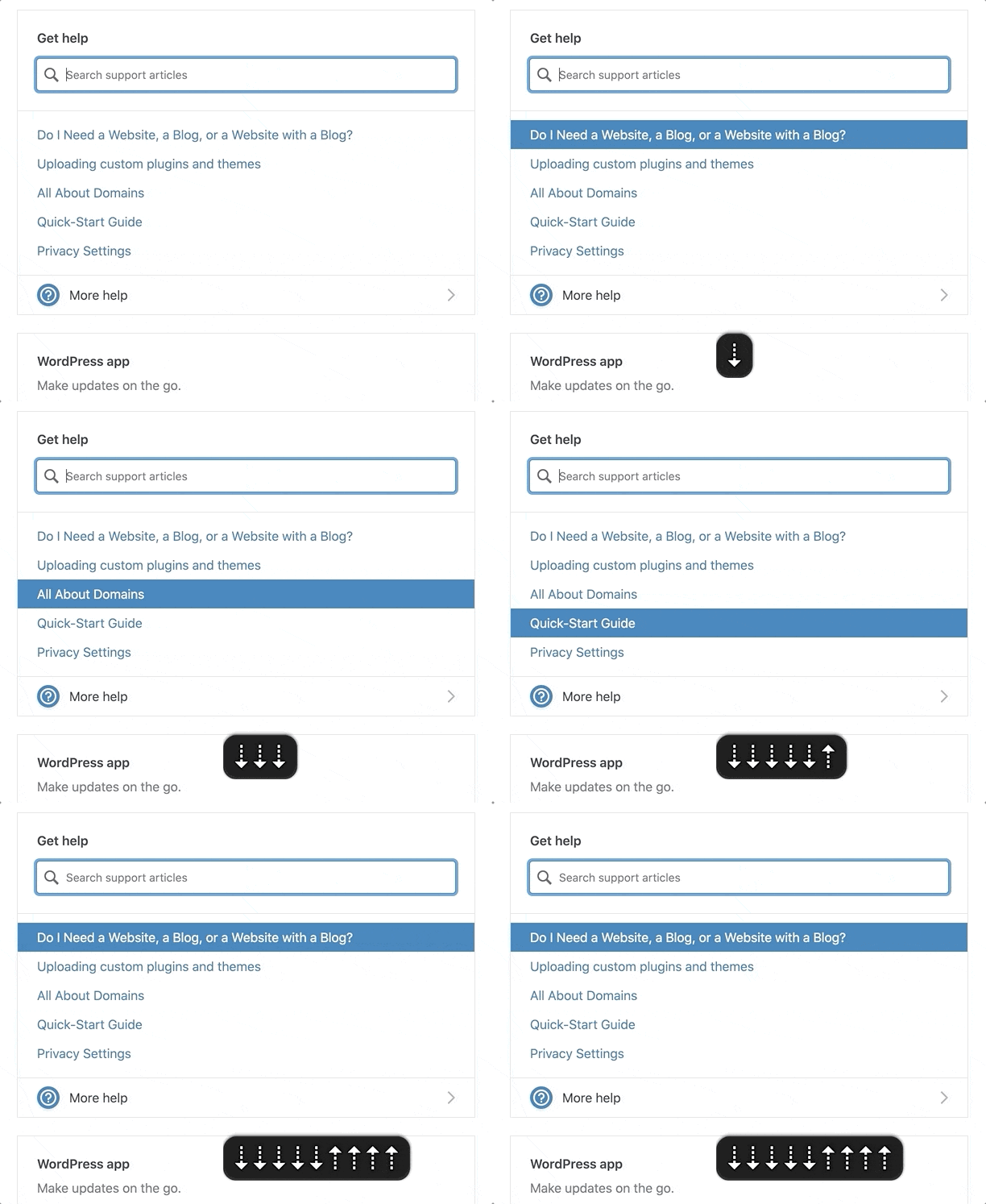
    Search input with focus and the up and down arrows pressed to move between selecting search results/
    The WordPress.com search suggestions component.

    If It Looks Like a Duck, Swims Like a Duck, […], It’s Probably a Duck.

    I looked at this input focus with arrow keyboard navigation and thought this should be marked up as a combobox.

    A combobox is a semantically linked input with a list of options within a listbox

    An expanded combobox with DOM focus on the input and virtual focus on the dropdown listbox.
    See this combobox in action.

    The interaction for a combobox is very similar to the interaction of the WordPress.com search suggestion component.

    • Focus remains on the input at all times
    • UP and DOWN arrows navigate between items
    • ENTER selects the item

    As I considered it more, there were a couple differences in the behaviors:

    1. A combobox should fill out the input with that text. So, selecting “Durian” from the options should fill out the input with “Durian.” In contrast, the WordPress.com search item selection would open a modal or go to a new page.
    2. A listbox cannot contain interactive items. The WordPress.com search items were interactive <a> or <button> elements to open a modal or bring you to a new page.

    In essence, it looked like a duck and it swam like duck, so I initially jumped to calling it duck. But, it didn’t quack like a duck. I incorrectly relied on a visual model to impact how I labelled it, instead of looking at its core purpose.

    HTML Markup Should Not Rely On The Visual Representation Alone

    I know this. I’ve written about it. But I initially didn’t take the extra time to take a step back and really consider what the core purpose of this component was and how it should be communicated via HTML. This was me, with as many good intentions as possible, being influenced by my own ableist, sighted-centric lens.

    If I had implemented a combobox to improve the accessibility, I would have felt good since I had done so much work, while simultaneously not making a difference (or potentially making it worse) for assistive technology users.

    Note
    I would have caught that it was a bad implementation for ATs, as I do test regularly with VoiceOver and/or NVDA while working. But I may not have caught it until after getting it to a working state and then needed to backtrack.

    This Duck is a Search with Dynamic Results

    The WordPress.com search suggestions component isn’t a combobox. It’s a miniature search with a <ul> list of dynamic results. The current plan on how to fix this is to:

    • Add a role="search" with an aria-label to the search form. This will reveal it as a landmark to ATs (Assistive Technologies).
    • Use speak() to announce when there are newly loaded results, loading, and error states.
    • Markup the search results as a <ul> with a heading when appropriate.
    • At times, there will be multiple <ul>s to group results. These results will be wrapped in a <div aria-label="Search Results"> in order to communicate the entire section as a group of results connected to the search input.
    • Remove the input DOM focus arrow key navigation. Search results will be TAB‘d to like normal links.

    In the end, by considering what the component is and not how it looks, we are able to:

    • Significantly simplify the code
    • Reduce the weight of the JS
    • Communicate the search component appropriately to ATs
    • Save time over implementing a far more complicated (and not as successful) combobox

    Remember to Keep Yourself in Check

    If you are an able-bodied individual, it’s important to do the work to keep your perspective in check. Don’t say, “It looks like a duck, it’s probably a duck.” Take the time to consider a component’s purpose and how it will be communicated before moving forwards.

    You’ll make mistakes (I certainly do). It’s OK. Keep listening, learning, and fighting the good fight. ♥️

    Major props to Diego Haz for his help working through the best markup and interactions on the search component.

  • The Importance of HTML

    In 1917, the artist Michael Duchamp submitted his work, “Fountain” to an art exhibition. It’s a used urinal. And it stirred up yet another conversation about, “What is art?”

    I’ve only taken one art history class, so forgive my simplification here. Essentially, art is subjective. If you personally don’t like Duchamp’s urinal, it doesn’t make it any less art.

    JavaScript and CSS are the focus of most web designer/developer’s learning, but they’re subjective to the end user. There are better and worse ways to write your CSS and JS, but none are 100% right or wrong (as long as your page still works, is secure, etc).

    HTML has clearly right and wrong ways to write it, and this is too often ignored. Here are several examples I’ve seen in the wild:

    • A “button” that’s actually a clickable <div> and not a <button>.
    • A “title” that’s actually a<div> and not a heading element (<h1>, <h2>, etc).
    • A “label” for an <input> that’s actually a <div>.
    • An “input” that’s actually a <div> with keydown listeners.

    Notice a pattern? Looking at you, <div>. 👀

    The essential issue is using a non-semantic element when a semantic element should have been used.

    What Do We Mean by Semantic?

    Semantic means that the element has a meaning. It says something about the content or its relationship to another thing. In HTML, basically anything that isn’t a <div> or <span> is semantic.

    There’s also a continuum to what a tag tells us about the meaning of its content. For example, a <section> tells us less about its contents than an <article>.

    <section> is still semantic, as it tells us that its contents should be considered as a group. But, an <article> tells its contents are grouped together and that it’s a cohesive article.

    For more examples, I’ll walk through the Heading and Button elements to demonstrate how they are semantic.

    Heading Elements

    An <h1> is a title of a page, and an <h2> beneath it gives a hierarchy to the page.

    <!-- h1, the most important part -->
    <h1>The Importance of HTML</h1>
    <!-- "What Do We Mean by Semantic?" is a subsection of "The Importance of HTML" -->
    <h2>What Do We Mean by Semantic?</h2>
    <!-- "Headings" is a subsection of "What Do We Mean by Semantic?" --> 
    <h3>Headings</h3>
    

    Using an appropriate heading structure, you can automatically create a table of contents. Here’s how this article could be built into a table of contents just based off of the heading levels:

    • <h1>: The Importance of HTML
      • <h2>: What Do We Mean by Semantic?
        • <h3>: Headings
        • <h3>: Buttons
      • <h2>: Non-Semantic Elements
      • <h2>: Correct HTML Does Not Bring You Glory, But You Need to Do It

    You can see the structure of the whole article being communicated just via the HTML. If I had used all <div>s, then the structure would look like:

    • <div>: The Importance of HTML
    • <div>: What Do We Mean by Semantic?
    • <div>: Headings
    • <div>: Buttons
    • <div>: Non-Semantic Elements
    • <div>: Correct HTML Does Not Bring You Glory, But You Need to Do It

    There’s no meaning attached to the <div>, so it would be a flat structure. Just by using the correct HTML we bring clarity and structure to the DOM.

    Buttons

    A button submits or changes the state of something. By definition, it’s always:

    • focusable
    • activated on space bar or enter key presses
    • activated on mouse click.

    When you make a <div> with a click listener, you’re not using the semantic interactions that come for free when you use a <button>. You have to manually build out the:

    • focus state
    • keyboard interactions
    • mouse interactions

    Not only that, but when a screen reader comes to a <button>Submit</button>, it will use those semantics and announce, “Submit, button.”

    The same thing using a <div> would look like:

    <!-- Just kidding, I'm not going to make an accessible div button. -->
    <!-- Use a <button> please! 😂-->
    

    When we use semantic HTML elements, we elevate the content’s meaning. It gives the content life.

    Non-Semantic Elements

    <div>s and <span>s are non-semantic elements. The <div> does not give the content any additional meaning. It’s just a <div>.

    I’m not being totally fair, as there is a tiny bit of meaning behind a <div> vs a <span>:

    • A <div> is a block-level element, as in, it should wrap things together.
    • A <span> is an inline element. It should be used within another element, like <p><span class="dropcap">I</span>nline elements</p>.

    If there are no HTML elements that make sense for the content, then use a <div> or <span>. There’s 100% a place for <div>s and <span>s. Not every piece of content or HTML element needs additional semantics.

    When writing HTML, use as specific of an element as makes sense for your content. If there’s nothing specific enough, then keep going for less and less meaningful tags. <div> and <span> are always the last choice.

    Correct HTML Does Not Bring You Glory, But You Need to Do It

    You’re not going to get a Webby Award or thousands of views on Codepen for how amazingly crafted your HTML is. You’ll need to be OK going unrecognized for your work. But know that every time I use a screen reader or keyboard on a site and it works correctly, I have a little spark of joy. I’m sure I’m not alone here.

    In the end, you’ll have to be OK with knowing you did your best to make your work accessible to everyone.