Category: Code

  • WordPress Actions Made Simple

    I was coding WordPress themes for an embarrassingly long time before I fully understood how to use WordPress actions. This is how I wish someone had explained them to me when I was beginning as a developer.

    I’m going to walk through this abstractly, not with actual WordPress hooks. The point of this article is to understand what WordPress actions are, why they’re useful, and how to use them.

    The WordPress Actions of my Dog

    My dog, Sycamore, has a good life. Napping, playing, eating: what’s not to like? Let’s build a schedule of an ordinary day in the life of Sycamore with WordPress actions.

    The set-up of the actions will be one action for each hour of the day: 1 – 24. When a page loads, it will run all of the 24 actions one immediately after another.

    You generally will not add any do_action() to your theme. This is just for demonstration. The important thing to know here is that every time a page loads, it will run 24 actions: one for each hour of the day. So, go to the page, and it will, run, in order:

    do_action('1_oclock');
    do_action('2_oclock');
    do_action('3_oclock');
    // etc, until...
    do_action('24_oclock');
    

    Each time one of those actions runs, it looks for anything else hooked into the action with the same name (like, ‘1_oclock’) and then runs that action at that time.

    The Schedule

    Now that we have our actions for each hour of the day running, we can hook into them to display a schedule of my dog Sycamore’s day.

    • 7 o’clock: Wake up, lick people’s faces, go on a walk
    • 8 o’clock: Eat
    • 9 o’clock: Go to sleep
    • 12 o’clock: Wake up, chew on something that she’s not supposed to chew on
    • 13 o’clock (1pm): Go to sleep
    • 16 o’clock (4pm): Wake up, bark at a squirrel, chase something only discernible to her
    • 17 o’clock (5pm): Eat, go on a walk
    • 18 o’clock (6pm): Go to sleep
    • 21 o’clock (9pm): Wake up, bother the cat, sniff random things all over the house
    • 22 o’clock (10pm): Go to sleep

    We already have our actions for each hour running (do_action('1_oclock'), etc), so all we have to do is hook into them. When we add an action like ‘Wake up’ into our 7_oclock action, we’re simply saying “When the 7_oclock action fires, run any of our code that is hooked into the 7_oclock action.

    In code, using WordPress actions, Sycamore’s schedule above looks like:

    // actions at 7_oclock (7am)
    add_action('7_clock', 'wake_up');
    add_action('7_oclock', 'lick_peoples_faces');
    add_action('7_oclock', 'go_on_walk');
    
    // actions at 8_oclock (8am)
    add_action('8_oclock', 'eat');
    
    // actions at 9_oclock (9am)
    add_action('9_oclock', 'sleep');
    
    // actions at 12_oclock (12pm)
    add_action('12_oclock', 'wake_up');
    add_action('12_oclock', 'chew_something_not_supposed_to');
    
    // actions at 13_oclock (1pm)
    add_action('13_oclock', 'sleep');
    
    // actions at 16_oclock (4pm)
    add_action('16_oclock', 'wake_up');
    add_action('16_oclock', 'bark_at_squirrel');
    add_action('16_oclock', 'chase_something_only_i_detect');
    
    // actions at 17_oclock (5pm)
    add_action('17_oclock', 'eat');
    add_action('17_oclock', 'go_on_walk');
    
    // actions at 18_oclock (6pm)
    add_action('18_oclock', 'sleep');
    
    // actions at 21_oclock (9pm)
    add_action('21_oclock', 'wake_up');
    add_action('21_oclock', 'bother_cat');
    add_action('21_oclock', 'sniff_randomly');
    
    // actions at 22_oclock (10pm)
    add_action('22_oclock', 'sleep');
    

    Let’s take a closer look at the 7am section:

    // actions at 7_oclock (7am)
    add_action('7_clock', 'wake_up');
    add_action('7_oclock', 'lick_peoples_faces');
    add_action('7_oclock', 'go_on_walk');
    

    At 7am, the first thing Sycamore does is wake up. The 'wake_up' part of add_action('7_oclock', 'wake_up'); is matched to a function of the same name: 'wake_up'. The following `wake_up()` function prints the words “Sycamore wakes up” onto the page:

    // output the text 'Sycamore wakes up';
    function wake_up() {
      echo 'Sycamore wakes up';
    }
    // add 'wake_up' to the '7_oclock' action
    add_action('7_clock', 'wake_up');
    
    // run all 7_oclock actions, including 'wake_up'
    // note: you likely will not be adding any do_action statements until you're writing plugins. You're far more likely to use add_action hooks
    do_action('7_oclock');
    

    Ordering Actions

    Great! Sycamore is awake! But… there are multiple things that are supposed to happen at 7 o’clock. How do we make sure that Sycamore doesn’t somehow lick people’s faces before she wakes up?

    We can give each action a priority number, with lower numbers running first. It’s like if you’re waiting in line: if you’re number 1 in line, you’ll go first. The default number for an action is 10. All of the actions above would have a priority of 10, because we didn’t specify any order.

    To make sure Sycamore wakes up before doing anything else, we give the 7 o’clock wake up action a priority of 1.

    // 1 means it will run before anything else
    add_action('7_clock', 'wake_up', 1);
    
    // not having a number means it defaults to a priority of 10
    // Sycamore needs a good round of lickin' everyone's faces after waking up
    add_action('7_oclock', 'lick_peoples_faces');
    
    // wake up: check
    // lick faces: check
    // time for a walk!
    add_action('7_oclock', 'go_on_walk', 20);
    

    Passing Arguments (values) to Actions

    If you have a dog, they might have a similar schedule. Let’s open this up to be available for any dog, not just Sycamore.

    To do this, the actions that run needs to know what dog is doing the action. We can do this by setting a PHP variable and passing it to the action function. Let’s go back to our do_action('7_oclock'); where we register the 7_oclock action that makes it available to hook into.

    // set the $dog_name to equal 'Sycamore'
    $dog_name = 'Sycamore';
    // pass $dog_name to our do_action. This makes $dog_name available to the functions that hook into this
    do_action('7_oclock', $dog_name);
    

    Now that we have a $dog_name variable, we can access it with our functions:

    // $dog_name should equal your dog's name
    function wake_up($dog_name) {
      // if $dog_name = 'Sycamore';
      // it outputs the text 'Sycamore wakes up';
      echo $dog_name.' wakes up';
    }
    // add 'wake_up' to the '7_oclock' action
    // 1 = the priority
    add_action('7_clock', 'wake_up', 1);
    

    So, if your $dog_name is “Fluffy,” then it would output “Fluffy wakes up.”

    Schedules can vary from day to day though. On Saturdays, Sycamore’s walk isn’t at 7am, it’s at 8am. A couple things we’d need to know before we can set the Saturday schedule correctly:

    • What day is it?
    • How to remove her 7am walk and add it in at 8am.

    First, let’s address how to get the $day in there. Back where we set the dog name, let’s add in the $day as well and pass it to the actions.

    $dog_name = 'Sycamore';
    // this will set $day to be the full name of the current day, like 'Saturday' or 'Sunday'
    $day = date('l');
    // pass $dog_name and $day to our do_action. This makes $dog_name and $day available to the functions that hook into this
    do_action('8_oclock', $dog_name, $day);
    

    Similarly to how action priorities default to 10 (the order that actions run), actions default to only having one variable. Now, since there are two variables ($dog_name and $day), we need to tell our actions that we’re using more than one variable. We’ll add our 8am action and make sure it has access to two variables.

    // $dog_name should equal your dog's name
    // $day will be the current day of the week
    function go_on_walk($dog_name, $day) {
      // if $day = 'Monday' and $dog_name = 'Sycamore, it will output: "Monday: Sycamore goes on a walk"
      echo $day. ': '. $dog_name.' goes on a walk';
    }
    
    // if today is Saturday
    if($day === 'Saturday') {
      // add 'go_on_walk' to the '8_oclock' action
      // 10 = the priority. We have to include it here so that we can also add the '2' for the number of arguments
      // 2 = the number of arguments ($dog_name and $day)
      add_action('8_oclock', 'go_on_walk', 10, 2);
    }
    

    Removing Actions

    The last thing we have to do is remove the 7 o’clock action because Sycamore doesn’t go on a walk at 7am and 8am on Saturdays. To do this, we use remove_action(). The one catch here is that we have to use remove_action() after the action we want to remove has already been added, otherwise there’s nothing to remove.

    // per usual, go on a walk at 7_oclock
    add_action('7_oclock', 'go_on_walk', 10, 2);
    
    // if today is Saturday, add in a walk on the 8_oclock action and remove the 7_oclock walk action.
    if($day === 'Saturday') {
      // add 'go_on_walk' to the '8_oclock' action
      add_action('8_oclock', 'go_on_walk', 10, 2);
      // remove the '7_oclock walk. We can do this since it was already added above
      remove_action('7_oclock', 'go_on_walk');
    }
    

    WordPress Action Summary

    We’ve gone over what actions in WordPress are. To summarize in a handy list for review:

    • WordPress has actions that run when the code runs the do_action('action_name') code.
    • You can add your own actions to run when the do_action('action_name') runs with add_action('action_name', 'your_function_name').
    • You can change the order of when actions run by passing a priority number like add_action('action_name', 'your_function_name', 1). 1 means it runs first. 10 is the default priority.
    • If an action has values/arguments that it passes, you can access those in the function you’re using by adding an argument number. If you need more than one argument (the default number), then you can specify the number of arguments you want. For example, to run get three arguments, you’d use add_action('action_name', 'your_function_name', 10, 3).
    • You can remove actions with remove_action('action_name', 'function_you_want_to_remove'), but the action has to have already been added in order to remove it.

    If you have any questions on what WordPress actions are or how to use them, feel free to ask in the comments. I’m planning to write a similar article on WordPress Filters, so be sure to follow me on Twitter if you want to know when I finish it!
  • Basic HTML Boilerplate Structure

    When you only create a new base template every few months (or longer!), it’s hard to remember the little details of the structure that you don’t touch often.

    As of HTML5, the <doctype>declaration and structure has gotten a lot easier, but it’s still easy to forget. Here’s the basics:

    <!DOCTYPE html>
    <html lang="en">
    <head>
      <title>Page Title</title>
      <meta charset="utf-8" />
      <!-- other meta, CSS, and custom tags -->
    </head>
    
    <body>
      <header>Site Title</header>
    
      <main>
        <h1>Page Title</h1>
        <p>Body content</p>
      </main>
    
      <footer>Site Footer</footer>
      <!-- load JS here so it doesn't block the rendering of the page -->
    </body>
    </html>
    

    Notes on Easily Forgotten Structural Tags

    • <!DOCTYPE html>: Tells the browser/parser that the file is written in HTML.
    • <html lang=”en”>: Tells screen readers and search engines that the page is written in English. You can look up other language character codes.
    • <main>: Sets the main content for this page. This is generally what makes this page unique. For example, a news article would be wrapped in the HTML tag.

    Copy/Paste this boilerplate HTML and get going!

    Further Reading

  • Switch WordPress Database based on Git Branch

    I’m working on a large redesign project where lots of database changes are going to take place. In order to not mix-up the current master branch with the new redesign changes, I made a new database so I can keep things separate. The only trick is to remember to change out the database in wp-config.php when I switch branches.

    That’s not going to happen. I’ll definitely forget. Regularly.

    Fortunately, you can grab the branch you’re on via php with a bit of code from user program247365 on stackoverflow.

    I took that and added a bit to choose the database I want based on the branch I’m on. You’ll need to change out the $db_name and $branch variables to match your own, then you’ll be good to go!

    // get branchname
    function config_get_git_branch() {
        // This assumes you have your .git directory at the same level as wp-config.php.
        // If you don't, then change the path to wherever your .git director is
        $stringfromfile = file('.git/HEAD', FILE_USE_INCLUDE_PATH);
    
        $firstLine = $stringfromfile[0]; //get the string from the array
    
        $explodedstring = explode("/", $firstLine, 3); //seperate out by the "/" in the string
    
        $branch = $explodedstring[2]; //get the one that is always the branch name
    
        return trim($branch);
    }
    
    // choose which db you want to use
    function config_get_db_name() {
        $branch = config_get_git_branch();
    
        // change these $db_name and and $branch strings to match
        // whatever ones you want.
        if($branch === 'child') {
            $db_name = 'child_db';
        } else {
            $db_name = 'site_db';
        }
        return $db_name;
    }
    
    // ** MySQL settings - You can get this info from your web host ** //
    /** The name of the database for WordPress */
    define('DB_NAME', config_get_db_name());
    

    Now you’ll never forgot to switch the DB out when you checkout to a new branch. Happy coding!

  • Import a Huge Database with MySQL Command Line in MAMP

    Import a Huge Database with MySQL Command Line in MAMP

    I needed to import a 500mb MySQL database today, and I didn’t want to mess with changing the max 32mb upload file size with phpmyadmin. The 32mb limit is due to having to upload and process the file, but if the file is on your local machine anyways, there’s no need to upload it. Let’s bypass the upload limit and import the database using the MySQL command line.

    Start up MAMP, open terminal, and enter:

    $ /Applications/MAMP/Library/bin/mysql --host=localhost -uroot -proot
    

    This will put you into a kind of MySQL shell. Now you can run a few basic commands to test it out.

    ## List all the databases
    $ show databases;
    
    ## It outputs a pretty ASCII drawing for your tables
    +-------------------------+
    | Database                |
    +-------------------------+
    | my_database             |
    | another_db              |
    | etc_db                  |
    +-------------------------+
    3 rows in set (0.00 sec)
    

    To import a new database, find the path to your MySQL database file, and run these commands:

    ## Create a new database if you haven't yet
    $ CREATE DATABASE my_db_name
    
    ## Move into the database, kind of like the `cd` command to switch directories in terminal
    $ use my_db_name
    
    ## Import the database
    $ SET autocommit=0 ; source /path/to/database/my_mysql_database.sql ; COMMIT ;
    

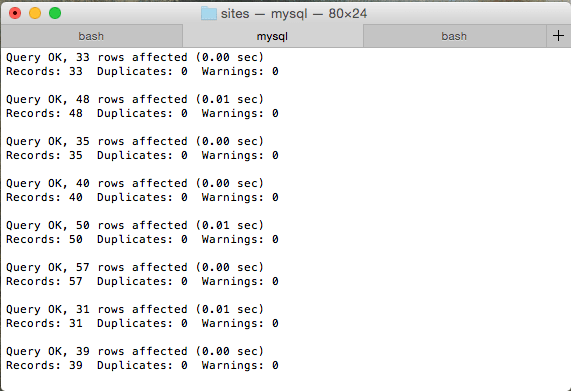
    Now you’ll see a bunch of queries whiz by. Once you see the command line ready for another prompt, you’re good to go!

  • Terminal Command for Looking up Nameservers

    At The Engaging News Project, we recently upgraded our DNS hosting by moving over to Cloudflare. I wanted to test our site as soon as the nameservers updated to Cloudflare’s to make sure no weird issues popped up.

    Fortunately, there’s a handy terminal command for that!

    $ nslookup -type=ns jeremyjon.es
    

    nslookup is a command to query nameservers and get all kinds of info back related to the server it’s on and any DNS settings you want to… look-up. Pretty well named command, I guess.

    In our case, the nslookup -type=ns jeremyjon.es command will return all the nameservers of my site, jeremyjon.es.

    As of this writing, here’s the response for my domain.

    $ nslookup -type=ns jeremyjon.es
    
    Server:		8.8.8.8
    Address:	8.8.8.8#53
    
    Non-authoritative answer:
    jeremyjon.es	nameserver = ns3.dreamhost.com.
    jeremyjon.es	nameserver = ns1.dreamhost.com.
    jeremyjon.es	nameserver = ns2.dreamhost.com.
    

    To get different information about your DNS, like CNAME, MX, A Records, etc, just change out the ns part of -type=ns with the record type you’re looking for:

    $ nslookup -type=cname jeremyjon.es 
    $ nslookup -type=a jeremyjon.es 
    $ nslookup -type=mx jeremyjon.es 
    

    There’s plenty more nslookup can do that I imagine I’ll never, ever use as a front-end developer, but I’m glad it’s there if I need it.

    Clearing out DNS

    If you just made a DNS change and want to flush your cache to try to grab the updated nameservers and you’re on OS X 10.10.4 or above, use:

    sudo killall -HUP mDNSResponder
    

    Switching servers of any kind is stressful. Hopefully these commands will help your heart beat a little easier when making the switch.

  • Apple Bug Report – Non-native Focusable Elements Page Jump

    On iOS devices running Safari on version 10+, when focusing a non-native focusable element (ie – a div that is focusable via JavaScript or with a tabindex value) inside an embedded iframe on a page, the parent page will jump down the page and you have to scroll back up to return to the focused element.

    To reproduce, it,

    1. Use your iOS device on version 10+ and click the slider handle in the embedded quiz.
    2. When you click the handle to give it focus, the page will jump down and you’ll have to scroll back up to return to the slider.

    This is just a post to explain my bug report to Apple developers and any other devs who may be experiencing a similar issue. For more details, read this Stack Overflow question on this bug.

  • How to Fix Blurry Images in WordPress 4.4 from srcset and sizes

    In WordPress 4.4 they added a big feature: responsive images using srcset and sizes for all content images.

    This is amazing. Since WordPress is a hugely popular framework, the amount of bandwidth saved is astronomical. I’m really proud of the WordPress team for implementing this.

    But… there are some blurry images. It’s not a perfect one-size fits all solution for every site.

    If your images are full screen width, you’ll get a blurry image on wide screens because WordPress is telling your browser to use an image smaller than your browser width. It’s a simple fix, and if you don’t want to read my mini-rant, you can skip to the fix.

    The Backwards Way To Fix It

    When I was googling to see what others have done to fix this, the only answer I was coming across was to entirely remove the srcset responsive image approach. Go back to a plain ol’ img tag, thank you very much.

    I get it. Images are much easier that way. But I don’t think the importance of what srcset accomplishes was understood.

    When you use srcset with your image, you provide your browser with a bunch of different versions of your image from small ones to giganto ones. When you go to your site, your browser quickly scans the list of images and picks out the one it needs. That way you don’t download a 2000px wide desktop image onto your phone. You download the 400px one. When you’re paying for your data usage, that’s a big deal.

    So, if you’re getting blurry images in WordPress, don’t throw the baby out with the bath water.

    The Fix

    Here’s a snippet to drop into your functions.php file that will keep the benefits of srcset responsive images and never give you a blurry image. It won’t be a fine-tuned, Italian leather, srcset machine, but it’s far better than axing it entirely.

    function osteo_img_sizes($sizes) {
    	return '100vw';
    }
    add_filter( 'wp_calculate_image_sizes', 'osteo_img_sizes');
    

    This filter overrides WordPress’s default sizes attribute to tell your browser, “Don’t serve images larger than the screen width.” VW here stands for viewport width (your browser width).

    That’s it. It’s not perfect, but it serves the people that need it most: people on mobile devices with a slow and/or costly connection.

  • Using BEM in the Wild

    BEM can get out of control if you’re not careful. On the first project I used BEM, I handcrafted this artisanal class name: .progress__bar__question-count__current-number.

    Yup. That’s four levels deep. I’m not proud of this.

    The goal of this article is to make sure another .progress__bar__question-count__current-number never gets written. Before we dive in, if you’re not familiar with the BEM naming convention, head over to B is for Block: An Intro to the BEM Naming Convention. Don’t worry, I’ll wait until you’re done.

    Ready? Good. Here we go!

    It’s BEM, not BEEEEM

    Be as descriptive as you need to be with your BEM class names to avoid duplication and confusion. Sure, my .progress__bar__question-count__current-number class lets me know that current-number is nested 4 levels deep in the HTML, but is that worth the verbosity?

    Nope.

    It means more changes to make in your CSS when you modify the HTML. Rather than duplicate your HTML structure, be descriptive and unique.

    When I refactor, .progress__bar__question-count__current-number will become .progress-bar__current-number.

    Ah. Much better.

    “The best is the enemy of the good.” – Voltaire

    I can get stuck in a pattern of trying to find the perfect solution rather than an easy one that accomplishes the task. As the saying goes, “Don’t let perfect be the enemy of good.” That’s when .progress__bar__question-count__current-number rears its ugly head.

    Remember, BEM is a convention to make your code easier to maintain. If it’s not making your code easier to maintain, modify it. BEM is a tool for you to use, not vice-versa.

    If a Block is Within Another Block, Mix It

    One of the great things about BEM is the flat class structure. You don’t have to nest anything in SASS or use multiple class names to win a specificity battle.

    That’s great… until a block is nested inside another block. Let’s say you have a .card block that has a .list and a .button inside it. What do you do? Do you duplicate the entire block again with the block name prefixed? That’s the only way to keep it 100% perfect and flat. So, should we do this?

    <article class='card'>
      <div class='card__header'>
        <h2 class='card__title'>B is for Block: How to BEM</h2>
      </div>
      <div class='card__content'>
        <ol class='list card__list'>
          <li class='list__item card__list__item'>
            Describe the Main Block with a word or two.
          </li>
        </ol>
        <a class='button button--with-icon card__button card__button--button-with-icon'>
          <span class='button__text card__button__text'>
            Read More
          </span>
        </a>
      </div>
    </article>
    

    No! Don’t put BEM in your BEM. That’s what leads you down the crooked path to .progress__bar__question-count__current-number! Heed my warning. Don’t do it. Nest the components, but mix the class names, and let your specificity win out with the nested class names. Like this:

    <article class='card'>
      <div class='card__header'>
        <h2 class='card__title'>B is for Block: How to BEM</h2>
      </div>
      <div class='card__content'>
        <ol class='list card__list'>
          <li class='list__item'>
            Describe the Main Block with a word or two.
          <li>
        </ol>
        <a class='button button--with-icon card__button'>
          <span class='button__text'>
            Read More
          </span>
        </a>
      </div>
    </article>
    

    Here’s the above example in a CodePen that highlights the components and displays the class names that go with it:

    See the Pen BEM Syntax Visualized by Jerry Jones (@jeryj) on CodePen.

    //assets.codepen.io/assets/embed/ei.js

    You might encounter a time where it’s helpful to put your BEM in your BEM a little bit, but be careful with it. Remember, BEM is supposed to be helpful to you and your team. Feel free to “modify” it.

    See what I did there?

    Blocks Don’t Care About Other Blocks… Until They Move In

    You have a .friend. They’re a good .friend, but sometimes they do things you don’t agree with. Nothing wrong with that.

    You have .your-house. You like your .friend and .your-house doesn’t care about what your .friend does. They can go wherever they want. Do what they want to do.

    Until your .friend gets kicked out. They need a place to stay.

    Enter, .your-house. But when your .friend is living with you, they’re going to need to follow your rules. .friend has to realize that now, they’re also .your-house__friend.

    // home sweet home!
    .your-house {
        laundry: clean;
        dishes: clean;
    }
    
    // do what you want! be you!
    .friend {
        laundry: dirty;
        dishes: dirty;
        goes-out: tons;
        pays-rent: nope;
        demeanor: nice;
        fun: yes;
    }
    
    // Uh oh. Gotta set some rules while
    // they're living in your house
    .your-house__friend {
        laundry: clean;
        dishes: clean;
        pays-rent: yes;
    }
    

    Blocks don’t care about other blocks. That’s what makes them maintainable and predictable. When you put a block inside another block, the parent block is the one that cares. .friend doesn’t care that it’s in .your-house. .your-house is the one that cares, so it sets the rules on .your-house__friend.

    Be a good .friend and keep .your-house class names tidy.

    The BEM Cheatsheet

    Here’s the cheatsheet of the tips for actually using BEM.

    1. Formatting: .block__element--modifier
    2. Describe the block with a word or two. If it’s two words, separate them with just one dash or do camelCase or whatever. Doesn’t really matter. Just be consistent and document it.
    3. Describe the __element with a word or two.
    4. Add --modifiers if necessary.
    5. Avoid lots of __elements unless you can’t avoid it. For example, .card__title__link__progress__icon is a little excessive.
    6. You can mix classnames that are parts of two blocks. For example, if it’s a .button block, but it’s also a .card__button element, you can use both in the HTML.

    That’s it. You should know enough to confidently use BEM and avoid common traps. You’ll still come across scenarios that you’re not sure what to do. We all do. If you have any questions or think I made a mistake, let me know at @juryjowns.

  • Modular and Descriptive Class Names

    What’s the big deal, just name it the first thing that makes sense, right? It makes sense now, so it will probably always make sense! .btn--small, .btn--tiny, .btn--really-tiny, umm… .btn--really-super-duper-tiny!

    Considering your class names avoids headaches and confusion down the road. But that’s easier said than done. Before we figure that out, let’s get some basics down.

    Formatting Your Class Names

    There’s lots of different naming conventions out there. I use BEM. If you’re not familiar with BEM naming, you’ll still get the gist of this article. If you want to learn about BEM, read this intro to BEM.

    I tend to use dashes to separate words in my class names. Use one or two words when you’re naming each component. It’s better to be long-winded and understood than terse and confusing.

    If you’re using BEM, as long as you reserve __ for separating blocks from elements and -- for modifiers, you’ll probably be OK. Whatever you do, be consistent and make sure you document it so other people know what convention to follow.

    // examples for naming classes
    // This is using BEM: Crash course!
    // .main-nav is the main block
    // .main-nav__link is an element inside of .main-nav
    // .main-nav__link--current-page is modifying .main-nav__link
    
    // Dashes to separate words
    .main-nav__link--current-page {
      color: blue;
    }
    // or camelCase
    .mainNav__link--currentPage {
      color: blue;
    }
    // or Capitalize the first word of each element
    .Main-nav__Link--Current-page {
      color: blue;
    }
    // or...  sure... FART separators... 
    // I guess... as long as it's consistent...
    .mainFARTnav__link--currentFARTpage {
      color: blue;
    }
    

    Avoid Using Visual Descriptors in Your Class Names

    Avoid using visual descriptions, because they may not always look that way. The designer might change the size of the h2 of the component, and all of a sudden that .small-header class doesn’t make sense. Or, it can change sizes across media queries or colors across states.

    For example:

    .big-blue-button {
      background: blue;
      color: white;
      font-size: 40px;
      padding: 20px 40px;
    }
    
    // a screen less than or equal to 640px wide
    @media (max-width: 640px) {
      // not so big anymore...
      .big-blue-button {
        font-size: 14px;
        padding: 8px 12px;
      }
    }
    
    // not so blue anymore...
    .footer .big-blue-button {
      background: red;
    }
    

    It’s better to name it as generically as you can for the component, while still communicating something specific. Using generic names means when the design team changes the color of the .big-blue-button to red, you don’t have to rename your HTML too.

    Like, What is Your Component at Its Core, Dude?

    Here’s how you can rework the same component using BEM, and thinking through it a little.

    What’s our main component, at its core. Like, who is it, really, like, really meant to be, duuude?

    .big-blue-button, after climbing to the top of Mount Everest on an intense soul-searching journey, realized it was really a .button in its heart.

    “But, you’re not just any .button,” we cry out! “You’re a big one! And a blue one!”

    For now at least. How can we signify that?

    Well, why is it big and blue? Because we want people using the website to see it, right? It needs to stand out.

    When would we be using it? When we really want people to click it, probably. Don’t focus on its looks. Like, stop being so vain and stuff. Instead, let’s focus on when and why we use it.

    The .button formerly known as .big-blue-button, I now knight you .button--call-to-action!

    By focusing on the reason and meaning of the button, we’ve found a class name that can stand up to design changes. And, as a bonus, if you can’t figure out a good name for it based on its meaning and purpose, there’s a good chance you don’t need it at all.

    Without further ado, let’s see some reworked CSS using our new class names.

    // main block
    .button {
      background: blue;
      color: white;
      font-size: 16px;
      padding: 8px 16px;
    }
    
    // modify your block
    .button--call-to-action {
      font-size: 40px;
      padding: 20px 40px;
    }
    
    @media (max-width: 640px) {
      // it's still a call to action,
      // even if it's small
      .button--call-to-action {
        font-size: 14px;
      }
    }
    
    // it all still makes sense!
    .footer .button--call-to-action {
      background: red;
    }
    

    Things just make sense now, ya dig?

    By staying consistent and considering the purpose of our components instead of how they look, we have modular class names that will stand the test of time.

    Do you have any tips or something I overlooked? Let me know on Twitter or in the comments.

  • B is for Block: An Intro to the BEM Naming Convention

    BEM (Block, Element, Modifier) is a great way to keep class naming consistent and meaningful. If you’ve never used BEM before but want to understand how it works, or if you’re thinking about using it for an upcoming site or component, this article is meant for you.

    If you’re already familiar with how BEM works, I’m writing another article focused on more use cases and examples. Follow me on Twitter and you’ll know when it’s out.

    Intro to BEM

    BEM is extremely helpful for building maintainable components that communicate the relationship between elements. Let’s learn by example and build a fake button component first.

    B is for Block: This is the name of our main component. In our case, it’s a .button.

    // Our Block!
    .button {
      padding: .6rem 1.2rem;
      color: white;
      background: black;
    }
    

    E is for Element: This is something that’s dependent upon being inside of the main block and is indicated that it’s an element by using two underscores (__) to separate it from the main Block name.

    // an icon element
    .button__icon {
      fill: white;
    }
    
    // the text of the button
    .button__text {
      margin-right: 5px;
    }
    

    Just from the CSS, if you’re familiar with BEM, you can tell what CSS depends on each other and what the HTML will look like. The .button__text and .button__icon elements will both be nested inside the .button block.

    Here’s what our HTML would look like:

    <button class="button">
        <span class="button__text">Read More</span>
        <svg class="button__icon">
            <use xlink:href="#icon-chevron--right" />
        </svg>
    </button>
    

    We have our main .button block and the elements inside of it (.button__text and .button__icon). BEM has given us some structure to see how the CSS is related, as well as how the HTML might be structured. Pretty helpful stuff.

    M is for Modifier: What if you want your button to be blue instead of black? No need to build a whole new component! Just add a modifier.

    <button class="button button--blue">
        ...
    </button>
    
    // Our Block!
    .button {
      padding: .6rem 1.2rem;
      color: white;
      background: black;
    }
    
    // our modifier!
    .button--blue {
      background: blue;
    }
    

    Because we’re using BEM naming conventions, we know that .button--blue depends upon (inherits) the styles from .button. When we make an edit to .button, we know it will affect .button--blue. Conversely, when we make an edit to .button--blue, we know it won’t affect .button.

    That’s the basics on how to use BEM. Really, that’s it. It’s helpful to use in any size project.

    Applying it in an actual site is a whole different beast though. That’s why I’m working on another article about how I’ve used BEM in complex cases to keep it helpful instead of a hinderance.

    The BEM Cheatsheet

    Here’s a quick cheatsheet of the tips for actually using BEM.

    1. Formatting: .block__element--modifier
    2. Describe the block with a word or two. If it’s two words, separate them with just one dash or do camelCase or whatever. Doesn’t really matter. Just be consistent and document it.
    3. Describe the __element with a word or two.
    4. Add --modifiers if necessary.
    5. Discussed in the upcoming article: Avoid lots of __elements unless you can’t avoid it. For example, .card__title__link__progress__icon is a little excessive.
    6. Discussed in the upcoming article: You can mix classnames that are parts of two blocks. For example, if it’s a .button block, but it’s also a .card__button element, you can use both in the HTML.

    That’s the Basics: Next Steps

    There’s plenty more to class names than using BEM though. I have some tips on how to create class names that are descriptive, useful, and modular, and why that’s so important.

    Connect with me on Twitter to get alerted when the next article is posted. Until then, if you want to take a deep dive into BEM, @StuRobson has a big ol’ list of BEM Resources.