Category: Wordpress

  • Podcast Player block: Behind-the-Scenes Accessibility

    Podcast Player block: Behind-the-Scenes Accessibility

    On my team at Automattic, we built the new Podcast Player block released in Jetpack 8.5 and on WordPress.com. This post is intended to give you a behind-the-scenes style look at all the little details that went into attempting to provide a good, accessible experience for everyone.

    I’ll be focusing a lot on Screen Reader-specific considerations, using plenty of VoiceOver gifs and images.

    To get started, here’s the block in action:

    Episode 30: The Magic of Meetups Distributed, with Matt Mullenweg

    On this episode of the Distributed podcast, we dig into the good, the bad, and the history of Automattic meetups. More
    1. Episode 30: The Magic of Meetups
    2. Episode 29: Dylan Field, Figma Co-founder, Talks Design, Digital Economy, and Remote Culture with Host Connie Yang
    3. Episode 28: Erica Pandey of Axios on Returning to Work
    4. Distributed by Default: Matt Mullenweg on The Knowledge Project
    5. Episode 27: Leading with Values: Sid Sijbrandij joins Matt Mullenweg to talk about GitLab, Transparency and Growing a Distributed Company

    I’ll break down each decision made related to accessibility:

    • Titles
    • Description
    • Playlist Markup
    • Communicating State
    • Feedback on Actions

    One Title or Two?

    At the top of the player we have two titles:

    1. Track Title: 396 – This Day in Esoteric Political History
    2. Podcast Title: 99% Invisible

    Screen readers can navigate by headings. We could mark these up as two separate titles, but one heading would be immediately followed by another. Grouping them provides a heading that accurately describes the podcast player’s state: “[track title] – [podcast title]”
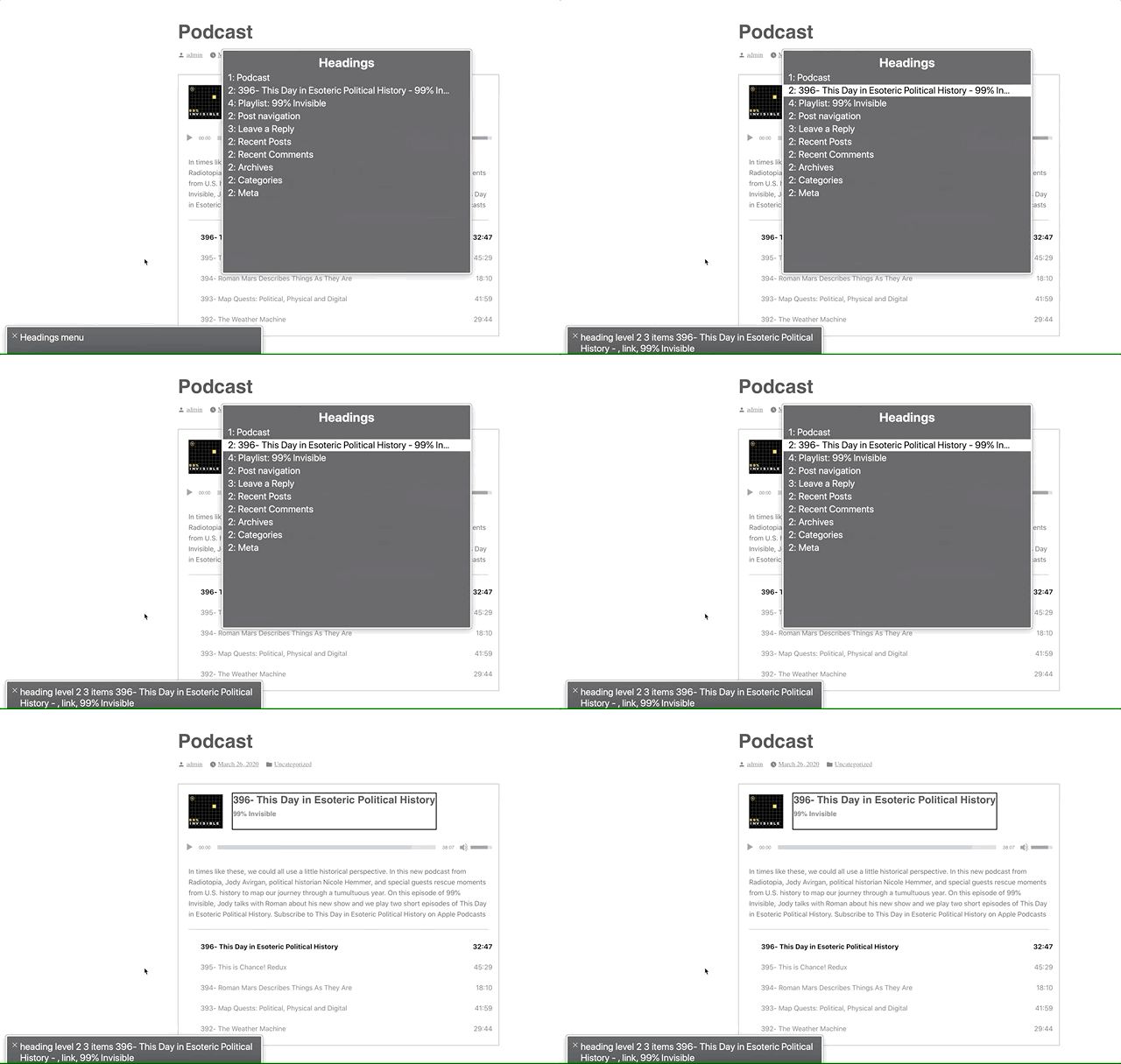
    Headings link rotor displaying the headings on the page.
    The link rotor on the Headings section provides a one-heading label to navigate to the player.

    Positioning the Description

    Although the description is visually placed underneath the player, it’s contextually related to the heading. A screen reader will follow the DOM, so this would end up being read as:

    • Player Title
    • Audio controls (play, slider, etc)
    • Track description

    Semantically, it makes more sense for this to be arranged as:

    • Player Title
    • Track description
    • Audio controls (play, slider, etc)

    So that’s how I structured the DOM. I write the HTML as the ideal semantic flow, then use CSS to match the design.

    In this case, we’re using display: flex; with an order: 99; on the description to reposition it visually after the player. This isn’t ideal, as it can be bad to rearrange the visual part of the DOM when it’s related to focus order. In this case, I think it’ll be OK since the description isn’t focusable.

    Playlist Context

    The playlist is an <ol> with a list of <a role="button">s. Don’t worry, we used <a> with role="button" to provide a progressively enhanced player and implemented a SPACEBAR press to activate the button.

    However, a list of buttons doesn’t provide a lot of context as to what those buttons are for. To address this, we’ve added a hidden <h3>Playlist: [podcast title]</h3> and paragraph description of the playlist and attached this as an aria-labelledby and aria-describedby on the <ol>.

    Playlist with current track highlighted and "[track title], current item, button, [podcast title], group" in the screen reader area.
    Providing context to the playlist via `aria-labelledby`. Note the “Playlist: 99% Invisible, group”

    Now when you enter the playlist, you’ll be told that you’re on a button in the context of “Playlist: [podcast title], group.”

    Communicating State

    I had originally marked up the track list as role="menu" with role="menuitemradio" to communicate the currently selected track. After I built and tested this, it turned out this was a bad idea.™

    Basically, VoiceOver assumes that the menu is close-able, so it announces some extra information like, “Press escape to close this menu,” which isn’t accurate in our case. While the role="menu" and role="menuitemradio" seemed like a good choice according to WAI-ARIA specs, it wasn’t a good choice in practice.

    After using the aria-labelledby and aria-describedby on the playlist <ol> to designate the list as a group, we can use aria-current to signify which item is currently selected.

    Screen readers are supposed to announce the aria-current value, so aria-current-"track" should announce “[track title], current track, button.” In VoiceOver, it announces “[track title], current item, button.” Still pretty good.

    Playlist with current track highlighted and "[track title], current item, button, [podcast title], group" in the screen reader area.
    Note the “current item” text in the gray box.

    Playing: [Track title]

    When the track is playing (not just selected), it will visually have a playing icon next to it.

    Navigating the buttons with the screen reader to see that the current track displays "Playing: [track title]"
    Using an icon to indicate that the track is playing.

    These icons did not have a title before, so even though there was an additional visual cue for the current track state, this was not accessible to a screen reader.

    To address this, we added a visually hidden label so it will announce, “Playing: [track title], current item, button.”

    It can be argued that this label is unnecessary since if it’s playing, you should be able to hear that the track is playing. But, what if you have your speakers off? What if you muted the player? By providing this additional label, we can make sure we’re doing all we can to communicate the current state of the player.

    What just happened? Providing Feedback on Actions.

    Loading

    Screen reader showing "Loading: [track title] [track description]" when a new track is selected.

    When a new track is selected, we use WordPress’s speak() function to immediately announce, “Loading: [track title] [track description].”

    Before this, it would not give any kind of immediate feedback when you pressed a track button. Thus, if it took a long time for the track to load, you’d be sitting with silence not knowing if anything had happened.

    Now, there’s immediate feedback that:

    1. The track is loading
    2. What track is loading
    3. The track description (as it’s new content on the screen and would not be read otherwise)

    Note: VoiceOver users can press ctrl to silence the message if they don’t want to hear the full description.

    Playback Error

    The visual error message has a link in it that says “Open in a new tab.” Screen readers can use the rotor to navigate links. When doing this, you are presented with an “Open in a new tab” link that doesn’t provide any context to what you’re opening in a new tab.
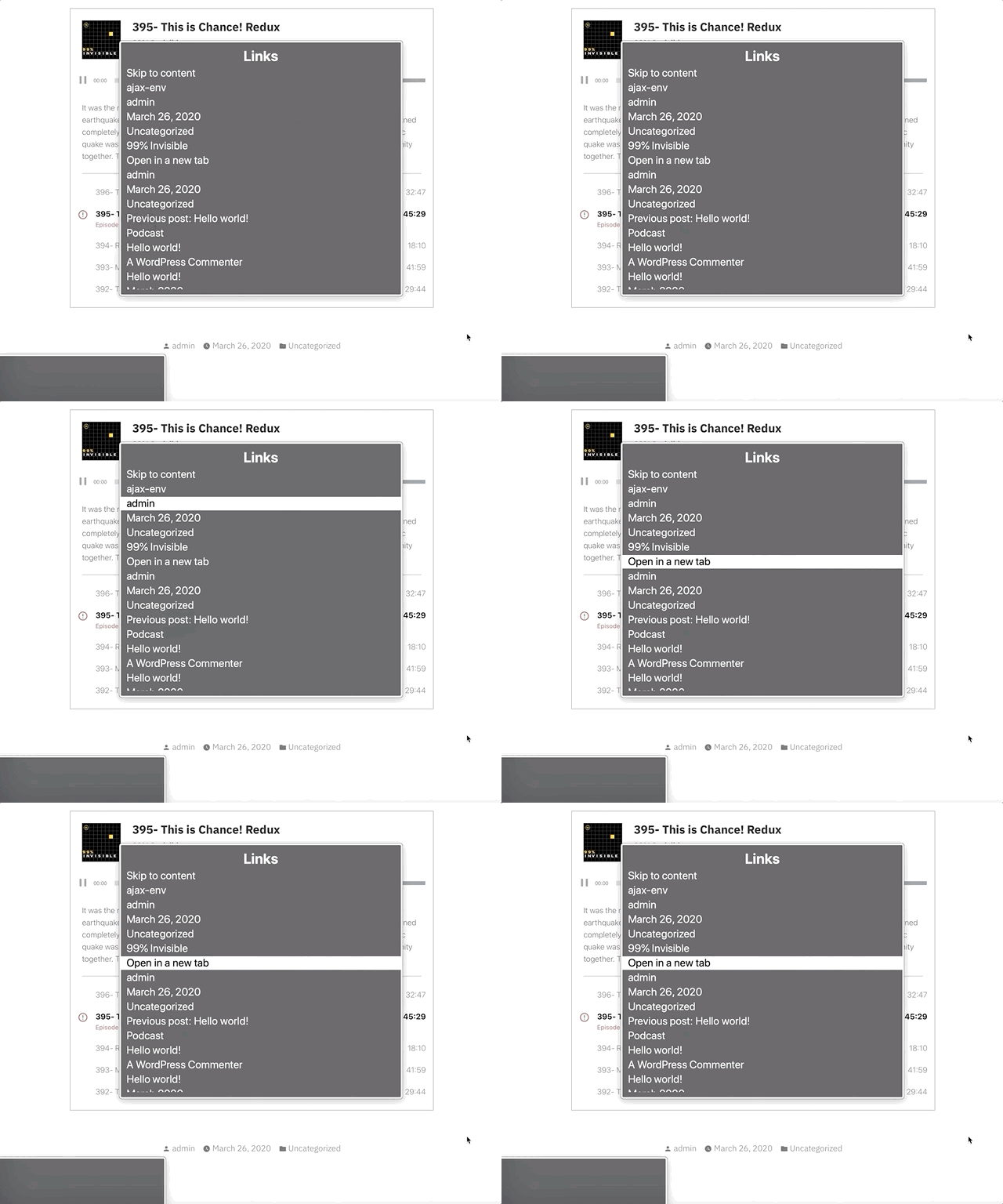
    Link rotor showing "Open in a new tab" link that has no context.

    We’ve added a visually hidden podcast title in the link so it will show as “[podcast title]: Open in a new tab.” You can see this in the gif below in the bottom left gray box when the screen reader focuses the “Open in a new tab” link.

    focusing the "open in a new tab" link prepends the visually hidden track title.
    Open what in a new tab? “[track title]: Open in a new tab” provides context. The error is immediately announced as well.

    Also, when an error occurs from not being able to load the track, we use speak() to immediately announce an assertive error message to inform the user an error has occurred. Without using speak() there would have been no feedback that an error had occurred.

    Paused

    While this one may not be 100% needed since there’s feedback from the track no longer playing, when I tested this out I felt like it was helpful to be overt about what just happened.

    Button press announces "Paused"
    When pressing a button on a track that is currently playing, it will announce that the track is paused.

    This uses speak() to announce “Paused” when the currently playing track button is pressed.

    Final thoughts

    • Before I went down too many aria rabbit holes, I should have tried building a few sample markups and then tested them with a screen reader.
    • While writing this, I kept catching myself referring to these implementations as screen reader “enhancements,” but providing a good baseline experience for the way people interact with a website shouldn’t be an “enhancement.”
    • My brilliant co-worker, Haz Diego, mentioned that role="grid" would have worked well here in order to use the roving tabindex method (where you can tab to the list of tracks, but use arrow keys to navigate them) while still providing a generic grouped state for the playlist. I agree that this could have been a great option for this.

    This implementation likely still has some issues, but I can promise that we did our best. If you have thoughts on how we could improve this, let me know in the comments or by opening an issue at the Jetpack Github repo.

  • Taxonomy Queries with WordPress v2 REST API

    In order to access posts by a taxonomy query via the v2 WP REST API, you’ll need to do a little set-up first. Let’s say we’re starting a beer blog, and we’re attaching two custom taxonomies to our posts: “styles” and “breweries”.

    Creating the Taxonomies

    When you register the taxonomy using register_taxonomy, you have to make sure you set it to be available via the API. To do this, make sure you have 'show_in_rest' => true to make it accessible in the API and provide thename you want to access it with in the URL with 'rest_base' => 'beers'. Here’s sample code for registering our taxonomies called “styles” and “breweries” that’s accessible via the API:

    
    register_taxonomy(
        'styles',
        [ 'posts' ],
        [
            'labels' => [
                'name'              => 'Styles',
                'singular_name'     => 'Style',
            ],
            'show_in_rest' => true,
            'rest_base' => 'styles'
        ]
    );
    
    register_taxonomy(
        'breweries',
        [ 'posts' ],
        [
            'labels' => [
                'name'              => 'Breweries',
                'singular_name'     => 'Brewery',
            ],
            'show_in_rest' => true,
            'rest_base' => 'breweries'
        ]
    );


    Now you can find all terms in the Breweries taxonomy with /wp-json/wp/v2/breweries and all the Styles with /wp-json/wp/v2/styles

    WP REST API Taxonomy Query

    In order to get posts attached to a specific beer style in the styles taxonomy, you can query it by style term ID in the URL by appending ?style=[term_id].

    For example, let’s say IPAs have a term_id of 25. To find all posts with the term IPA, you can do: /wp-json/wp/v2/posts/?styles=25

    For multiple terms, add more comma separated IDs, like: /wp-json/wp/v2/posts/?styles=25,26,27

    This is equivalent to the WP_Query:

    
    $args = [
        'post_type' => 'post',
        'tax_query' => [
            'relation' => 'AND',
            [
                'taxonomy'         => 'styles',
                'field'            => 'term_id',
                'terms'            => [25,26,27],
                'include_children' => false
            ]
        ]
    ];
    $query = new WP_Query($args);


    Note, this will not find all posts that include ALL of the styles (25, 26, and 27) but find posts that have at least one of the terms (25, 26, or 27).

    Multiple Taxonomy Queries

    If we want to find posts by both beer style and brewery, we simply add more parameters to the URL. If we want all posts with the term IPAs (term_id 25) from Boulevard Brewery (term_id 33), we’d do: /wp-json/wp/v2/posts/?styles=25&breweries=33

    This is the WP_Query equivalent of:

    
    $args = [
        'post_type' => 'post',
        'tax_query' => [
            'relation' => 'AND',
            [
                'taxonomy'         => 'styles',
                'field'            => 'term_id',
                'terms'            => [25],
                'include_children' => false
            ],
            [
                'taxonomy'         => 'breweries',
                'field'            => 'term_id',
                'terms'            => [33],
                'include_children' => false
            ]
        ]
    ];
    $query = new WP_Query($args);


    Complexity Tradeoff for Simple URLs

    Because the structure is so simple, ?[rest_base]=[comma_separated_term_ids], it doesn’t allow you to have all the power of WP_Query(). From looking at the WP core code, it looks like the following are NOT supported out of the box:

    • Relationship "OR" queries
    • Querying by slug instead of term_id
    • Setting include_children to true.
    • Using the operator argument to set if you want it to find posts that are in all the terms you passed (using operator=>'AND') or finding posts that are NOT IN the term(s) you passed.

    As of this writing in WordPress v4.9.4, to do any of those more complicated queries, you’d have to add custom filters to the API to make them accessible.

  • WordPress Actions Made Simple

    I was coding WordPress themes for an embarrassingly long time before I fully understood how to use WordPress actions. This is how I wish someone had explained them to me when I was beginning as a developer.

    I’m going to walk through this abstractly, not with actual WordPress hooks. The point of this article is to understand what WordPress actions are, why they’re useful, and how to use them.

    The WordPress Actions of my Dog

    My dog, Sycamore, has a good life. Napping, playing, eating: what’s not to like? Let’s build a schedule of an ordinary day in the life of Sycamore with WordPress actions.

    The set-up of the actions will be one action for each hour of the day: 1 – 24. When a page loads, it will run all of the 24 actions one immediately after another.

    You generally will not add any do_action() to your theme. This is just for demonstration. The important thing to know here is that every time a page loads, it will run 24 actions: one for each hour of the day. So, go to the page, and it will, run, in order:

    do_action('1_oclock');
    do_action('2_oclock');
    do_action('3_oclock');
    // etc, until...
    do_action('24_oclock');
    

    Each time one of those actions runs, it looks for anything else hooked into the action with the same name (like, ‘1_oclock’) and then runs that action at that time.

    The Schedule

    Now that we have our actions for each hour of the day running, we can hook into them to display a schedule of my dog Sycamore’s day.

    • 7 o’clock: Wake up, lick people’s faces, go on a walk
    • 8 o’clock: Eat
    • 9 o’clock: Go to sleep
    • 12 o’clock: Wake up, chew on something that she’s not supposed to chew on
    • 13 o’clock (1pm): Go to sleep
    • 16 o’clock (4pm): Wake up, bark at a squirrel, chase something only discernible to her
    • 17 o’clock (5pm): Eat, go on a walk
    • 18 o’clock (6pm): Go to sleep
    • 21 o’clock (9pm): Wake up, bother the cat, sniff random things all over the house
    • 22 o’clock (10pm): Go to sleep

    We already have our actions for each hour running (do_action('1_oclock'), etc), so all we have to do is hook into them. When we add an action like ‘Wake up’ into our 7_oclock action, we’re simply saying “When the 7_oclock action fires, run any of our code that is hooked into the 7_oclock action.

    In code, using WordPress actions, Sycamore’s schedule above looks like:

    // actions at 7_oclock (7am)
    add_action('7_clock', 'wake_up');
    add_action('7_oclock', 'lick_peoples_faces');
    add_action('7_oclock', 'go_on_walk');
    
    // actions at 8_oclock (8am)
    add_action('8_oclock', 'eat');
    
    // actions at 9_oclock (9am)
    add_action('9_oclock', 'sleep');
    
    // actions at 12_oclock (12pm)
    add_action('12_oclock', 'wake_up');
    add_action('12_oclock', 'chew_something_not_supposed_to');
    
    // actions at 13_oclock (1pm)
    add_action('13_oclock', 'sleep');
    
    // actions at 16_oclock (4pm)
    add_action('16_oclock', 'wake_up');
    add_action('16_oclock', 'bark_at_squirrel');
    add_action('16_oclock', 'chase_something_only_i_detect');
    
    // actions at 17_oclock (5pm)
    add_action('17_oclock', 'eat');
    add_action('17_oclock', 'go_on_walk');
    
    // actions at 18_oclock (6pm)
    add_action('18_oclock', 'sleep');
    
    // actions at 21_oclock (9pm)
    add_action('21_oclock', 'wake_up');
    add_action('21_oclock', 'bother_cat');
    add_action('21_oclock', 'sniff_randomly');
    
    // actions at 22_oclock (10pm)
    add_action('22_oclock', 'sleep');
    

    Let’s take a closer look at the 7am section:

    // actions at 7_oclock (7am)
    add_action('7_clock', 'wake_up');
    add_action('7_oclock', 'lick_peoples_faces');
    add_action('7_oclock', 'go_on_walk');
    

    At 7am, the first thing Sycamore does is wake up. The 'wake_up' part of add_action('7_oclock', 'wake_up'); is matched to a function of the same name: 'wake_up'. The following `wake_up()` function prints the words “Sycamore wakes up” onto the page:

    // output the text 'Sycamore wakes up';
    function wake_up() {
      echo 'Sycamore wakes up';
    }
    // add 'wake_up' to the '7_oclock' action
    add_action('7_clock', 'wake_up');
    
    // run all 7_oclock actions, including 'wake_up'
    // note: you likely will not be adding any do_action statements until you're writing plugins. You're far more likely to use add_action hooks
    do_action('7_oclock');
    

    Ordering Actions

    Great! Sycamore is awake! But… there are multiple things that are supposed to happen at 7 o’clock. How do we make sure that Sycamore doesn’t somehow lick people’s faces before she wakes up?

    We can give each action a priority number, with lower numbers running first. It’s like if you’re waiting in line: if you’re number 1 in line, you’ll go first. The default number for an action is 10. All of the actions above would have a priority of 10, because we didn’t specify any order.

    To make sure Sycamore wakes up before doing anything else, we give the 7 o’clock wake up action a priority of 1.

    // 1 means it will run before anything else
    add_action('7_clock', 'wake_up', 1);
    
    // not having a number means it defaults to a priority of 10
    // Sycamore needs a good round of lickin' everyone's faces after waking up
    add_action('7_oclock', 'lick_peoples_faces');
    
    // wake up: check
    // lick faces: check
    // time for a walk!
    add_action('7_oclock', 'go_on_walk', 20);
    

    Passing Arguments (values) to Actions

    If you have a dog, they might have a similar schedule. Let’s open this up to be available for any dog, not just Sycamore.

    To do this, the actions that run needs to know what dog is doing the action. We can do this by setting a PHP variable and passing it to the action function. Let’s go back to our do_action('7_oclock'); where we register the 7_oclock action that makes it available to hook into.

    // set the $dog_name to equal 'Sycamore'
    $dog_name = 'Sycamore';
    // pass $dog_name to our do_action. This makes $dog_name available to the functions that hook into this
    do_action('7_oclock', $dog_name);
    

    Now that we have a $dog_name variable, we can access it with our functions:

    // $dog_name should equal your dog's name
    function wake_up($dog_name) {
      // if $dog_name = 'Sycamore';
      // it outputs the text 'Sycamore wakes up';
      echo $dog_name.' wakes up';
    }
    // add 'wake_up' to the '7_oclock' action
    // 1 = the priority
    add_action('7_clock', 'wake_up', 1);
    

    So, if your $dog_name is “Fluffy,” then it would output “Fluffy wakes up.”

    Schedules can vary from day to day though. On Saturdays, Sycamore’s walk isn’t at 7am, it’s at 8am. A couple things we’d need to know before we can set the Saturday schedule correctly:

    • What day is it?
    • How to remove her 7am walk and add it in at 8am.

    First, let’s address how to get the $day in there. Back where we set the dog name, let’s add in the $day as well and pass it to the actions.

    $dog_name = 'Sycamore';
    // this will set $day to be the full name of the current day, like 'Saturday' or 'Sunday'
    $day = date('l');
    // pass $dog_name and $day to our do_action. This makes $dog_name and $day available to the functions that hook into this
    do_action('8_oclock', $dog_name, $day);
    

    Similarly to how action priorities default to 10 (the order that actions run), actions default to only having one variable. Now, since there are two variables ($dog_name and $day), we need to tell our actions that we’re using more than one variable. We’ll add our 8am action and make sure it has access to two variables.

    // $dog_name should equal your dog's name
    // $day will be the current day of the week
    function go_on_walk($dog_name, $day) {
      // if $day = 'Monday' and $dog_name = 'Sycamore, it will output: "Monday: Sycamore goes on a walk"
      echo $day. ': '. $dog_name.' goes on a walk';
    }
    
    // if today is Saturday
    if($day === 'Saturday') {
      // add 'go_on_walk' to the '8_oclock' action
      // 10 = the priority. We have to include it here so that we can also add the '2' for the number of arguments
      // 2 = the number of arguments ($dog_name and $day)
      add_action('8_oclock', 'go_on_walk', 10, 2);
    }
    

    Removing Actions

    The last thing we have to do is remove the 7 o’clock action because Sycamore doesn’t go on a walk at 7am and 8am on Saturdays. To do this, we use remove_action(). The one catch here is that we have to use remove_action() after the action we want to remove has already been added, otherwise there’s nothing to remove.

    // per usual, go on a walk at 7_oclock
    add_action('7_oclock', 'go_on_walk', 10, 2);
    
    // if today is Saturday, add in a walk on the 8_oclock action and remove the 7_oclock walk action.
    if($day === 'Saturday') {
      // add 'go_on_walk' to the '8_oclock' action
      add_action('8_oclock', 'go_on_walk', 10, 2);
      // remove the '7_oclock walk. We can do this since it was already added above
      remove_action('7_oclock', 'go_on_walk');
    }
    

    WordPress Action Summary

    We’ve gone over what actions in WordPress are. To summarize in a handy list for review:

    • WordPress has actions that run when the code runs the do_action('action_name') code.
    • You can add your own actions to run when the do_action('action_name') runs with add_action('action_name', 'your_function_name').
    • You can change the order of when actions run by passing a priority number like add_action('action_name', 'your_function_name', 1). 1 means it runs first. 10 is the default priority.
    • If an action has values/arguments that it passes, you can access those in the function you’re using by adding an argument number. If you need more than one argument (the default number), then you can specify the number of arguments you want. For example, to run get three arguments, you’d use add_action('action_name', 'your_function_name', 10, 3).
    • You can remove actions with remove_action('action_name', 'function_you_want_to_remove'), but the action has to have already been added in order to remove it.

    If you have any questions on what WordPress actions are or how to use them, feel free to ask in the comments. I’m planning to write a similar article on WordPress Filters, so be sure to follow me on Twitter if you want to know when I finish it!

  • Switch WordPress Database based on Git Branch

    I’m working on a large redesign project where lots of database changes are going to take place. In order to not mix-up the current master branch with the new redesign changes, I made a new database so I can keep things separate. The only trick is to remember to change out the database in wp-config.php when I switch branches.

    That’s not going to happen. I’ll definitely forget. Regularly.

    Fortunately, you can grab the branch you’re on via php with a bit of code from user program247365 on stackoverflow.

    I took that and added a bit to choose the database I want based on the branch I’m on. You’ll need to change out the $db_name and $branch variables to match your own, then you’ll be good to go!

    // get branchname
    function config_get_git_branch() {
        // This assumes you have your .git directory at the same level as wp-config.php.
        // If you don't, then change the path to wherever your .git director is
        $stringfromfile = file('.git/HEAD', FILE_USE_INCLUDE_PATH);
    
        $firstLine = $stringfromfile[0]; //get the string from the array
    
        $explodedstring = explode("/", $firstLine, 3); //seperate out by the "/" in the string
    
        $branch = $explodedstring[2]; //get the one that is always the branch name
    
        return trim($branch);
    }
    
    // choose which db you want to use
    function config_get_db_name() {
        $branch = config_get_git_branch();
    
        // change these $db_name and and $branch strings to match
        // whatever ones you want.
        if($branch === 'child') {
            $db_name = 'child_db';
        } else {
            $db_name = 'site_db';
        }
        return $db_name;
    }
    
    // ** MySQL settings - You can get this info from your web host ** //
    /** The name of the database for WordPress */
    define('DB_NAME', config_get_db_name());
    

    Now you’ll never forgot to switch the DB out when you checkout to a new branch. Happy coding!

  • WordPress Custom Themes vs Pre-made Themes: Which is Right for You?

    WordPress has great appeal because it’s a free, powerful content management system with thousands of pre-made themes to choose from. There’s so much you can do yourself using free or cheap pre-made themes, so when is it time to hire a developer/designer to do custom work for you? When is it better to save money and build it yourself?

    This article will evaluate the good, bad, and the ugly of custom made themes and pre-made themes so that you can decide which is best for you and your business. There’s a time and place for both, and I’ll do my best to give a level-headed, professional opinion on which is best in different scenarios.

    TL;DR: Custom vs Pre-Made Themes Flowchart

    I think you should read the whole article, but if you want the quick version, use this flowchart to help you make your decision. The rest of the article explains the reasoning behind this chart.

    [rsp_img id=”1684″ class=”theme-flow-chart”]

    Wordpress Custom Theme vs Premade Theme flow chart

    Custom WordPress Themes

    A good custom theme will always be better than the best pre-made theme. It’ll be more lightweight, load faster, and be more reliable. When building a site from scratch, you can tailor all design and code to accomplish your site’s goals.

    For example, a site’s goals could be:

    • People will know within 20 seconds what kind of business we are and who our clients are.
    • We want to build an email list of 1000 people who will become long-term customers within 6 months of launch.

    You don’t need to know your site goals ahead of time. A good designer/developer will help you figure out appropriate goals, and walk you through the process of how you can set, measure, and refine those goals.

    Who Should Use a Custom WordPress Theme?

    A custom site isn’t just about code and design, it’s about accomplishing goals. So, if you answer “yes” to any of these questions, you should seriously consider hiring someone to create a custom theme for you:

    • Is your website going to be your main source of revenue? If your website is heavily tied to your revenue, such as an ecommerce site, you should invest in your business and hire someone who can help you evaluate and implement the best set-up for you. Little details can make a huge impact on your site. Read The $300 Million Button to see what I mean.
    • Is your site going to have complex functionality or structure? For example, are you running a business with multiple locations that each have separate hours, directions, contact info, and employees? Are you starting a restaurant and want to have online ordering, online booking, and a menu that you can easily update daily specials, menu items, sections, and prices?
    • Will your website serve the role of a sales person or secretary? Automating tasks while connecting with customers is great, but it’s easy for these to be ineffective or difficult to manage. Hire someone who can design solutions that will work for you.
    • Will a great website give you a competitive advantage? Make it worth your customers’ time and yours by investing in a custom site. Websites aren’t checkboxes on the business list. If they’re not serving a purpose, it’s not worth the money.
    • Will your site have thousands of visitors per day? You’ll need to highly prioritize performance, or you’ll end up with a slowly loading site and lots of server crashes.

    Pros of Custom WordPress Themes

    • Tailored exactly to your needs.
    • Lightweight code.
    • More stable. Less moving parts means less variables that can break your site.
    • Site goals lead the design Rather than trying to retrofit a design to meet your goals.
    • Unique design. No site will look exactly like yours.
    • Future-proof. If coded well, you should be able to easily move to a new design in the future.
    • Experienced web designer. You get the expertise of the person designing and building your site to guide you through the process and help you avoid common, costly mistakes.
    • Saves time. You don’t have to build and design your site yourself.
    • Easier to manage complex tasks. For example, with the restaurant example above, a good developer can build a custom plugin that will allow you to easily enter your menu items, price them, rearrange them, etc.
    • Accessible for people with visual disabilities. Accessible sites are made by designer/developers who prioritize it. MANY websites are not friendly for screen reader programs. It’s not overly difficult to do, but oftentimes it’s not prioritized.

    Cons of Custom WordPress Themes

    • Expensive. For even the most basic site, plan to budget at least $2000 for an experienced designer and developer. This is not a hard and fast rule. Pricing is all over the place, so you may be able to find someone for cheaper. At the same time, don’t be surprised if an experienced designer/developer’s starting rate is $5000 or more.
    • Highly dependent on hiring the right person/firm. It’s hard to find someone with experience when there’s so much to understand when creating a website. How do you evaluate someone’s code when you don’t code? Make sure they’re honest and can point to specific goals they’ve accomplished for their clients. Test their sites on your phone, tablet, and desktop computer. See if they really work how they say they do.

    Pre-Made WordPress Themes

    Pre-made WordPress themes give a low barrier of entry to a website. It’s cheap, easy (sometimes), and allows you the satisfaction of building a website yourself. Before we go into the pros and cons of pre-made WordPress themes, it’s good to take a look at the main goals of companies and designer/developers who make WordPress themes:

    • Built for customization. When building a pre-made theme, the more adaptable it is, the more people you can sell it to. This means bloat. It’s like buying a toolbox when you only need the screwdriver.
    • Give tons of options. You’re not going to see any themes that promote themselves as “Totally Inflexible! Only One Font Choice and Color Palette! Limited Options!” But, in the end, you don’t need 400 fonts on your website, you only need one or two.

    This does not mean that pre-made themes are inherently bad. Pre-made themes serve a wonderful role by offering decent sites that can be set-up by people who don’t code. That’s a great thing. You just need to keep in mind what goals pre-made themes are trying to accomplish, and weigh the pros and cons to see if it fits your needs well.

    Who Should Use a Pre-Made WordPress Theme?

    A well-made custom WordPress theme is always going to be more lightweight and faster than a pre-made WordPress theme, and a Corvette is always going to be faster than a Prius. That doesn’t mean there isn’t a place for both. If you answer “yes” to these questions, a pre-made theme may be a better choice for you:

    • Do you have a budget of less than $2000? This is a rule of thumb. You can find people for cheaper because experience is varied.
    • Is your website just an informational “business card” site? If you won’t be making money off of your site or attracting a substantial amount of new customers from it, save your money.
    • Are your competitors’ sites poorly made? For example, if you’re a plumber, and all plumbers’ sites in your area are awful, then you probably don’t need much in order to be the cream of the crop in your market. Spend your marketing budget on a good Search Engine Optimization (SEO) person instead.
    • Is your site personal? If it’s just your personal blog, save your money and buy a pre-made theme that you like the design of and that works well.

    Pros of Pre-Made WordPress Themes

    • Cheap. Pre-made themes range from $0 to $150. High price does not necessarily mean quality though.
    • Lots of Options. You can easily select your own color palette and font choices.
    • You don’t need to know how to code. You might have to copy/paste complex shortcodes that are difficult to understand, but you don’t need to know any programming languages.
    • You can see the outcome. When you hire a custom designer/developer, you’re paying them before you actually see what they make for you. A good designer/developer will always make sure you’re happy with the outcome and explain why design decisions were made and what their impact is. With pre-made themes, what you see is what you get.
    • Satisfaction. It’s empowering to completely control your website and get it set-up on your own. If you’re someone who isn’t scared of learning new things and loves problem solving, you may have a great time learning the ins and outs of your WordPress site.

    Cons of Pre-Made WordPress Themes

    • Beware of switching themes in the future. Most of the time, pre-made themes heavily rely on shortcodes and custom fields. If you ever change themes, be prepared to start from scratch.
    • Difficult to set-up. Sure, you can display a page with a custom format, responsive grids, and a slider; but be prepared for a steep learning curve even if no code is involved.
    • Bloated. Offering tons of options goes hand-in-hand with bloat and sluggish sites.
    • Difficult to fix. As someone who makes websites for a living, anytime I’m hired to fix or add something to a pre-made theme, it takes me twice as long because pre-made themes are offering so many features and options. Every change you make, you have to check that you didn’t unintentionally break something else, and in pre-made themes, there’s a lot more to check.

    How to Evaluate Pre-Made WordPress Themes

    If a pre-made WordPress theme is right for you, how do you decide which one is best?

    • Test it. If it says it’s responsive, resize your browser and see how it handles it. Do things restack and reorganize well? Does the menu work well on an iPhone? If the theme demo site doesn’t work well, don’t expect your site to work well.
    • Run a speed test. Does it say it’s lightweight? Go to Pingdom’s Website Speed Test and enter the theme’s demo site URL. If the demo site has more than 40 http requests, it’s not lightweight. I tested a few pre-made themes, some of which said they were lightweight, and generally got anywhere from 80 – 130 requests. My website is run on WordPress, and the custom base theme I made only has 11 requests. Pre-made themes on the Genesis framework were by far the best, but I didn’t test that many.
    • Does it use scroll hijacking? Scroll hijacking is when you scroll the website, and the website changes your scroll speed, or doesn’t allow you to scroll how you normally do. I’m extremely biased against scroll hijacking for many reasons. When I see a theme that implements it by default without a specific, good reason, I skip it. There are so many themes out there, that a litmus test like this for quickly evaluating themes is helpful.

    What if Custom Themes and Pre-Made Themes Sound Right for You?

    If you answered “yes” to a lot of the questions on both the custom theme and pre-made theme sections, then hiring a consultant to install a pre-made theme might be right for you.

    For example, say you’re a small business who needs a website, and you have $800 budget to get everything built. You don’t have time to build it yourself, and you don’t have the budget or need for a custom website. A great option is hiring someone to implement a pre-made theme for you. The consultant you hire can help you decide on your site’s goals and pick a theme that will be best for your needs.

    There’s No 100% Right Answer

    Each business and site has different needs and goals. You might decide a custom theme is right for you, but you run across a pre-made theme that perfectly fits everything you need. Or, you may think a pre-made theme is right for you, and end up running into lots of problems. Lots can happen.

    Get the information you need to make the right decision, and do what’s best for you. Don’t feel bad or let people judge you for not making the “perfect” site.

    I’ve tried to be unbiased in this review, and I’m open to feedback. Think I’m wrong? Have more questions? Leave a comment and let me know.

    If you need to develop a custom theme, let’s get in touch.

  • Kirksville Family Acupuncture

    A local acupuncturist, Holly Arbuckle, just starte a business focusing on Kirksville acupuncture.  Focus for the project was to make Acupuncture seem normal in the midst of rural MO.  After some thought mapping, we went with a leaf for the logo based on the idea of the visible paths of the leaf veins.  Acupuncture is all about channels, or paths, and the leaf represented this without needing a yin and a yang on it 😉

    Next, the design of the website was to be airy, clean, and inviting.  Go check it out and book online with her if you’re in the area.

  • Linking Entire List Element

    I needed a solution for making an entire list element click-able, not just the anchor text.  At the site I made for the Kirksville Brewfest, the entire background color of the list element on the enter page/style changed color, making the user think they could click on it, but only the text was click-able.  The solution I used was to take the anchor text and make its background fill the entire space.  Kirksville brewfest list code:

    ul.styles li a:link,
    ul.styles li a:visited {
    color: #....;
    display: block;
    width: 100%;
    height: 100%;
    }


    Basically, the anchor text fills up the entire li element when there’s an anchor in the ul class “styles”.

    Rad.

  • How to Detect If There’s a Featured Image on a WordPress Page or Post

    I’m redesigning the website for a Mindfulness Practice Center in New Hampshire, Morning Sun Community, and ran into an issue where I didn’t want the Title on the WordPress page to show if there was a featured image. The layout looks cleaner without the title there (although they opted to have the title appear anyways). The php code I used checks for a header image, then if there is one, do nothing. If there isn’t one, throw the title of the post in there.

    <?php
    	//Check if there is a header image
    	if ( has_post_thumbnail( $post->ID ) ) { ?>
    	<?php } else { ?>
    		<h1 class="entry-title"><?php the_title(); ?></h1>
    	<?php } ?>

    The code snippet is pretty useful anytime you want to check for a featured image and do something if there is/isn’t one.

    Have fun!