I started reading Disability Visibility this week to expand my understanding of the experiences of the one in five people with disabilities in the US.
I had intended to do a blog post on things I learned, what struck me, etc. However, instead of reading what I think, please read Unspeakable Conversations (which is the first chapter of Disability Visibility) from Harriet McBryde Johnson.
The first paragraph will draw you in better than anything I could write:
He insists he doesn’t want to kill me. He simply thinks it would have been better, all things considered, to have given my parents the option of killing the baby I once was, and to let other parents kill similar babies as they come along and thereby avoid the suffering that comes with lives like mine and satisfy the reasonable preferences of parents for a different kind of child. It has nothing to do with me. I should not feel threatened.
For most of my career I thought there was always something missing with how I debugged, like I needed to set-up an advanced error reporting system that would log and track down every error seamlessly. Then, I would really know how to debug like a 1337 haxor.
1337 haxor cam
Now that I have a big kid job, how has my debugging system evolved to be more professional?
It hasn’t.
The same things I did when I started, I still do. I still console.log things. I still var_dump or print_r() arrays to see what’s going on. Even in extremely complex codebases and systems, the same ideas work.
Debugging is Problem Solving
What I understand now is that console.log or var_dump isn’t debugging. Those are tools to help you debug. The real debugging happens with you.
You got this.
I don’t consciously go through this checklist, but this is the general idea of how I debug.
Recreate the bug.
Can you reliably reproduce the bug? If you don’t know what environments and situations it happens in, it’s extremely hard to debug. Is it a certain browser? A certain device? Does it happen consistently after a certain action?
Check your assumptions.
Is that variable really what I think it is? Does that function really return what I think it does? This is where I will console.log stuff, or code directly in the console to test basic functions and methods to make sure I really understand what does happen vs what is supposed to happen.
Isolate.
Reduce the scope of your issue to the tiniest bit of code you can. If you’re working on a complex CSS issue, how can you boil it down to the most basic test case possible?
If you’re not able to isolate the issue and reliably reproduce it, then you don’t really understand what the fix is. CodePen is great for helping with this, as you can isolate in a clean environment and then share results with your team.
Be persistent.
There’s nothing incredible or advanced about debugging. It’s just about being persistent to understand the root cause of the issue. Some bugs take a long time, but the more you poke and prod at it, the more you’ll understand it.
You’re Debugging. Not the Tools.
Remember, you’re the one doing the debugging. To put it all together, we’ve got:
Recreate the bug.
Check your assumptions.
Isolate.
Be persistent
We can easily remember this with RCIB, or BIRC, or hrmm.. CRIB? I bet you’ll be OK without an acronym, there are already enough things to remember.
The tools assist you, and can help guide you to the issue. In the end, you’re the one solving the problem, so use whatever tools you want to help you. 🙌
Automattic is a large worldwide team, made up of smaller, worldwide teams where everyone works remotely. That was one of the things that made me excited to work there, but also very curious as to how it worked in practice.
Would the timezone differences slow us down? Would we unintentionally get in each other’s way? What if we needed an answer from someone who had already logged off hours ago?
Working as a Team
The team of eight I’m on is made up of people from 6 countries:
Argentina
Czech Republic
Germany
England
United States
Greece
And it’s amazing. We work so well together. This boils down to:
Caring about doing a good job.
Wanting to help the team.
Being responsible and motivated to work independently.
Communicating * 3
I’m a big fan of everyone on the team. We all do the above points well, in my opinion. I’m not sure how well it would work otherwise.
The End of Day Handoff
One thing that really helps us work efficiently is our End of Day notes. Everyday before logging off for the day, you post:
The status of what you’ve been working on.
Any PRs you need reviewed.
Is there anything you want to handoff? Lots of notes here, if so.
Is there anything blocking or that you need help with? Similar to the above, but not exactly. This could be something outside of a code-related thing.
This helps us know the status of everything in a consistent way, while also being able to pick-up work or help each other out. We call this asynchronous communication. A lot of things don’t need to be real-time conversations if you communicate clearly enough.
The handoff works especially well when there are two people spread out over far enough timezones that they have 2 – 4 hours of overlapping time. One person starts work in a more focused way, then there’s enough overlap time for working together and getting on the same page, then handing off to the next person to work on it.
It also builds a lot of team camaraderie as well as being deeply satisfying when you say you need help with something, go to bed, then wake up and find it’s taken care of.
Working in Sync
Earlier on when I’d joined Automattic, I was helping out on a complicated issue where two of us were working actively on the same PR. I was trying to act in a supporting role to get it over the finish line without getting in the way. I tried to walk the line between helping out without taking over.
I reached out to my co-worker Damián to make sure I wasn’t stepping on his toes by working on the issue.
“Please, step on my toes.” he said. “I’ll let you know if something isn’t going well, and I ask you to do the same for me.”
So many places look at being in one office at one location as an advantage, but I’d argue that this kind of open, honest communication and End of Day handoffs allows our team to work more efficiently than if we were all in one area.
Either way, it’s an amazing team. We’re hiring, so be sure to apply if you think you’d enjoy working remotely on a worldwide team.
This is mostly personal notes that I hope can be helpful to someone else. A lot of this info I gathered and consolidated from Deque’s super helpful post, Using Windows Screen Readers on a Mac.
Get Parallels
Download Parallels and follow the set-up. I don’t want to put instructions here, as they’ll likely change and be outdated before too long.
Why Parallels? I found Parallels to be a lot easier to use and friendlier to set-up access to macOS’s network for local development (like connecting to localhost, custom local domains, etc). Being able to access Windows programs as standalone Apps on your Mac is really nice.
NVDA Set-up
A lot of the NVDA set-up should be basically the same between Virtual Box and Parallels, but I haven’t confirmed that.
I tried a few options like Sharp Keys for getting a modifier key to pass through to Parallels, but couldn’t get the set-up right.
What did work for me was creating a new keybinding for the init key using right option key using Karabiner Elements. To see how to best do that, use this guide from Deque and read the Option 3: Software – Karabiner Elements section.
Other Helpful Settings
A couple of these are also from the Deque guide, here for my own reference 🙂 All of them are optional!
Focus Highlight addon: Adds a focus-indicator for where NVDA is on the screen, similar to VoiceOver.
Speech Viewer: Similar to VoiceOver’s gray box transcript of what is being announced. (NVDA + n to bring up the NVDA menu) NVDA Menu > Tools > Speech Viewer
Turn off mouse tracking: NVDA announces whatever your cursor is on. If you’re using a mouse a lot still, then it ends up being a lot of announcements, and will continue after you switch back to your MacOS desktop. Turn it off with (NVDA + n) NVDA Menu > Preferences > Settings > Mouse > Enable Mouse Tracking (uncheck).
Now you’re ready to learn some ways to use the modifier NVDA key. I’d also recommend downloading Firefox, as it pairs well with NVDA, similar to how VoiceOver works best with Safari.
“If it looks like a duck, swims like a duck, and quacks like a duck, then it’s probably a duck.”
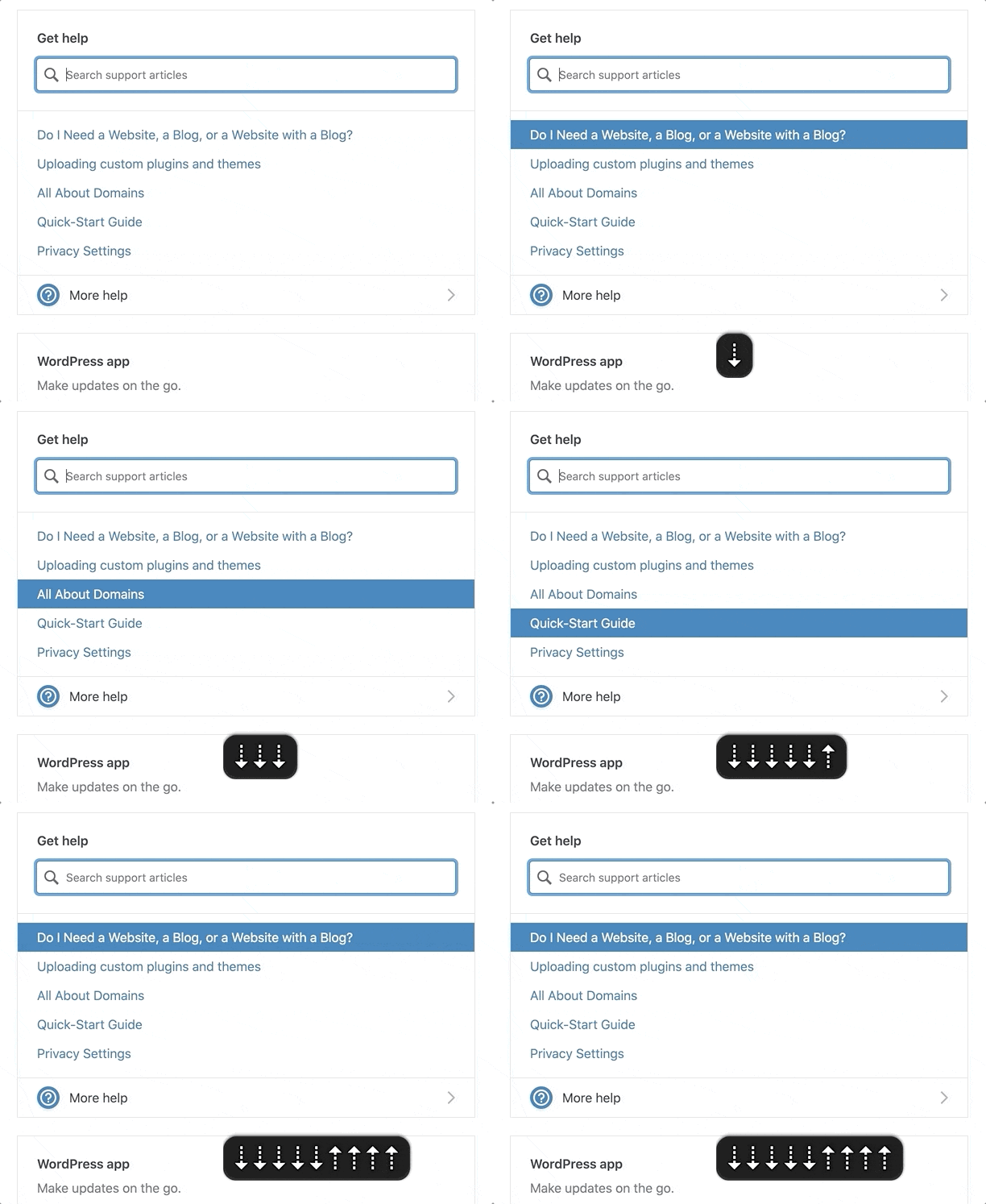
I recently worked on putting a plan together for improving the accessibility of a search component on WordPress.com. The existing interaction worked like a combobox where the focus was kept on the search input and you could navigate through the results with the down/up arrows.
The WordPress.com search suggestions component.
If It Looks Like a Duck, Swims Like a Duck, […], It’s Probably a Duck.
I looked at this input focus with arrow keyboard navigation and thought this should be marked up as a combobox.
A combobox is a semantically linked input with a list of options within a listbox
The interaction for a combobox is very similar to the interaction of the WordPress.com search suggestion component.
Focus remains on the input at all times
UP and DOWN arrows navigate between items
ENTER selects the item
As I considered it more, there were a couple differences in the behaviors:
A combobox should fill out the input with that text. So, selecting “Durian” from the options should fill out the input with “Durian.” In contrast, the WordPress.com search item selection would open a modal or go to a new page.
A listbox cannot contain interactive items. The WordPress.com search items were interactive <a> or <button> elements to open a modal or bring you to a new page.
In essence, it looked like a duck and it swam like duck, so I initially jumped to calling it duck. But, it didn’t quack like a duck. I incorrectly relied on a visual model to impact how I labelled it, instead of looking at its core purpose.
HTML Markup Should Not Rely On The Visual Representation Alone
I know this. I’ve written about it. But I initially didn’t take the extra time to take a step back and really consider what the core purpose of this component was and how it should be communicated via HTML. This was me, with as many good intentions as possible, being influenced by my own ableist, sighted-centric lens.
If I had implemented a combobox to improve the accessibility, I would have felt good since I had done so much work, while simultaneously not making a difference (or potentially making it worse) for assistive technology users.
Note I would have caught that it was a bad implementation for ATs, as I do test regularly with VoiceOver and/or NVDA while working. But I may not have caught it until after getting it to a working state and then needed to backtrack.
This Duck is a Search with Dynamic Results
The WordPress.com search suggestions component isn’t a combobox. It’s a miniature search with a <ul> list of dynamic results. The current plan on how to fix this is to:
Add a role="search" with an aria-label to the search form. This will reveal it as a landmark to ATs (Assistive Technologies).
Use speak() to announce when there are newly loaded results, loading, and error states.
Markup the search results as a <ul> with a heading when appropriate.
At times, there will be multiple <ul>s to group results. These results will be wrapped in a <div aria-label="Search Results"> in order to communicate the entire section as a group of results connected to the search input.
Remove the input DOM focus arrow key navigation. Search results will be TAB‘d to like normal links.
In the end, by considering what the component is and not how it looks, we are able to:
Significantly simplify the code
Reduce the weight of the JS
Communicate the search component appropriately to ATs
Save time over implementing a far more complicated (and not as successful) combobox
Remember to Keep Yourself in Check
If you are an able-bodied individual, it’s important to do the work to keep your perspective in check. Don’t say, “It looks like a duck, it’s probably a duck.” Take the time to consider a component’s purpose and how it will be communicated before moving forwards.
You’ll make mistakes (I certainly do). It’s OK. Keep listening, learning, and fighting the good fight. ♥️
Major props to Diego Haz for his help working through the best markup and interactions on the search component.
On my team at Automattic, we built the new Podcast Player block released in Jetpack 8.5 and on WordPress.com. This post is intended to give you a behind-the-scenes style look at all the little details that went into attempting to provide a good, accessible experience for everyone.
I’ll be focusing a lot on Screen Reader-specific considerations, using plenty of VoiceOver gifs and images.
I’ll break down each decision made related to accessibility:
Titles
Description
Playlist Markup
Communicating State
Feedback on Actions
One Title or Two?
At the top of the player we have two titles:
Track Title: 396 – This Day in Esoteric Political History
Podcast Title: 99% Invisible
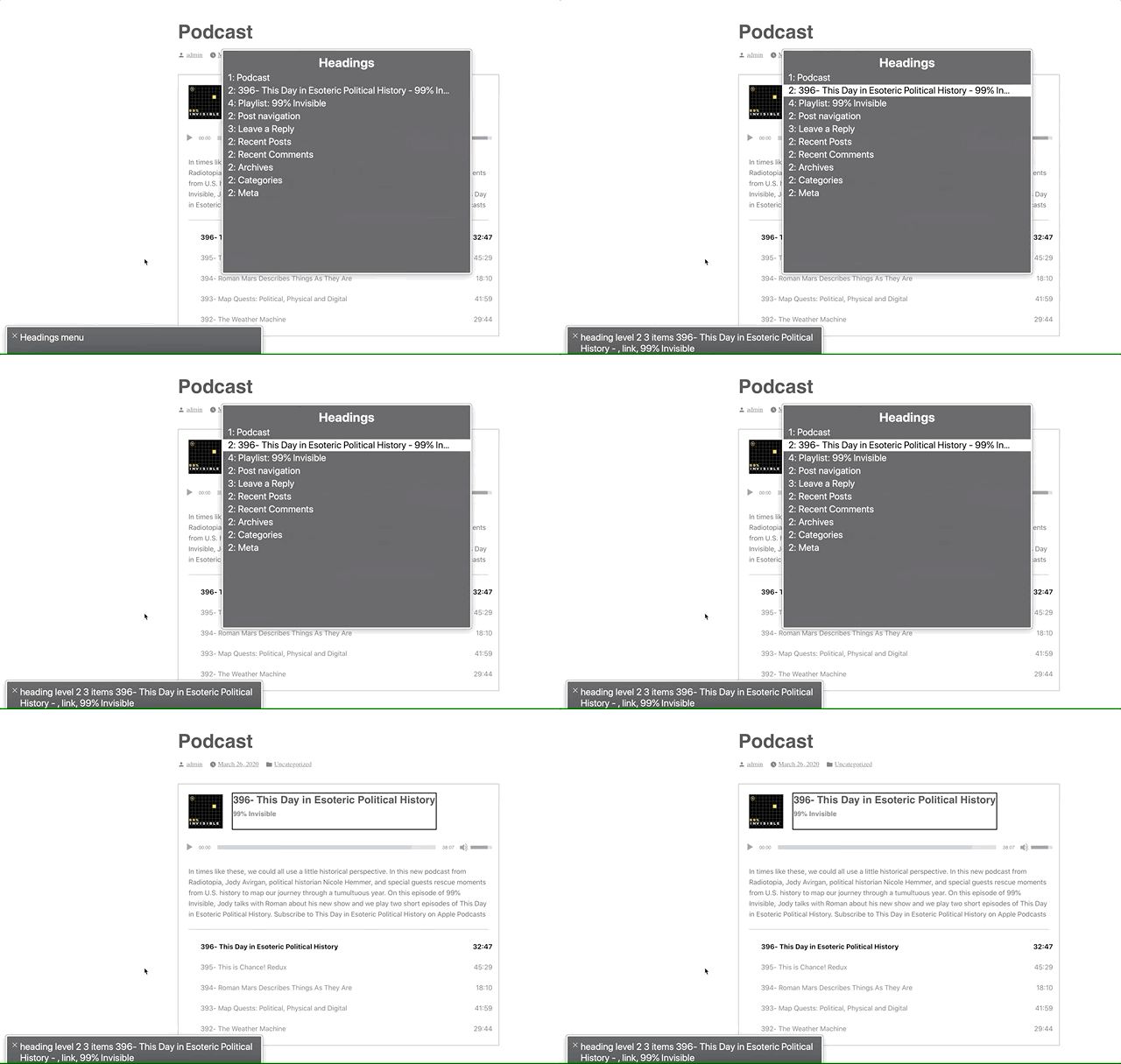
Screen readers can navigate by headings. We could mark these up as two separate titles, but one heading would be immediately followed by another. Grouping them provides a heading that accurately describes the podcast player’s state: “[track title] – [podcast title]”
The link rotor on the Headings section provides a one-heading label to navigate to the player.
Positioning the Description
Although the description is visually placed underneath the player, it’s contextually related to the heading. A screen reader will follow the DOM, so this would end up being read as:
Player Title
Audio controls (play, slider, etc)
Track description
Semantically, it makes more sense for this to be arranged as:
Player Title
Track description
Audio controls (play, slider, etc)
So that’s how I structured the DOM. I write the HTML as the ideal semantic flow, then use CSS to match the design.
In this case, we’re using display: flex; with an order: 99; on the description to reposition it visually after the player. This isn’t ideal, as it can be bad to rearrange the visual part of the DOM when it’s related to focus order. In this case, I think it’ll be OK since the description isn’t focusable.
Playlist Context
The playlist is an <ol> with a list of <a role="button">s. Don’t worry, we used <a> with role="button" to provide a progressively enhanced player and implemented a SPACEBAR press to activate the button.
However, a list of buttons doesn’t provide a lot of context as to what those buttons are for. To address this, we’ve added a hidden <h3>Playlist: [podcast title]</h3> and paragraph description of the playlist and attached this as an aria-labelledby and aria-describedby on the <ol>.
Providing context to the playlist via `aria-labelledby`. Note the “Playlist: 99% Invisible, group”
Now when you enter the playlist, you’ll be told that you’re on a button in the context of “Playlist: [podcast title], group.”
Communicating State
I had originally marked up the track list as role="menu" with role="menuitemradio" to communicate the currently selected track. After I built and tested this, it turned out this was a bad idea.™
Basically, VoiceOver assumes that the menu is close-able, so it announces some extra information like, “Press escape to close this menu,” which isn’t accurate in our case. While the role="menu" and role="menuitemradio" seemed like a good choice according to WAI-ARIA specs, it wasn’t a good choice in practice.
After using the aria-labelledby and aria-describedby on the playlist <ol> to designate the list as a group, we can use aria-current to signify which item is currently selected.
Screen readers are supposed to announce the aria-current value, so aria-current-"track" should announce “[track title], current track, button.” In VoiceOver, it announces “[track title], current item, button.” Still pretty good.
Note the “current item” text in the gray box.
Playing: [Track title]
When the track is playing (not just selected), it will visually have a playing icon next to it.
Using an icon to indicate that the track is playing.
These icons did not have a title before, so even though there was an additional visual cue for the current track state, this was not accessible to a screen reader.
To address this, we added a visually hidden label so it will announce, “Playing: [track title], current item, button.”
It can be argued that this label is unnecessary since if it’s playing, you should be able to hear that the track is playing. But, what if you have your speakers off? What if you muted the player? By providing this additional label, we can make sure we’re doing all we can to communicate the current state of the player.
What just happened? Providing Feedback on Actions.
Loading
When a new track is selected, we use WordPress’s speak() function to immediately announce, “Loading: [track title] [track description].”
Before this, it would not give any kind of immediate feedback when you pressed a track button. Thus, if it took a long time for the track to load, you’d be sitting with silence not knowing if anything had happened.
Now, there’s immediate feedback that:
The track is loading
What track is loading
The track description (as it’s new content on the screen and would not be read otherwise)
Note: VoiceOver users can press ctrl to silence the message if they don’t want to hear the full description.
Playback Error
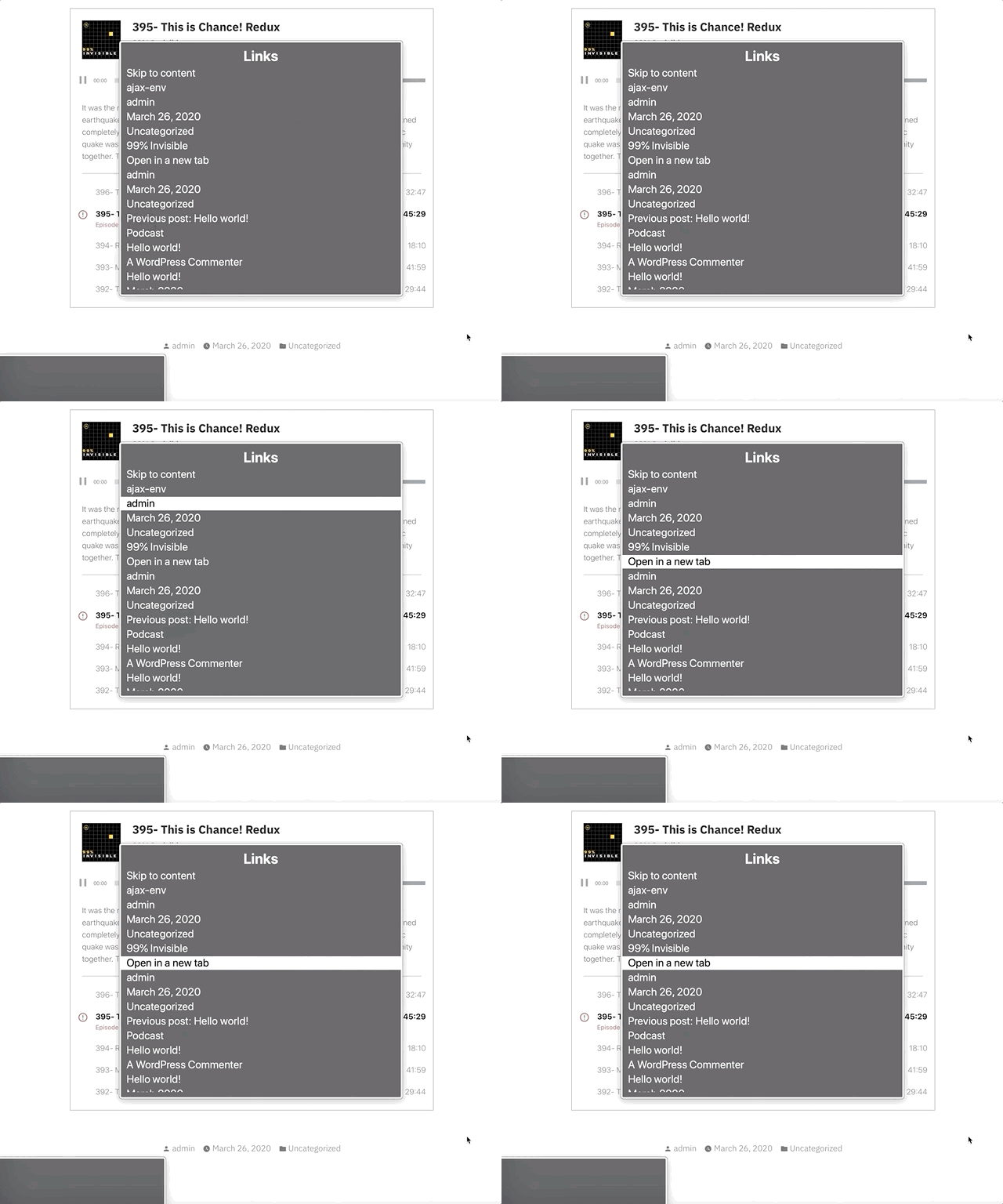
The visual error message has a link in it that says “Open in a new tab.” Screen readers can use the rotor to navigate links. When doing this, you are presented with an “Open in a new tab” link that doesn’t provide any context to what you’re opening in a new tab.
We’ve added a visually hidden podcast title in the link so it will show as “[podcast title]: Open in a new tab.” You can see this in the gif below in the bottom left gray box when the screen reader focuses the “Open in a new tab” link.
Open what in a new tab? “[track title]: Open in a new tab” provides context. The error is immediately announced as well.
Also, when an error occurs from not being able to load the track, we use speak() to immediately announce an assertive error message to inform the user an error has occurred. Without using speak() there would have been no feedback that an error had occurred.
Paused
While this one may not be 100% needed since there’s feedback from the track no longer playing, when I tested this out I felt like it was helpful to be overt about what just happened.
When pressing a button on a track that is currently playing, it will announce that the track is paused.
This uses speak() to announce “Paused” when the currently playing track button is pressed.
Final thoughts
Before I went down too many aria rabbit holes, I should have tried building a few sample markups and then tested them with a screen reader.
While writing this, I kept catching myself referring to these implementations as screen reader “enhancements,” but providing a good baseline experience for the way people interact with a website shouldn’t be an “enhancement.”
My brilliant co-worker, Haz Diego, mentioned that role="grid" would have worked well here in order to use the roving tabindex method (where you can tab to the list of tracks, but use arrow keys to navigate them) while still providing a generic grouped state for the playlist. I agree that this could have been a great option for this.
This implementation likely still has some issues, but I can promise that we did our best. If you have thoughts on how we could improve this, let me know in the comments or by opening an issue at the Jetpack Github repo.
Being great at something takes a lot of dedication and practice. But, you can often be OK at something without too much difficulty.
This article is to help you with the latter part. Knowing just enough to be able to make an educated guess on the accessibility of a site or component/plugin.
Can you use the site with a keyboard?
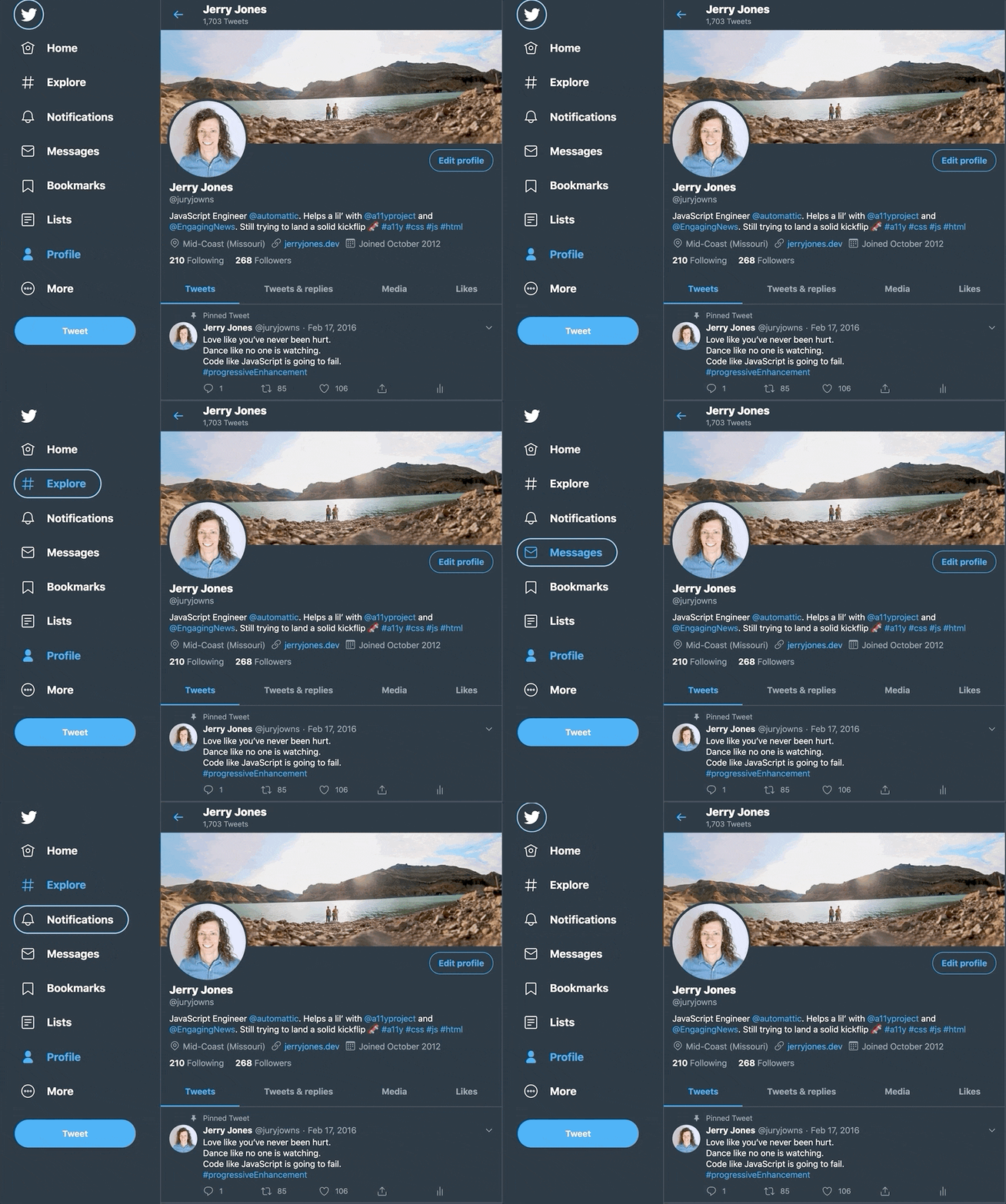
When using a keyboard, you need to know where you’re at on the page. A focus indicator is a visible outline to show you what element you’re interacting with.
Focus indicator on Twitter’s Navigation
To test the keyboard interactions:
Load a page
Press the tab key.
Can you see a focus indicator to let you know where you are on the page?
If yes, then keep on pressing tab!
If no, then it fails. 😥You can be pretty confident that the developers did not consider accessibility when building the site.
Note: Sometimes you use the arrow keys to interact with things as well, like on radio buttons or settings menus.
If you can see the focus when tabbing and then you can’t access something, try the arrow keys to see if the focus moves where you want to go.
Being able to use a keyboard for everything on the site is the biggest, quick indicator that the site has been built with accessibility in mind.
Skip to Content Links
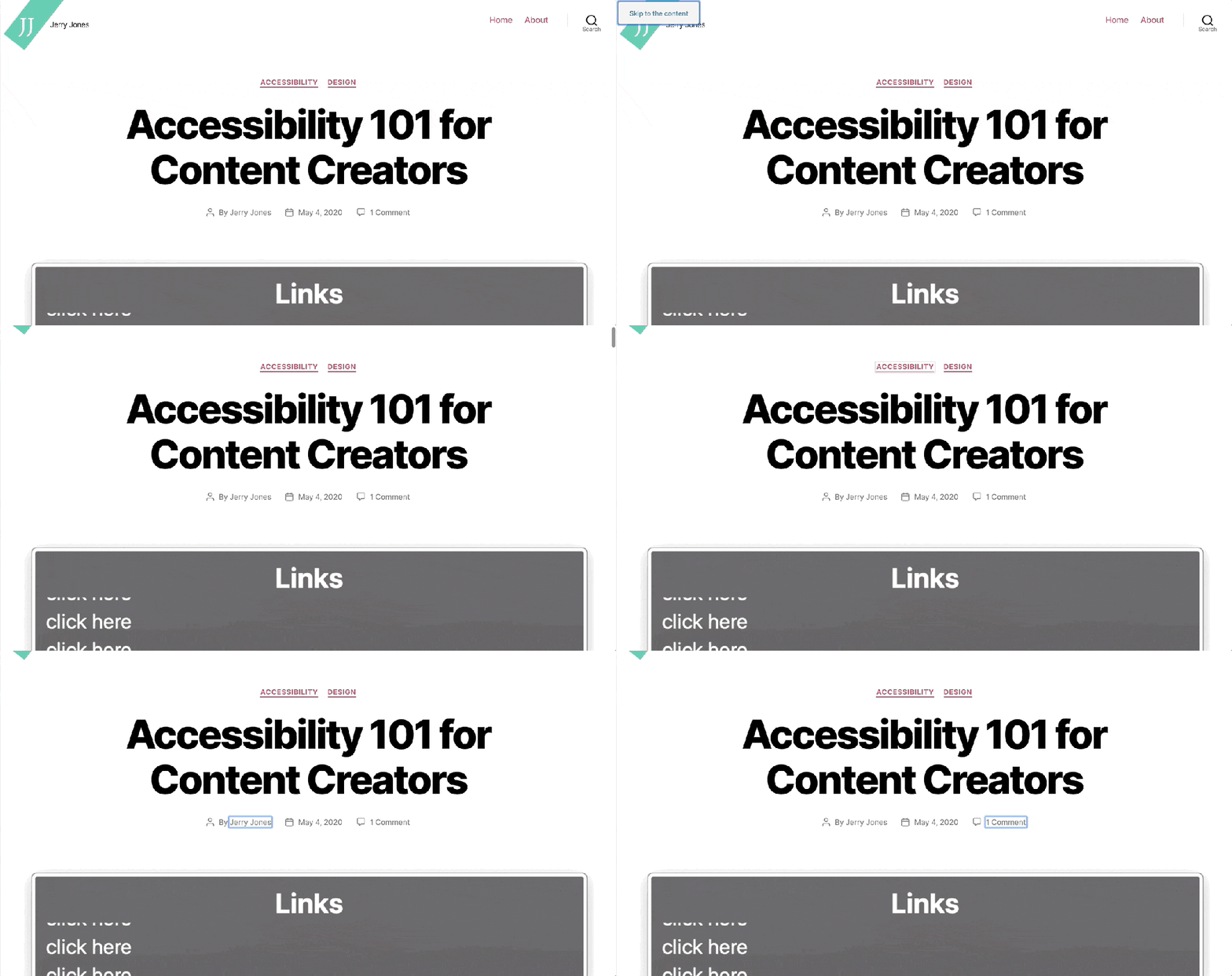
When you navigate with a keyboard, you may see a “Skip to Content” link pop up. This is a good thing, and when you press it, it will move your focus to the main content of the page.
Skip to Content links are great to avoid tabbing so much before reaching the content.
This is really helpful, as it allows you to skip all the navigation links usually found in the header of a site, and, as the name indicates, skip you to the content.
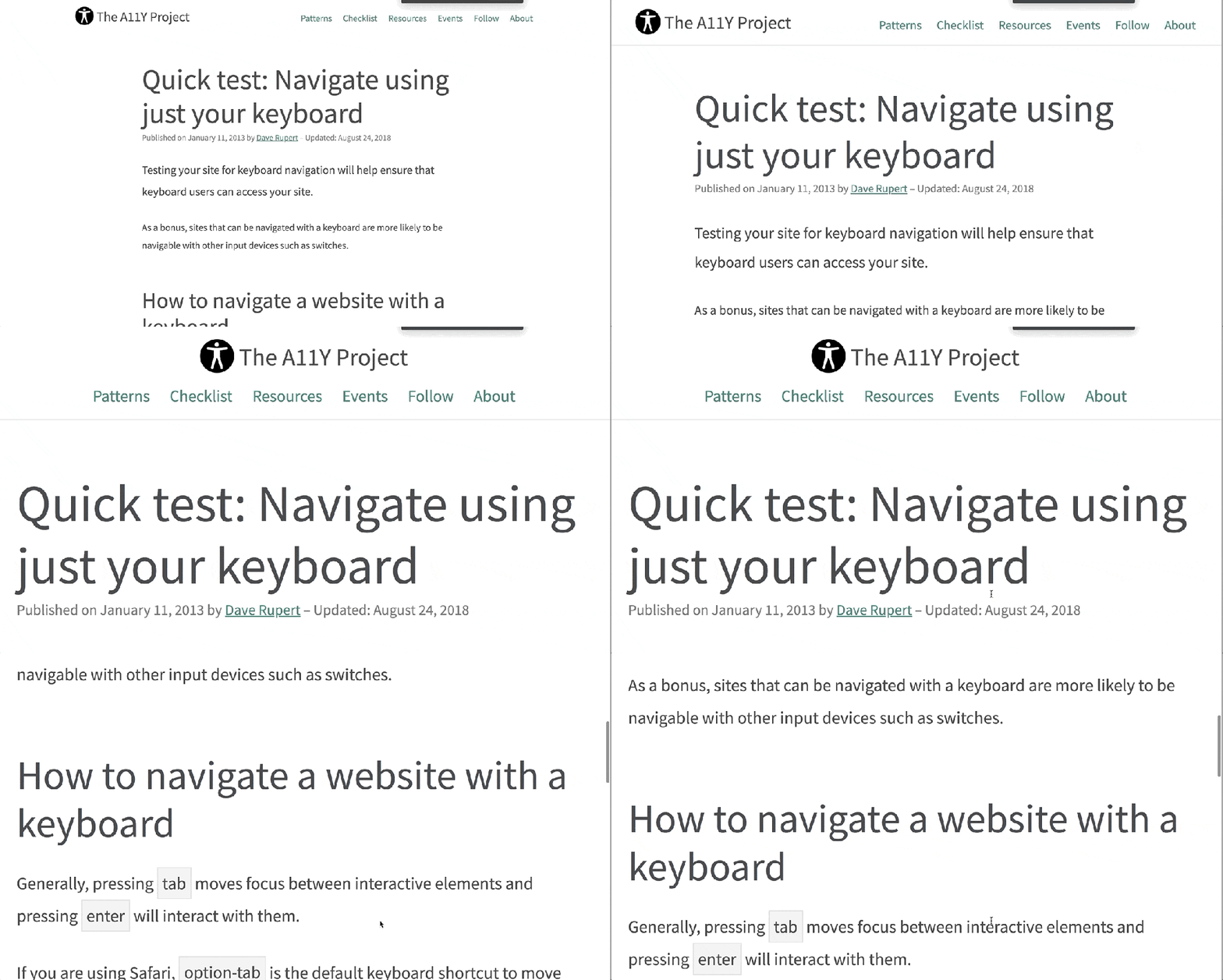
When you zoom in on a page, the text should get larger and the site should reflow to fit the available space.
On a Mac, you can zoom with ⌘ Command and +. Press ⌘ Command and 0 to reset the zoom.
Most sites built with Responsive Web Design (RWD) in mind should allow for this. RWD is when a site is built to accommodate any screen size and still look good.
Evaluate the Color Contrast
If you see light gray text on a white background (or another difficult-to-read color combination), it’s likely that the people building the site did not consider (or, worse, actively dismissed) accessibility. If it’s hard to read for you, it probably doesn’t have enough color contrast.
Form Inputs Should be Labelled
56% of the 3.4 million form inputs identified were unlabeled.
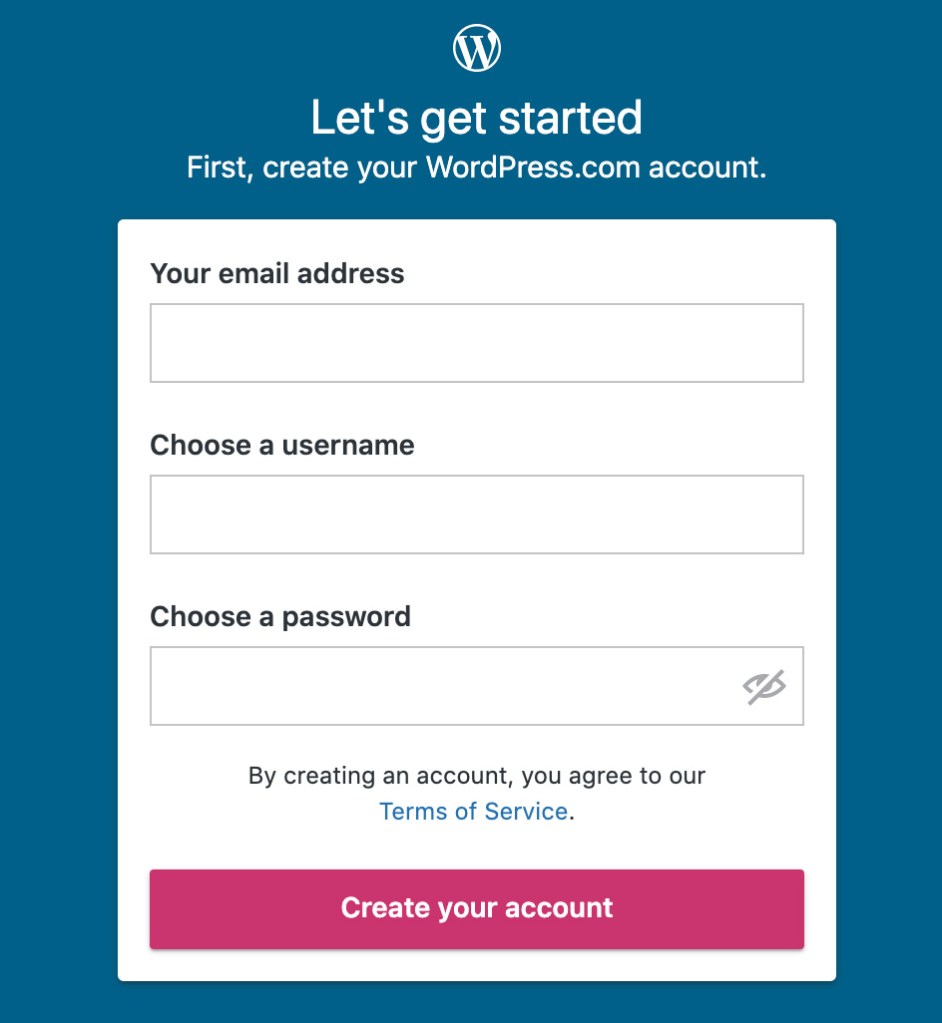
A label tells you what the field is for. Take these two sign-up forms from WordPress.com and Spotify.
Each field/input is labelled clearly.
Spotify’s new account form does not have visible labels. A placeholder is not a label, since it disappears after you start typing.
The WordPress.com one is great. Each field is labelled clearly.
The Spotify one seems like it’s labelled. You can see the “Email,” “Confirm email,” etc, but those are actually placeholders. A placeholder isn’t a label for two reasons:
It disappears after you start typing. You might not remember what you were supposed to put there.
A placeholder is supposed to show you an example of what you should put in the field. So, for an email field, an appropriate placeholder would be “example@gmail.com,” not “Email.”
Do you remember what that field was for? If it had a label, you wouldn’t have needed to remember. 🙂
A label being visible doesn’t mean it’s fully accessible, but there’s a good chance it is. If you want to dive a little deeper, you can learn how to label an input in HTML.
For this quick accessibility audit, check if all fields have a visible label. If they are, awesome. 🙌
Note: One common exception to this is search fields.
A field does not need to have a visible label if the context makes it obvious that it’s a search (like having a big button called “search” next to it).
5 Minute Accessibility Audit Checklist
Can you navigate/use it with a keyboard? The focus indicator should always be visible. A Skip to Content link is a bonus.
Does the zoom work? Zooming in on the site should increase the size of the text, and the site should still work correctly.
Does the text have sufficient color contrast? Everything should be easy to read.
Do all form inputs have labels? Not placeholders, but labels. The label should be visible even after entering text. A search field is an exception.
Doing this audit has served me well when I need to quickly evaluate a site, theme or plugin for baseline accessibility. It’s not perfect, but it allows you to make an educated guess on if accessibility was considered or not.
But adding a click listener doesn’t make it accessible to people who use a keyboard or different kind of assistive technology.
To make our example accessible, we’ll need to:
Give a “focus indicator” to everything. A focus indicator is the little glowing outline to show you where you are on the page. Press the TAB key now, and you’ll get moved to the next “focusable element.”
Make everything that is clickable via a mouse be able to be “clicked” with a Spacebar or Enterkeypress.
Making Everything Focusable
To make this Terrible Idea™️ accessible, we’ll need to give everything an attribute of tabindex="0". This adds it to the “focus order” which makes it able to be focused.
Note: It is common for websites to not have any focus indicators. If you TAB through a site and it doesn’t show you where the focus is, then that is Bad.™️
To give everything a tabindex attribute, we need to:
Get all of the elements on the page.
Loop through each of the elements.
Add the tabindex attribute to each element.
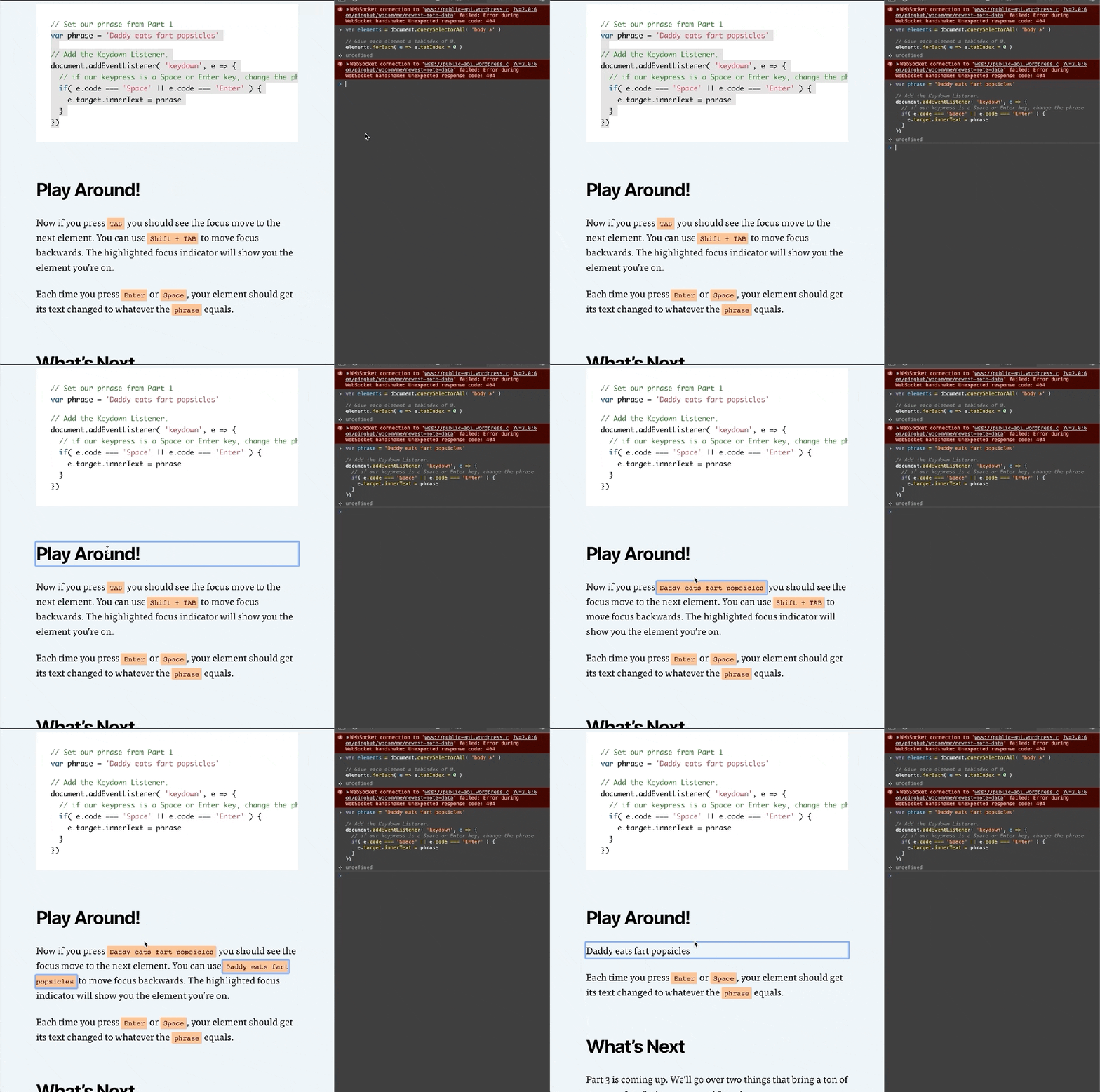
Open your Console like we did in Part 1 (right click on the page -> Inspect -> Console tab). Now enter these lines in the console:
// Get all of the elements on the page.
var elements = document.querySelectorAll( 'body *' )

// Give each element a tabindex of 0.
elements.forEach( e => e.tabIndex = 0 )
Note: Lines starting with // are comments to help you out. You don’t need to type them. You can, but you don’t need to.
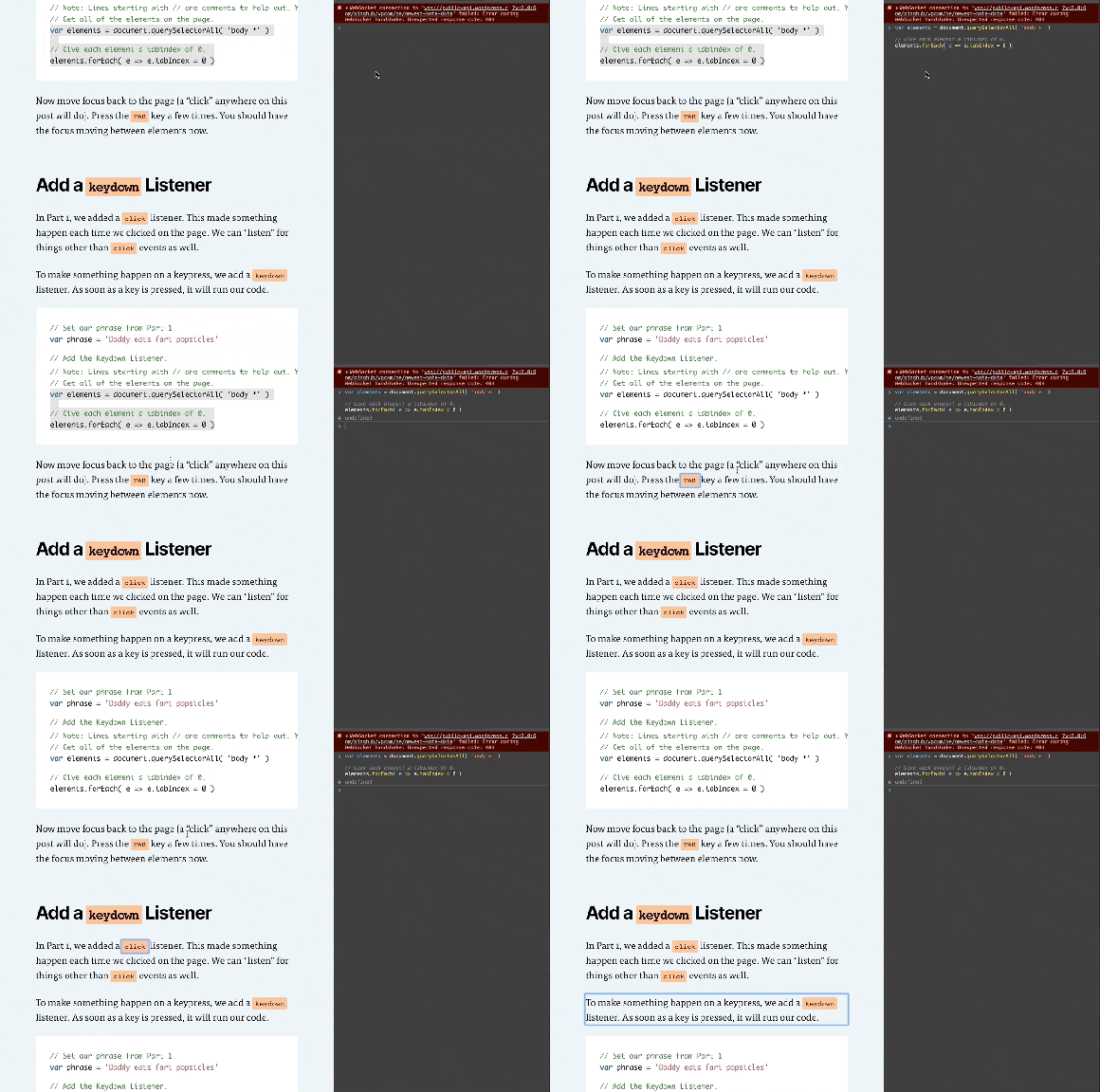
Now move focus back to the page (a “click” anywhere on this post will do). Press the TAB key a few times. You should have the focus moving between elements now.
Add a keydown Listener
In Part 1, we added a click listener. This made something happen each time we clicked on the page. We can “listen” for things other than click events as well.
To make something happen on a keypress, we add a keydown listener. As soon as a key is pressed, it will run our code.
// Set our phrase from Part 1
var phrase = 'Daddy eats fart popsicles'

// Add the Keydown Listener.
document.addEventListener( 'keydown', e => {
  // if our keypress is a Space or Enter key, change the phrase
  if( e.code === 'Space' || e.code === 'Enter' ) {
    e.preventDefault()
    e.target.innerHTML = phrase
  }
})
Play Around!
Now if you press TAB you should see the focus move to the next element. You can use Shift + TAB to move focus backwards. The highlighted focus indicator will show you the element you’re on.
Each time you press Enter or Space, your element should get its text changed to whatever the phrase equals.
What’s Next
Part 3 is coming up. We’ll go over two things that bring a ton of power to JavaScript: arrays and functions.
Be sure to follow me on Twitter or sign up to my email newsletter to find out when Part 3 is finished.
A perfectly coded website will still break down if the content isn’t written and built accessibly. This article is intended to give a no-coding-required breakdown of how to make accessible content.
I’ll use WordPress as a basis for examples when relevant, but the same principles apply to however you build your website.
Use Headings
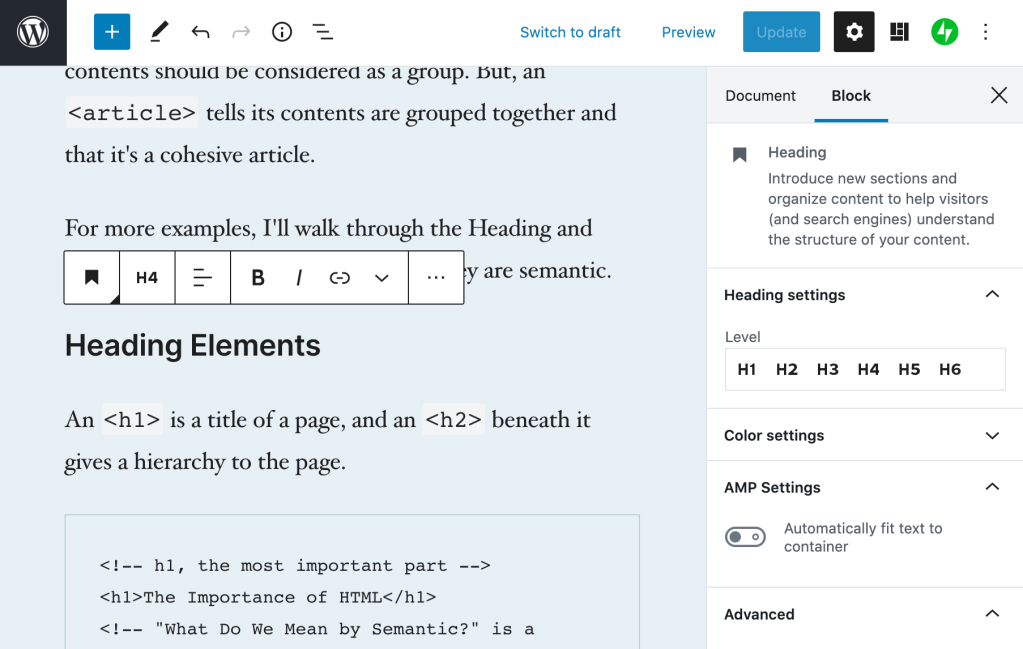
Setting the Heading level in the WordPress Editor.
Headings are the titles within your page. They go in descending order from an h1 (heading one) to h6 (heading six). An h1 is the most important, h6 the lowest heading.
I think of headings like they’re used in a book.
Book Title, h1: The most important.
Chapter Title, h2: The second most important, gives context to where you are within the book.
Subsection Title, h3: A section within a chapter, and so on.
When writing content, you can structure your website using the same idea in order to give people an overview of your page.
Tips for Headings
There should be only one h1 per page. This is generally your article title. On your homepage it may be the name of your site.
Headings should follow a descending order and shouldn’t skip a number. Here’s what your heading structure on a page might look like:
When people use a screen reader, the content is read to them from top to bottom. There are some things that can get annoying, quickly.
Using a lot of emoji within a sentence, like when people separate 👏 each 👏 word 👏 with 👏 a 👏 clap 👏 emoji. This gets announced as “separate clapping hands word clapping hands with clapping hands a clapping hands clap clapping hands emoji.” That’s hard to read, and I promise it’s hard to listen to as well.
Pull quotes can be great to grab reader’s attention, but if the pull quotes are not coded correctly, their content gets read aloud again without any indication it’s a pull quote. Imagine if someone was reading you an article and randomly read a section of the article again. That’s what a screen reader does for pull quotes.
Image Descriptions: alt Text
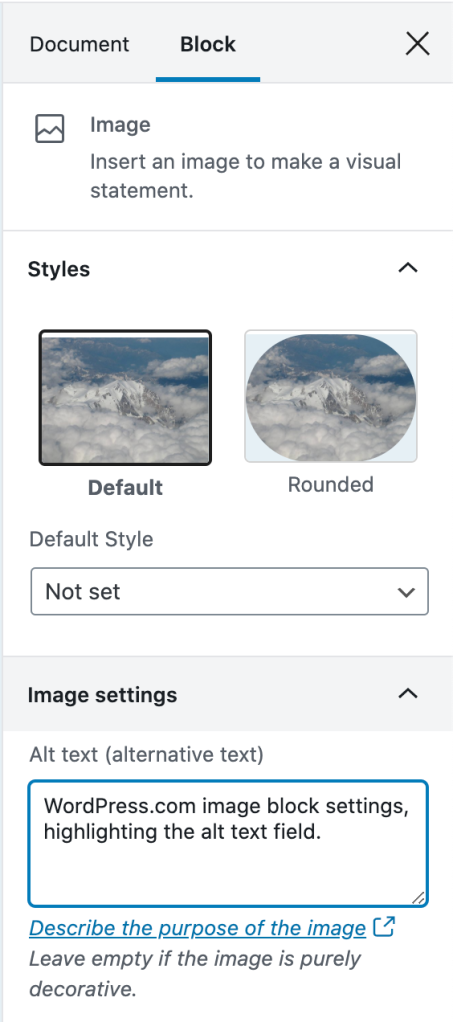
Setting alt text on an image in WordPress
alt text is used to describe the image. It is shown when an image doesn’t load, and used in describing the image to people who are using a screen reader that reads the page content to them.
Alt text showing when an image doesn’t load.
If there is no alt text on an image, the filename for the image will be read by the screen reader. Screen Shot 2020-04-30 at 4.23.44 PM.png isn’t usually helpful. What is helpful is a description of the image like, “WordPress.com image block settings, highlighting the alt text field.”
Tips for Writing alt Text
What are your favorite tips for writing good alt text? It's sometimes hard for me to find the line between not enough and too much description.
I asked for advice on Twitter about writing good alt text, and received some great advice:
Many alt text guides have focused on trying to provide the image in context, so as I often use images more as supporting art, my alts are definitely describing the image "as it is intended to be seen", one meta level up from the raw image content.
— jubilee 🏳️🌈parody🏳️⚧️ (@workingjubilee) April 30, 2020
I write what the focus of the image is in context of what else is being presented.
Describe what can be seen, but keep it relevant to the context. 1 image’s description may be slightly different depending how it’s used. You also want to keep it brief, so try to stick to 1-3 sentences if possible.
— Anne-Sophie De Baets (@catwithmuztache) May 1, 2020
Be descriptive, but succinct (1 – 3 sentences max).
Highlight the important details in the image that are relevant to the page content.
The same image may be described in different ways depending on context.
The original tweet by @ericwbailey is about why you should “Remove ‘click here’ from your copy.”
It’s easier said than done since it’s so engrained in how people write copy for the web, but you should always avoid generic phrases like “click here” or “read more” in links.
The ideal is that you understand what the link is about solely from the link text. This is good practice in general, but extra important for users who utilize a Link Rotor or something that will show them a list of all the links on a page. Otherwise, when you open the Link Rotor you’ll see a wall of ambiguous and unhelpful “click here” and “read more” links.
Taking this article as an example, I could have written all my links as “click here.” This would result in the Link Rotor looking like this:
Instead, I describe the contents of the link so you can understand it out of context. The Link Rotor for this article contains links like:
examples of good and bad alt text
The Importance of HTML Headings Section
pull quotes are not coded correctly
ratio of at least 4.5:1
WebAIM’s Contrast checker
Which one is clearer to you? This is a great example of something that we often don’t consider since it’s so normalized on the internet, but results in a not-so-great experience for lots of people.
Don’t Open Links in a New Tab
Every link in every browser already lets people open them in a new tab (for most people, this is right click the link, then select “Open Link in New Tab”).
Don’t make your links open in a new tab by default. It can be really confusing for screen reader users who don’t realize that clicking the link brought them into a new window. This also breaks the “back” button to go to the previous page, as the new window has a new history context.
If you absolutely have to have a link open in a new window, make sure that the link text contains (opens in a new tab) so the user knows what is going to happen.
Considering Colors
There’s a lot more to consider with color palettes than most people realize, and the issues I’ll mention are widespread on websites, large and small.
Color Contrast
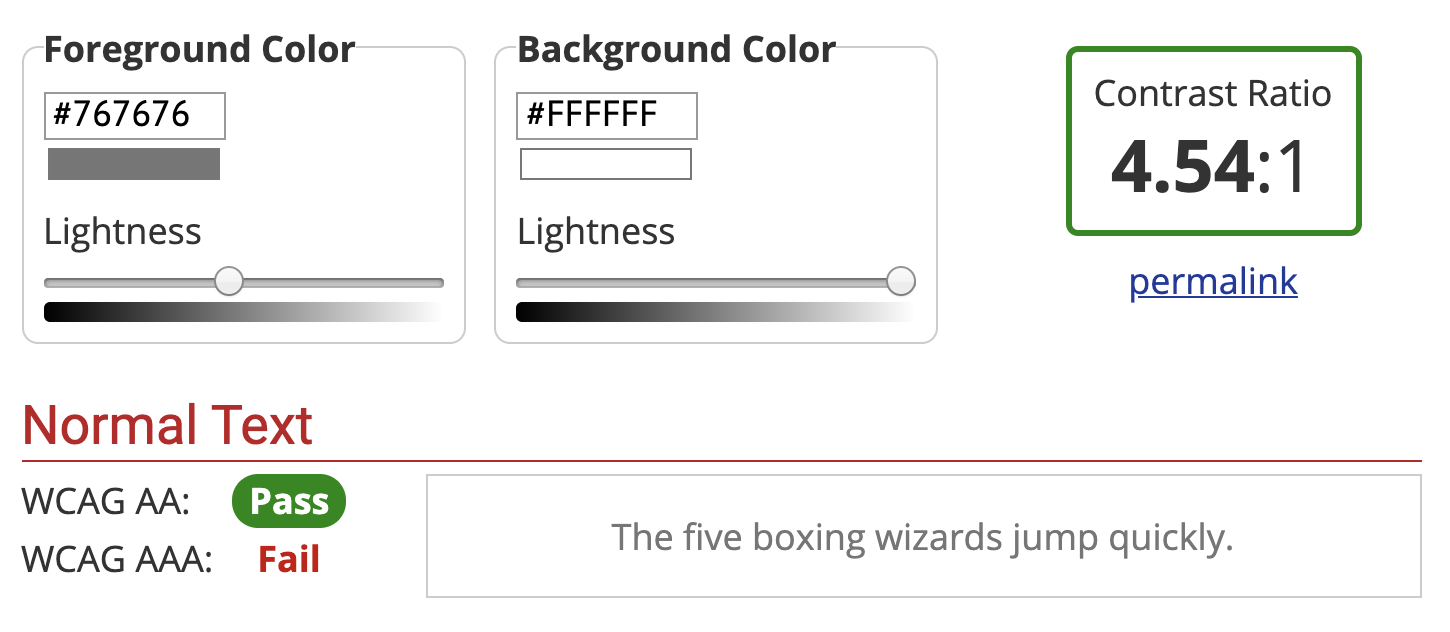
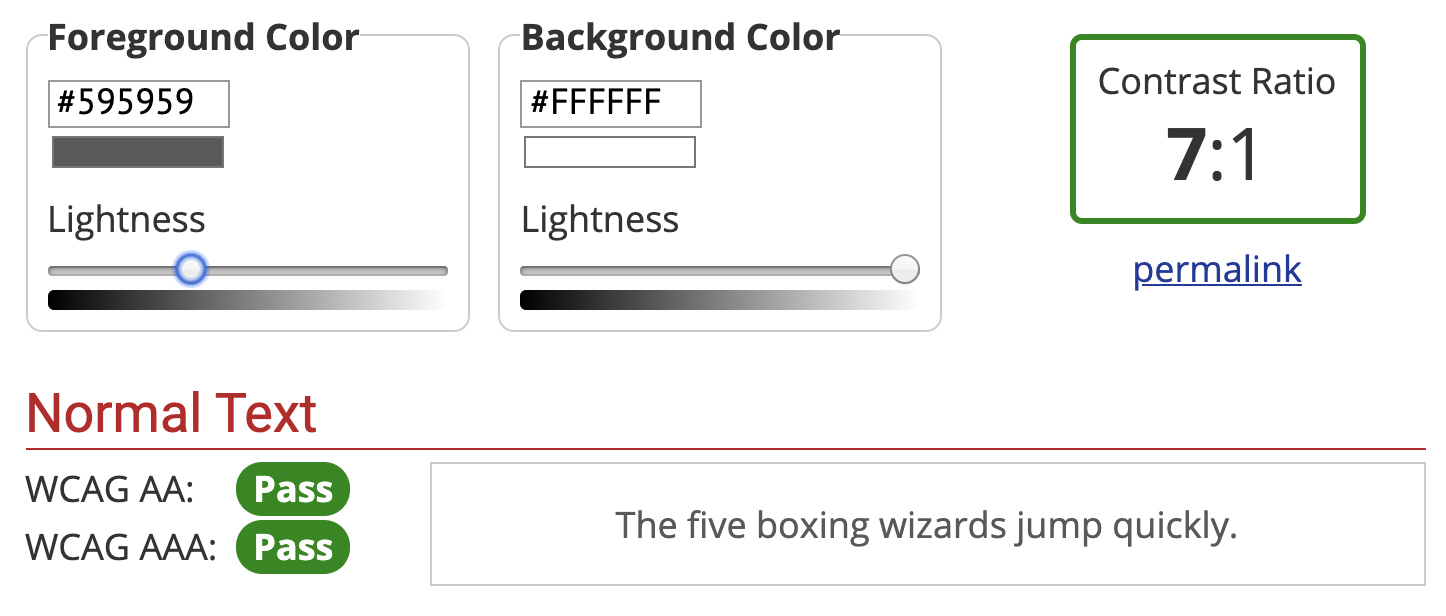
Color contrast is the ratio between the background and the text color. You want a ratio of at least 4.5:1. If you’re like me and that doesn’t mean much to you, you can use WebAIM’s Contrast Checker. It will tell you if your background and text colors have sufficient contrast.
Minimum pure gray on white background to meet 4.5:1 color contrast ratio: #767676Minimum pure gray on white background to meet 7:1 color contrast ratio: #595959
You’ll want to make sure you at least pass on the WCAG AA guidelines. The WCAG AAA is the best level of compliance, but AA is still great.
Color Blindness
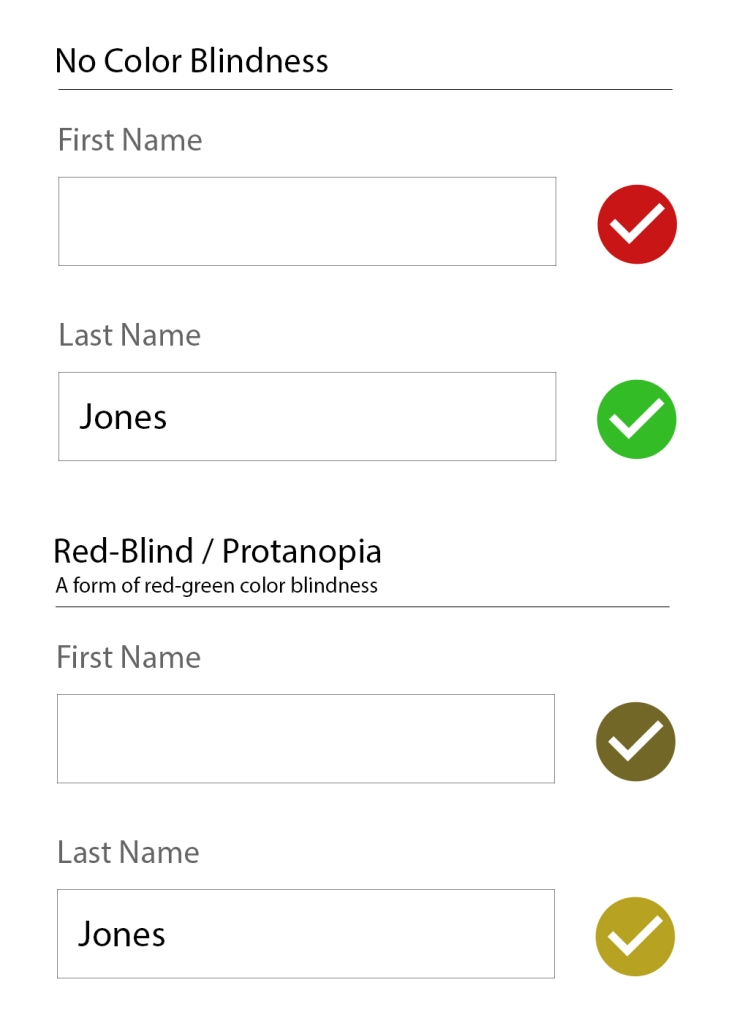
There are several types of color blindness, but the most common are forms of red/green color blindness. For example, let’s check the difference between:
a red checkmark (generally “bad/wrong”)
a green checkmark (generally “done/correct/complete”)
With Protanopia, the red and green checkmarks don’t help at all.
If you’re only using the colors red and green to indicate those “wrong vs correct” states, then not everyone is going to be able to understand that.
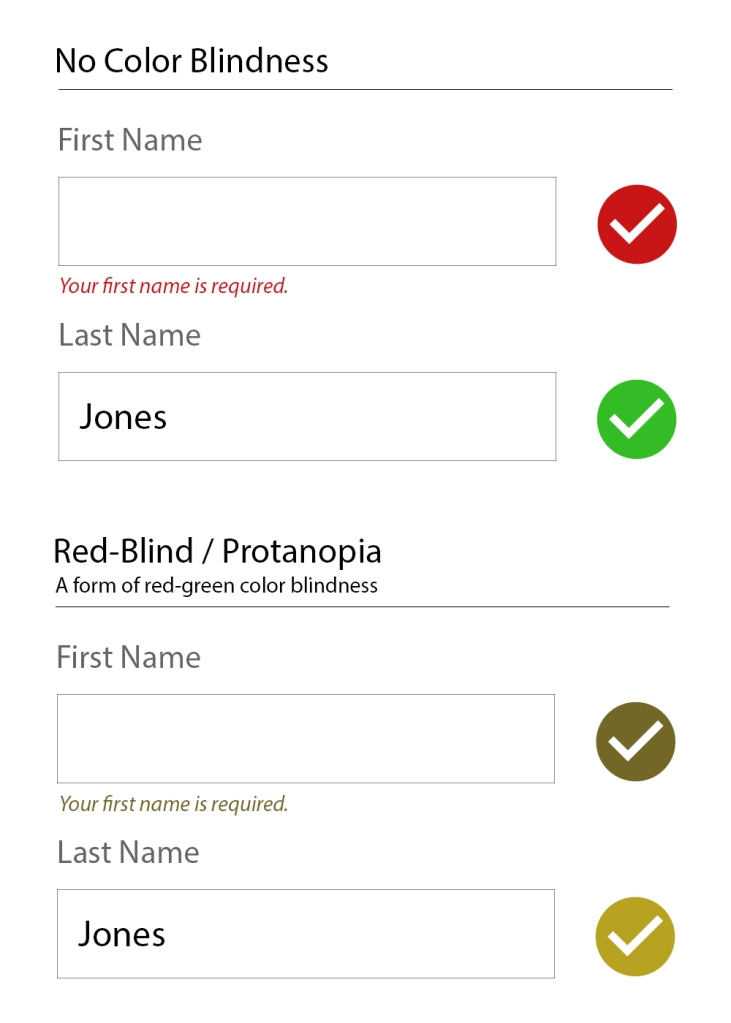
The general recommendation for ensuring accessibility is to not rely on color alone to communicate something. So, instead of just a red or green checkmark, label what the checkmark means as well.
Adding a “Your first name is required” makes it clearer that there is an error.
Little Extras
Some things don’t need a full section to explain them, but are very worth mentioning:
Label icons: Similarly to why we should not rely on color alone to communicate something, don’t rely on an icon alone to communicate something. Your icon’s meaning may be obvious to you, but it’s not obvious to everyone.
Don’t use images of text: It’s common on twitter for people to share a portion of an article as an image so they can get past the character count limitation. This is fine for sighted users, but unless all the text from the article image is included as alt text, it’s inaccessible.
Caption your audio and video: If you have video or audio content, make sure you provide the captions or transcript for it. Without that, it’s inaccessible to people who are deaf or hard of hearing.
Write clearly and use images: Not everyone has a college reading level in your language. Make sure your content is as easy to understand as possible. Images and bulleted lists are your friends.
Recap
There’s a lot to consider when writing accessible content, but once it’s engrained in how you work, it becomes second nature.
Use Headings appropriately.
Consider how the content would be read aloud.
Set the correct alt text for images.
Write descriptive links (don’t use generic phrases like “click here”).
Generally don’t use links that automatically open in a new tab.
Have sufficient color contrast for all text.
Don’t use color combinations that will make your site inaccessible to those with a form of color blindness.
Drop a (kind) comment below if you think I missed something big that deserves more attention.
JavaScript is pretty fun. You don’t need to know much to start playing around with it. Let’s jump in with a Terrible Idea that You Should Never Do.™️
Note: This article is intended for beginners (and kids!), but has plenty of extra tidbits along the way. I’ll be intentionally glossing over most topics, but give you enough info to be dangerous. Read along, and have fun. 🙂
Daddy Eats Fart Popsicles
I asked my son what he’d think was funny to do to my website. He immediately said, “Change that title to ‘Daddy eats fart popsicles.’” So, I opened the Console, and we changed it.
To make it better, we added a way to change any text you clicked turn into “Daddy eats fart popsicles.” He clicked many more times than I would have liked.
This article shows you how to recreate this in a few steps.
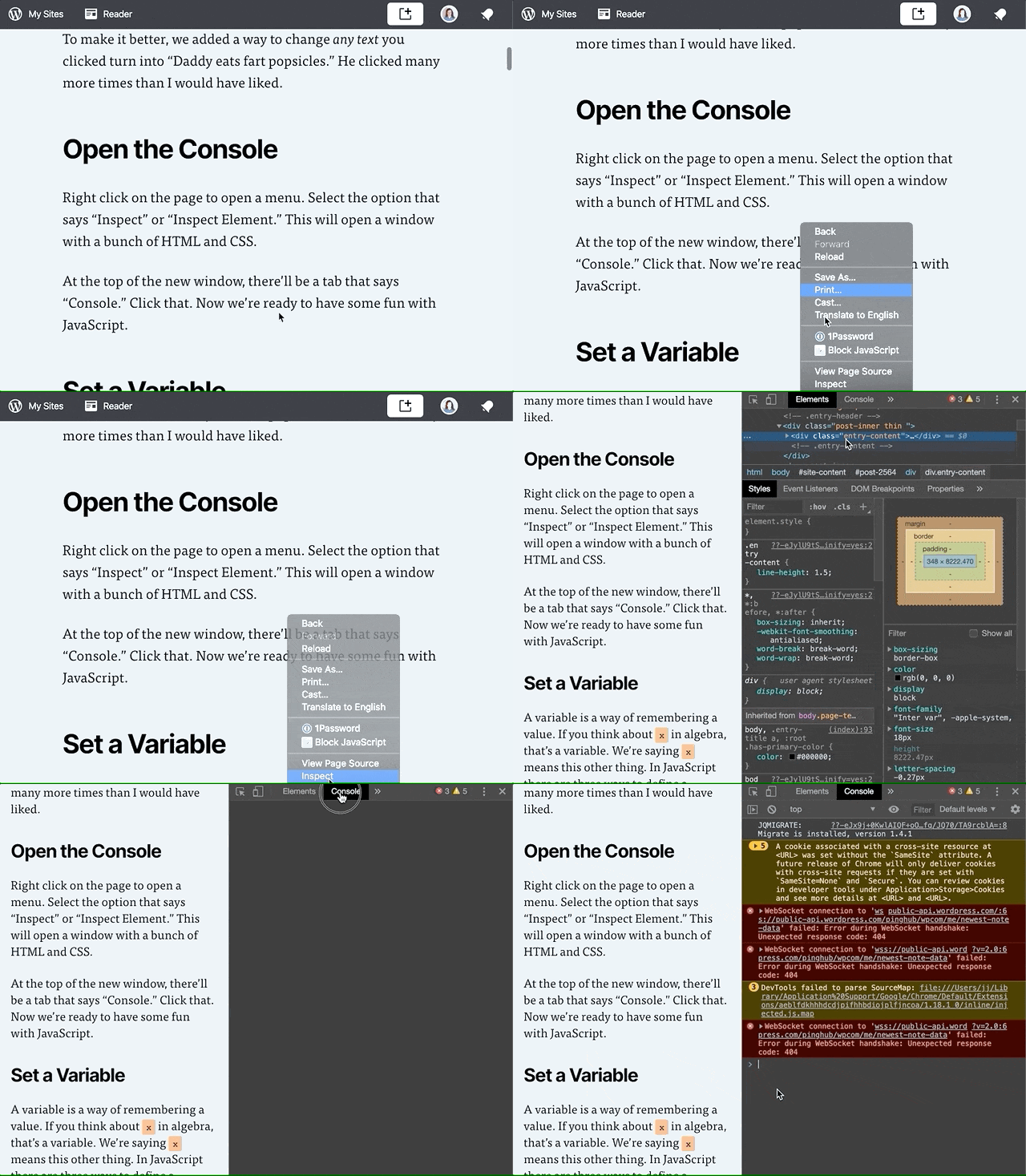
Open the Console
Opening up the Console.
Right click on the page to open a menu. Select the option that says “Inspect” or “Inspect Element.” This will open a window with a bunch of HTML and CSS.
At the top of the new window, there’ll be a tab that says “Console.” Click that. Now we’re ready to have some fun with JavaScript.
Set a Variable
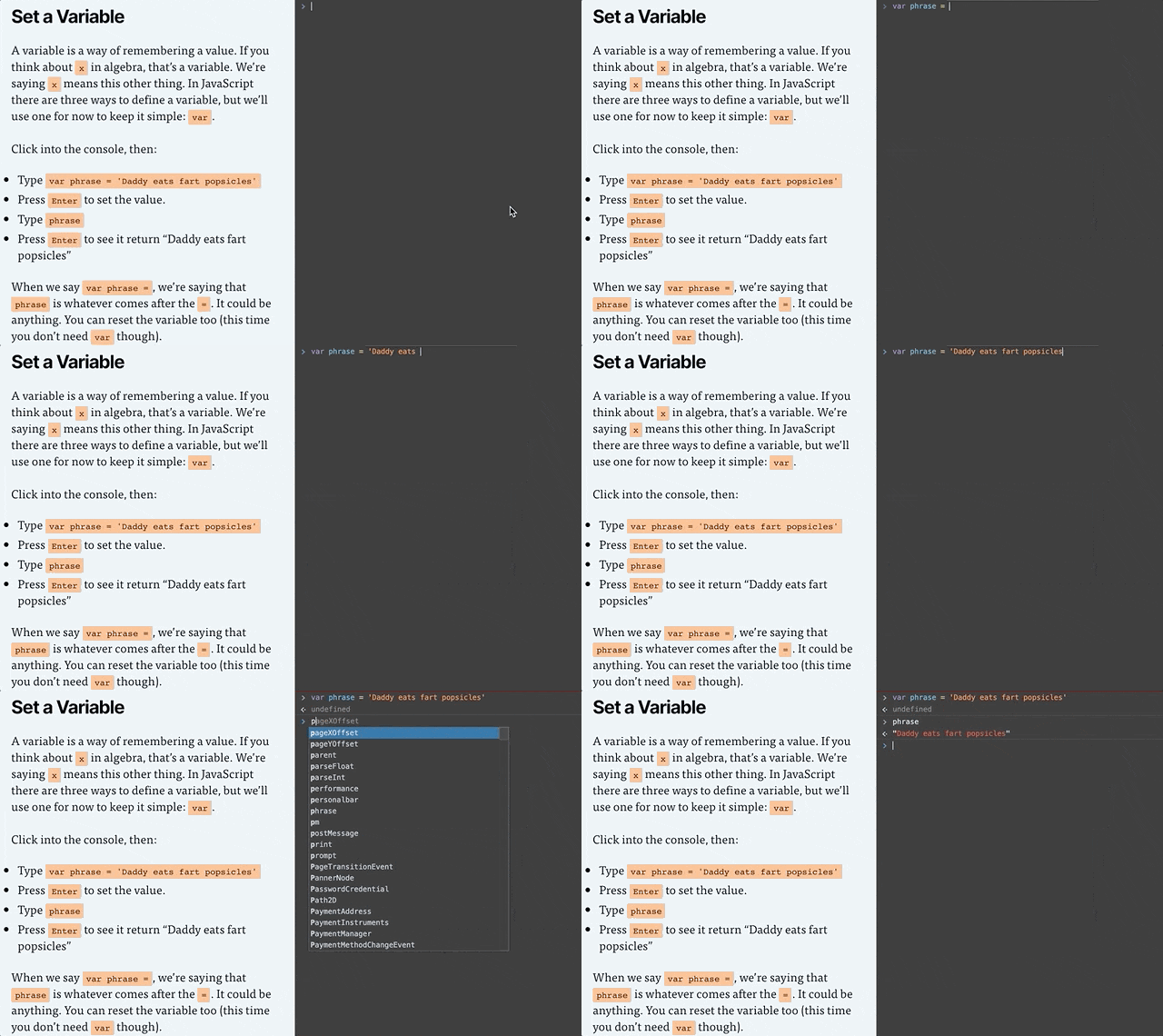
Setting the phrase variable in the console.
A variable is a way of remembering a value. Remember x in algebra? That’s a variable. We’re saying x means this other thing. In JavaScript there are three ways to define a variable, but we’ll just use one for now: var.
Click into the console, then:
Type or copy/paste var phrase = 'Daddy eats fart popsicles'
Press Enter to set the value.
Type phrase
Press Enter to see it return “Daddy eats fart popsicles”
If you get red error message after you press enter, something isn’t right. Check to make sure you typed everything exactly like in the example. A common issue is not including both single quotes ' around the text. Finding typos is approximately 75% of being a web developer.
When we say var phrase =, we’re saying that phrase is whatever comes after the =. It could be anything. You can also change what the variable equals.
Because phrase is already defined, we don’t need to type var before phrase. We only need to do that the first time.
Type or copy/paste phrase = 'My son eats fart popsicles'
Press Enter to set the value.
Type phrase
Press Enter to see it return “My son eats fart popsicles”
Clickity, Click
A webpage is made of a bunch of “elements” that together, form the DOM (I say it like “dawm” or the name “Don” but with an “m” at the end). We’ll make it so any element you click ends up saying whatever phrase equals.
In my son’s case, he reset it back to phrase = 'My daddy eats fart popsicles' 🙈
To make something happen when you click, we add an “Event Listener.” An Event Listener waits around for something to happen. It’s like a racer waiting for the signal to go. In our case, the signal is a click.
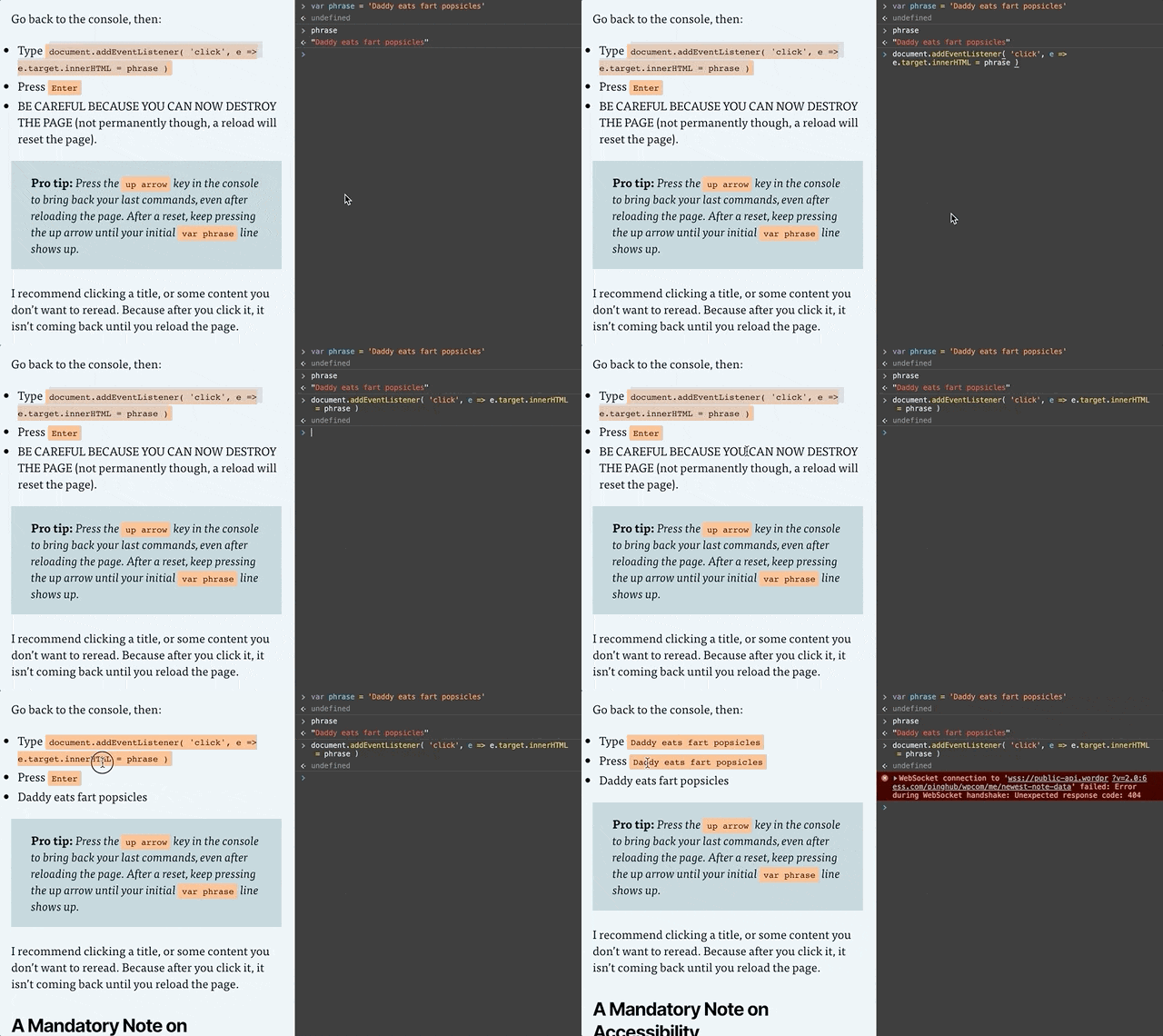
Setting the Click Listener
Go back to the console, then:
Type or copy/paste document.addEventListener( 'click', e => e.target.innerHTML = phrase )
Press Enter
BE CAREFUL BECAUSE YOU CAN NOW DESTROY THE PAGE (not permanently though, a reload will reset the page).
Pro tip: Press the up arrow key in the console to bring back your last commands, even after reloading the page. After a reset, keep pressing the up arrow until your initial var phrase line shows up. And if nothing is working, reload the page and try again!
I recommend clicking a title, or some content you don’t want to reread. Because after you click it, it isn’t coming back until you reload the page.
Event Listener Code, Explained
Let’s break down document.addEventListener( 'click', e => e.target.innerHTML = phrase ).
document: The entire page. The DOM we talked about earlier.
document.addEventListener: Add an event listener to the document. We’re adding it to the document, but we could add a click listener to any element of the page.
'click': There are several kinds of event listeners, such as an event when something changes, or when a key is pressed. Our code is saying we want to listen for a click.
e => e.target.innerHTML = phrase: e means “event.” We’re getting the target of the event (the target is the element that was clicked) and changing its text to whatever phrase equals.
Putting it All Together
If you’re getting stuck or things aren’t working, reload the page, then copy and paste this into the console:
var phrase = 'Daddy eats fart popsicles'

document.addEventListener( 'click', e => e.target.innerHTML = phrase )
A Mandatory Note on Accessibility
Accessibility (or a11y) means letting people interact with your website however they want to.
Maybe that means they have the ability to see and move their arms and hands around. If so, they probably use websites with their eyes to see and a mouse cursor to click on things.
Some people like using a keyboard and pressing the TAB button and arrow keys to move around the website. Some people use a Screen Reader that will read a webpage to them.
Either way, it doesn’t matter how a person interacts with your website. That’s for them to decide. But what you need to do is make sure people can interact with your website however they choose to.
That’s exactly what we’ll learn how to do next time.
Part 2 is in the Works
Subscribe to my email list below or follow me on Twitter to find out when I release Learning via Terrible Ideas: Replacing Text on Click, Part 2.




![Playlist with current track highlighted and "[track title], current item, button, [podcast title], group" in the screen reader area.](https://jerryjones.dev/wp-content/uploads/2020/05/podcast-player-current-item-1.gif?w=1024)
![Navigating the buttons with the screen reader to see that the current track displays "Playing: [track title]"](https://jerryjones.dev/wp-content/uploads/2020/05/podcast-player-playing.gif?w=640)
![Screen reader showing "Loading: [track title] [track description]" when a new track is selected.](https://jerryjones.dev/wp-content/uploads/2020/05/podcast-player-loading.gif?w=640)







 Jerry Jones