I just finished reading Code Simplicity, and, as someone who has a tendency for perfectionism, one thing that stood out to me was the idea of not worrying about building something perfect.
It’s OK to not aim for perfection on version one. Or any version. You don’t even know what perfection looks like at when first starting a project. Instead, aim for a simple solution to your current problem, not a perfect solution to a future problem that may never exist.
If you keep striving for simplicity with each new addition, your system will gain as much complexity as it needs, while still maintaining enough flexibility and simplicity for the next addition.
Since joining the hiring team at Automattic, I’ve been using the recruiting/hiring software Greenhouse to score Code Tests and evaluate trial candidates.
There are some things that have annoyed me a little about the site, so I wrote a few user scripts to improve my own time on Greenhouse.
A user script is JavaScript that runs on a site after it’s loaded. There’s a regex pattern matching to see what site you want to run the script on, and then you can add your own JavaScript code in to do whatever you want. 🙂
When you have a lot of text in a scorecard attribute, it won’t show you all of the content. The textarea is too small.
Before the user script.
So, to see the full overview of everything you have to manually drag the little corner handle to expand all the textareas. That can be a slow, repetitive task. So, I wrote a script to automatically expand all textareas to show the full content on page load.
After installing the user script, each textarea is expanded on load to show its full contents.
Much better! Now I can see the full overview as soon as I go to the page without needing to do any extra work.
Show/Hide Code Test Scorecard Sections
There isn’t a way in Greenhouse to have separate scorecards for individual stages of the hiring process. So, any attributes you have on your interview scorecard will also show up on your code test scorecard, and so on.
Our code test has a lot of individual attributes that are only applicable for the code test. This clutters your interview scorecard with a lot of things that are unnecessary for that stage.
I wrote a user script that will look for the string “Code Test” in the Interview Plan/Scorecard title. If the scorecard title matches “Code Test,” then it will only show scorecard sections with “Code Test” in their titles.
Code test scorecard after the user script
This majorly cleans up the clutter across all scorecards.
For most of my career I thought there was always something missing with how I debugged, like I needed to set-up an advanced error reporting system that would log and track down every error seamlessly. Then, I would really know how to debug like a 1337 haxor.
1337 haxor cam
Now that I have a big kid job, how has my debugging system evolved to be more professional?
It hasn’t.
The same things I did when I started, I still do. I still console.log things. I still var_dump or print_r() arrays to see what’s going on. Even in extremely complex codebases and systems, the same ideas work.
Debugging is Problem Solving
What I understand now is that console.log or var_dump isn’t debugging. Those are tools to help you debug. The real debugging happens with you.
You got this.
I don’t consciously go through this checklist, but this is the general idea of how I debug.
Recreate the bug.
Can you reliably reproduce the bug? If you don’t know what environments and situations it happens in, it’s extremely hard to debug. Is it a certain browser? A certain device? Does it happen consistently after a certain action?
Check your assumptions.
Is that variable really what I think it is? Does that function really return what I think it does? This is where I will console.log stuff, or code directly in the console to test basic functions and methods to make sure I really understand what does happen vs what is supposed to happen.
Isolate.
Reduce the scope of your issue to the tiniest bit of code you can. If you’re working on a complex CSS issue, how can you boil it down to the most basic test case possible?
If you’re not able to isolate the issue and reliably reproduce it, then you don’t really understand what the fix is. CodePen is great for helping with this, as you can isolate in a clean environment and then share results with your team.
Be persistent.
There’s nothing incredible or advanced about debugging. It’s just about being persistent to understand the root cause of the issue. Some bugs take a long time, but the more you poke and prod at it, the more you’ll understand it.
You’re Debugging. Not the Tools.
Remember, you’re the one doing the debugging. To put it all together, we’ve got:
Recreate the bug.
Check your assumptions.
Isolate.
Be persistent
We can easily remember this with RCIB, or BIRC, or hrmm.. CRIB? I bet you’ll be OK without an acronym, there are already enough things to remember.
The tools assist you, and can help guide you to the issue. In the end, you’re the one solving the problem, so use whatever tools you want to help you. 🙌
“If it looks like a duck, swims like a duck, and quacks like a duck, then it’s probably a duck.”
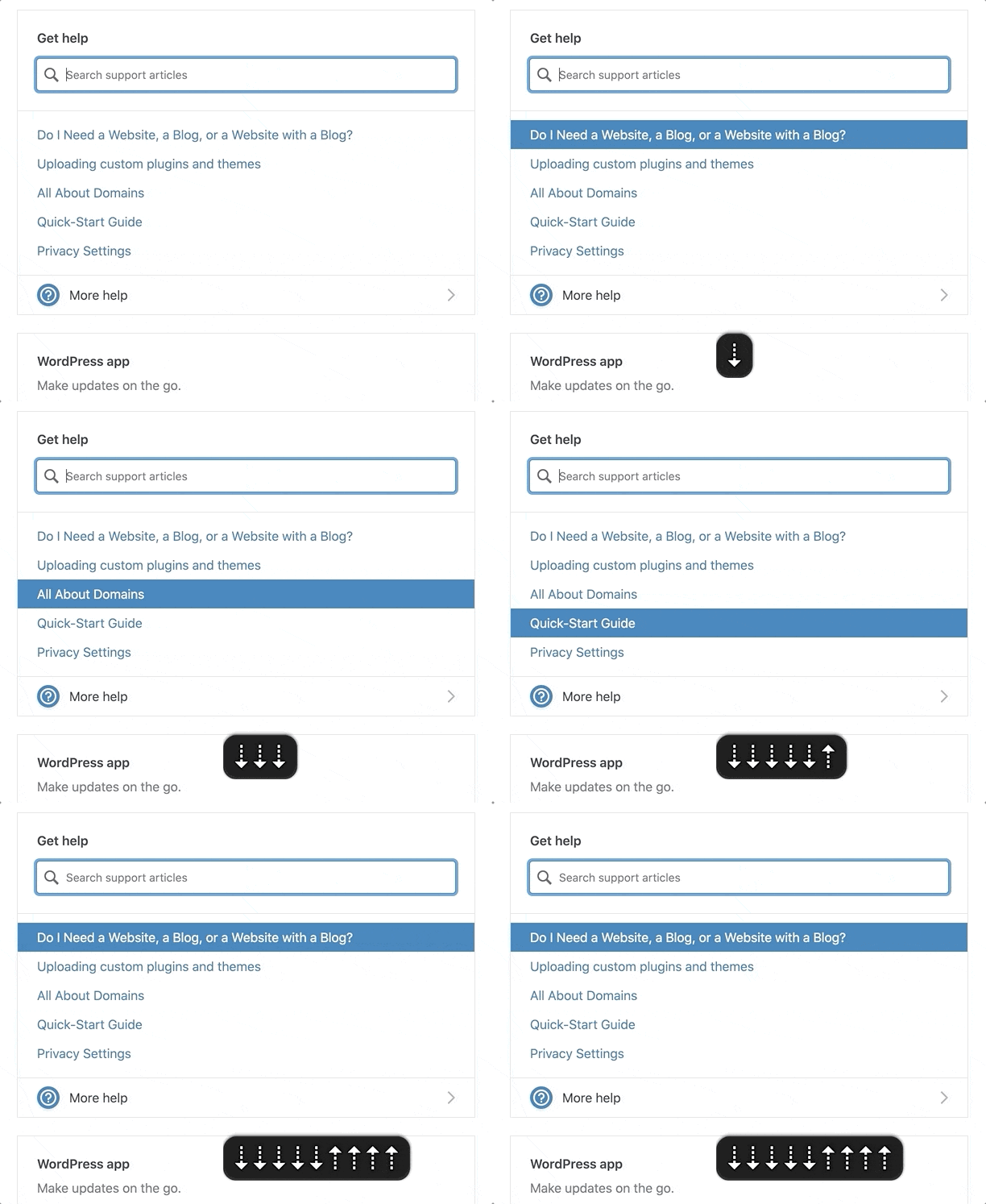
I recently worked on putting a plan together for improving the accessibility of a search component on WordPress.com. The existing interaction worked like a combobox where the focus was kept on the search input and you could navigate through the results with the down/up arrows.
The WordPress.com search suggestions component.
If It Looks Like a Duck, Swims Like a Duck, […], It’s Probably a Duck.
I looked at this input focus with arrow keyboard navigation and thought this should be marked up as a combobox.
A combobox is a semantically linked input with a list of options within a listbox
The interaction for a combobox is very similar to the interaction of the WordPress.com search suggestion component.
Focus remains on the input at all times
UP and DOWN arrows navigate between items
ENTER selects the item
As I considered it more, there were a couple differences in the behaviors:
A combobox should fill out the input with that text. So, selecting “Durian” from the options should fill out the input with “Durian.” In contrast, the WordPress.com search item selection would open a modal or go to a new page.
A listbox cannot contain interactive items. The WordPress.com search items were interactive <a> or <button> elements to open a modal or bring you to a new page.
In essence, it looked like a duck and it swam like duck, so I initially jumped to calling it duck. But, it didn’t quack like a duck. I incorrectly relied on a visual model to impact how I labelled it, instead of looking at its core purpose.
HTML Markup Should Not Rely On The Visual Representation Alone
I know this. I’ve written about it. But I initially didn’t take the extra time to take a step back and really consider what the core purpose of this component was and how it should be communicated via HTML. This was me, with as many good intentions as possible, being influenced by my own ableist, sighted-centric lens.
If I had implemented a combobox to improve the accessibility, I would have felt good since I had done so much work, while simultaneously not making a difference (or potentially making it worse) for assistive technology users.
Note I would have caught that it was a bad implementation for ATs, as I do test regularly with VoiceOver and/or NVDA while working. But I may not have caught it until after getting it to a working state and then needed to backtrack.
This Duck is a Search with Dynamic Results
The WordPress.com search suggestions component isn’t a combobox. It’s a miniature search with a <ul> list of dynamic results. The current plan on how to fix this is to:
Add a role="search" with an aria-label to the search form. This will reveal it as a landmark to ATs (Assistive Technologies).
Use speak() to announce when there are newly loaded results, loading, and error states.
Markup the search results as a <ul> with a heading when appropriate.
At times, there will be multiple <ul>s to group results. These results will be wrapped in a <div aria-label="Search Results"> in order to communicate the entire section as a group of results connected to the search input.
Remove the input DOM focus arrow key navigation. Search results will be TAB‘d to like normal links.
In the end, by considering what the component is and not how it looks, we are able to:
Significantly simplify the code
Reduce the weight of the JS
Communicate the search component appropriately to ATs
Save time over implementing a far more complicated (and not as successful) combobox
Remember to Keep Yourself in Check
If you are an able-bodied individual, it’s important to do the work to keep your perspective in check. Don’t say, “It looks like a duck, it’s probably a duck.” Take the time to consider a component’s purpose and how it will be communicated before moving forwards.
You’ll make mistakes (I certainly do). It’s OK. Keep listening, learning, and fighting the good fight. ♥️
Major props to Diego Haz for his help working through the best markup and interactions on the search component.
On my team at Automattic, we built the new Podcast Player block released in Jetpack 8.5 and on WordPress.com. This post is intended to give you a behind-the-scenes style look at all the little details that went into attempting to provide a good, accessible experience for everyone.
I’ll be focusing a lot on Screen Reader-specific considerations, using plenty of VoiceOver gifs and images.
I’ll break down each decision made related to accessibility:
Titles
Description
Playlist Markup
Communicating State
Feedback on Actions
One Title or Two?
At the top of the player we have two titles:
Track Title: 396 – This Day in Esoteric Political History
Podcast Title: 99% Invisible
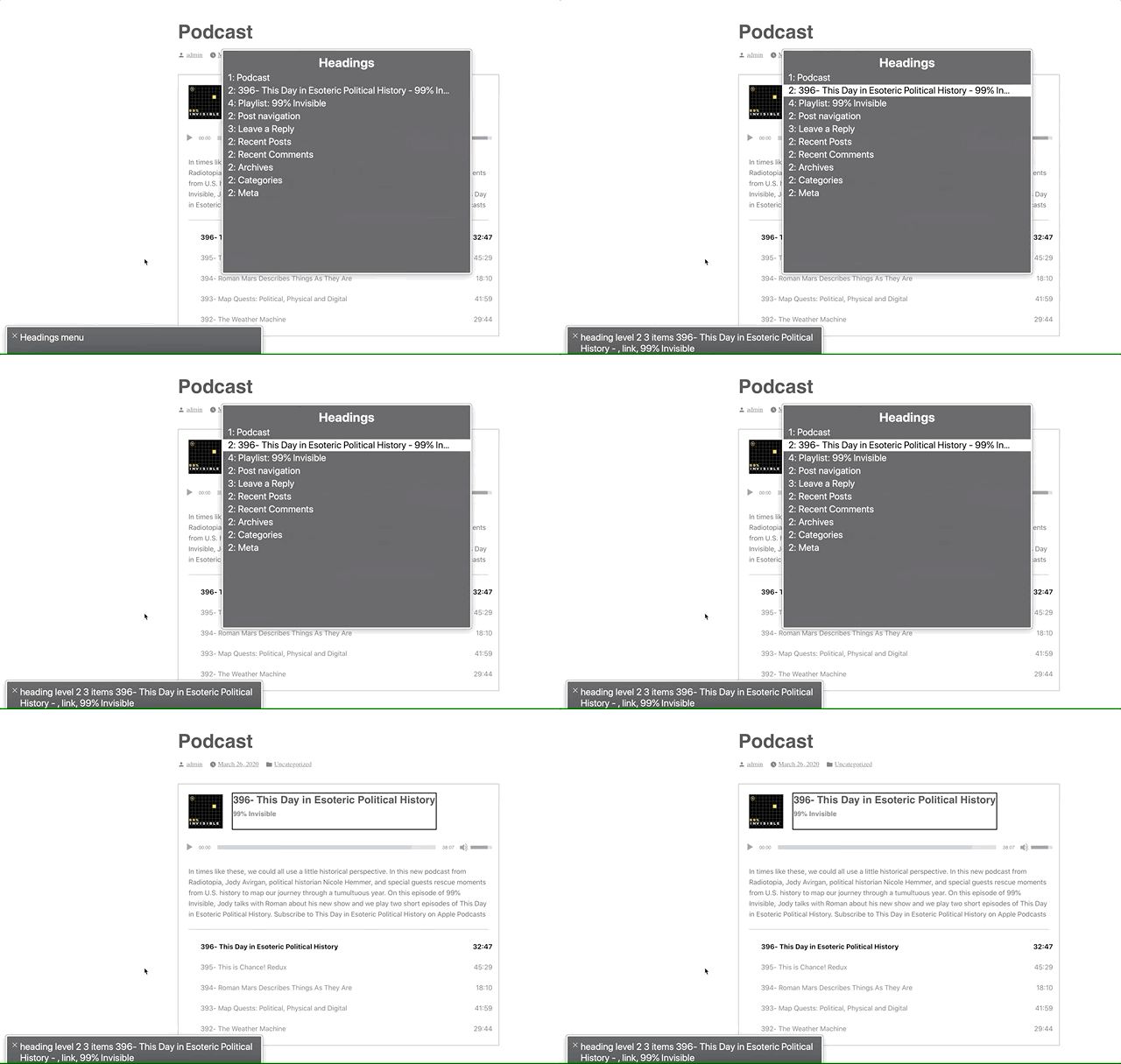
Screen readers can navigate by headings. We could mark these up as two separate titles, but one heading would be immediately followed by another. Grouping them provides a heading that accurately describes the podcast player’s state: “[track title] – [podcast title]”
The link rotor on the Headings section provides a one-heading label to navigate to the player.
Positioning the Description
Although the description is visually placed underneath the player, it’s contextually related to the heading. A screen reader will follow the DOM, so this would end up being read as:
Player Title
Audio controls (play, slider, etc)
Track description
Semantically, it makes more sense for this to be arranged as:
Player Title
Track description
Audio controls (play, slider, etc)
So that’s how I structured the DOM. I write the HTML as the ideal semantic flow, then use CSS to match the design.
In this case, we’re using display: flex; with an order: 99; on the description to reposition it visually after the player. This isn’t ideal, as it can be bad to rearrange the visual part of the DOM when it’s related to focus order. In this case, I think it’ll be OK since the description isn’t focusable.
Playlist Context
The playlist is an <ol> with a list of <a role="button">s. Don’t worry, we used <a> with role="button" to provide a progressively enhanced player and implemented a SPACEBAR press to activate the button.
However, a list of buttons doesn’t provide a lot of context as to what those buttons are for. To address this, we’ve added a hidden <h3>Playlist: [podcast title]</h3> and paragraph description of the playlist and attached this as an aria-labelledby and aria-describedby on the <ol>.
Providing context to the playlist via `aria-labelledby`. Note the “Playlist: 99% Invisible, group”
Now when you enter the playlist, you’ll be told that you’re on a button in the context of “Playlist: [podcast title], group.”
Communicating State
I had originally marked up the track list as role="menu" with role="menuitemradio" to communicate the currently selected track. After I built and tested this, it turned out this was a bad idea.™
Basically, VoiceOver assumes that the menu is close-able, so it announces some extra information like, “Press escape to close this menu,” which isn’t accurate in our case. While the role="menu" and role="menuitemradio" seemed like a good choice according to WAI-ARIA specs, it wasn’t a good choice in practice.
After using the aria-labelledby and aria-describedby on the playlist <ol> to designate the list as a group, we can use aria-current to signify which item is currently selected.
Screen readers are supposed to announce the aria-current value, so aria-current-"track" should announce “[track title], current track, button.” In VoiceOver, it announces “[track title], current item, button.” Still pretty good.
Note the “current item” text in the gray box.
Playing: [Track title]
When the track is playing (not just selected), it will visually have a playing icon next to it.
Using an icon to indicate that the track is playing.
These icons did not have a title before, so even though there was an additional visual cue for the current track state, this was not accessible to a screen reader.
To address this, we added a visually hidden label so it will announce, “Playing: [track title], current item, button.”
It can be argued that this label is unnecessary since if it’s playing, you should be able to hear that the track is playing. But, what if you have your speakers off? What if you muted the player? By providing this additional label, we can make sure we’re doing all we can to communicate the current state of the player.
What just happened? Providing Feedback on Actions.
Loading
When a new track is selected, we use WordPress’s speak() function to immediately announce, “Loading: [track title] [track description].”
Before this, it would not give any kind of immediate feedback when you pressed a track button. Thus, if it took a long time for the track to load, you’d be sitting with silence not knowing if anything had happened.
Now, there’s immediate feedback that:
The track is loading
What track is loading
The track description (as it’s new content on the screen and would not be read otherwise)
Note: VoiceOver users can press ctrl to silence the message if they don’t want to hear the full description.
Playback Error
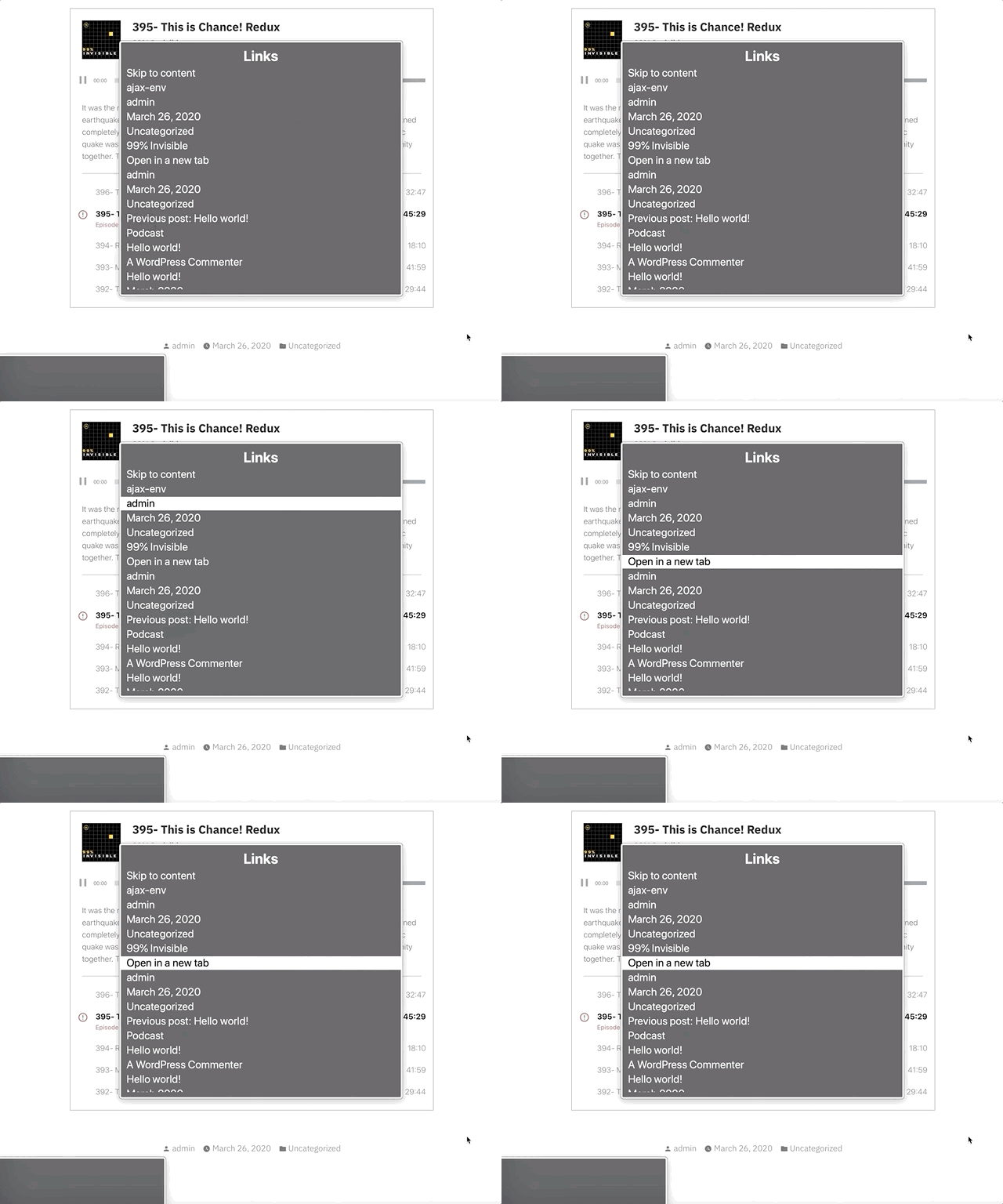
The visual error message has a link in it that says “Open in a new tab.” Screen readers can use the rotor to navigate links. When doing this, you are presented with an “Open in a new tab” link that doesn’t provide any context to what you’re opening in a new tab.
We’ve added a visually hidden podcast title in the link so it will show as “[podcast title]: Open in a new tab.” You can see this in the gif below in the bottom left gray box when the screen reader focuses the “Open in a new tab” link.
Open what in a new tab? “[track title]: Open in a new tab” provides context. The error is immediately announced as well.
Also, when an error occurs from not being able to load the track, we use speak() to immediately announce an assertive error message to inform the user an error has occurred. Without using speak() there would have been no feedback that an error had occurred.
Paused
While this one may not be 100% needed since there’s feedback from the track no longer playing, when I tested this out I felt like it was helpful to be overt about what just happened.
When pressing a button on a track that is currently playing, it will announce that the track is paused.
This uses speak() to announce “Paused” when the currently playing track button is pressed.
Final thoughts
Before I went down too many aria rabbit holes, I should have tried building a few sample markups and then tested them with a screen reader.
While writing this, I kept catching myself referring to these implementations as screen reader “enhancements,” but providing a good baseline experience for the way people interact with a website shouldn’t be an “enhancement.”
My brilliant co-worker, Haz Diego, mentioned that role="grid" would have worked well here in order to use the roving tabindex method (where you can tab to the list of tracks, but use arrow keys to navigate them) while still providing a generic grouped state for the playlist. I agree that this could have been a great option for this.
This implementation likely still has some issues, but I can promise that we did our best. If you have thoughts on how we could improve this, let me know in the comments or by opening an issue at the Jetpack Github repo.
But adding a click listener doesn’t make it accessible to people who use a keyboard or different kind of assistive technology.
To make our example accessible, we’ll need to:
Give a “focus indicator” to everything. A focus indicator is the little glowing outline to show you where you are on the page. Press the TAB key now, and you’ll get moved to the next “focusable element.”
Make everything that is clickable via a mouse be able to be “clicked” with a Spacebar or Enterkeypress.
Making Everything Focusable
To make this Terrible Idea™️ accessible, we’ll need to give everything an attribute of tabindex="0". This adds it to the “focus order” which makes it able to be focused.
Note: It is common for websites to not have any focus indicators. If you TAB through a site and it doesn’t show you where the focus is, then that is Bad.™️
To give everything a tabindex attribute, we need to:
Get all of the elements on the page.
Loop through each of the elements.
Add the tabindex attribute to each element.
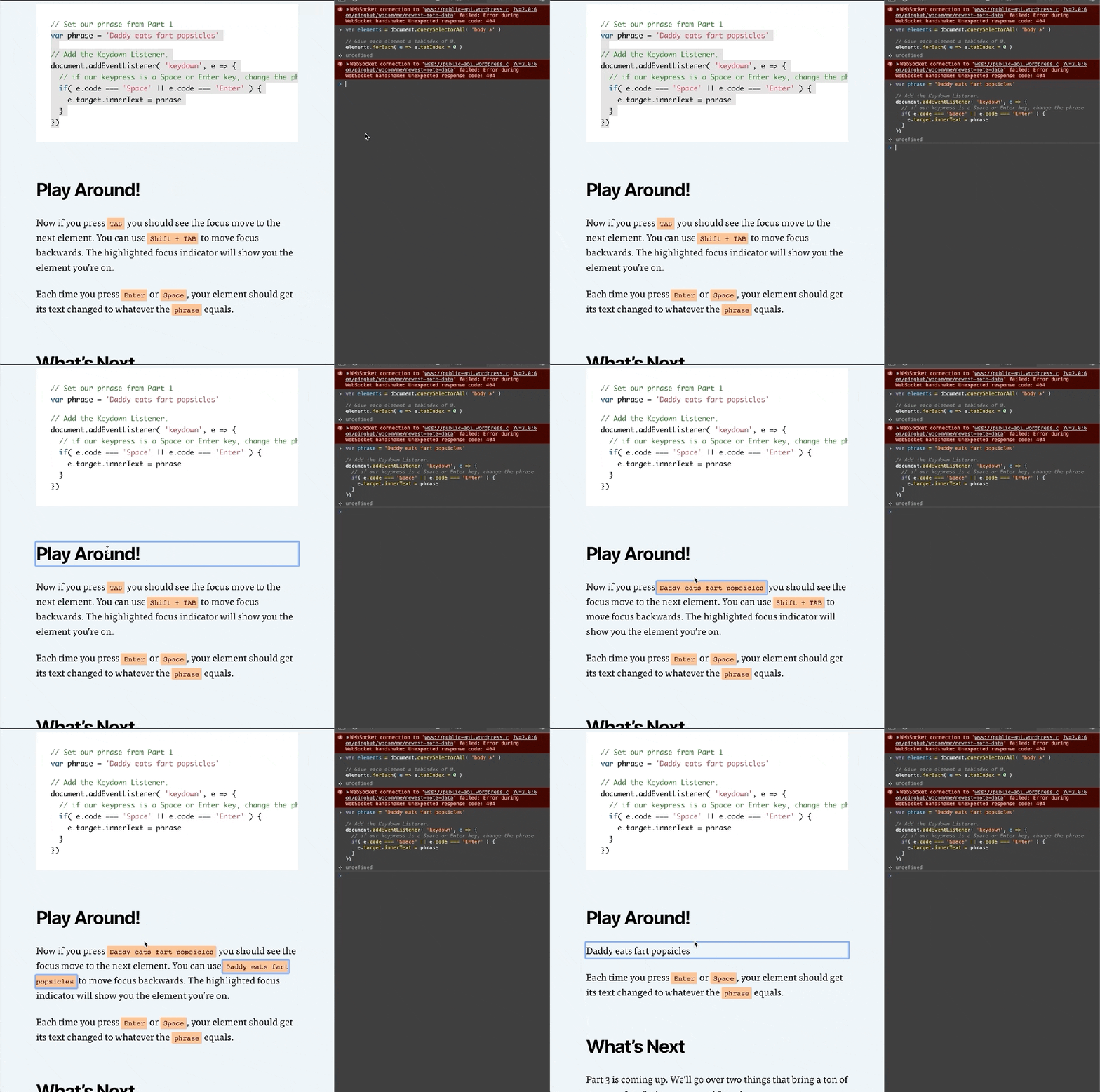
Open your Console like we did in Part 1 (right click on the page -> Inspect -> Console tab). Now enter these lines in the console:
// Get all of the elements on the page.
var elements = document.querySelectorAll( 'body *' )

// Give each element a tabindex of 0.
elements.forEach( e => e.tabIndex = 0 )
Note: Lines starting with // are comments to help you out. You don’t need to type them. You can, but you don’t need to.
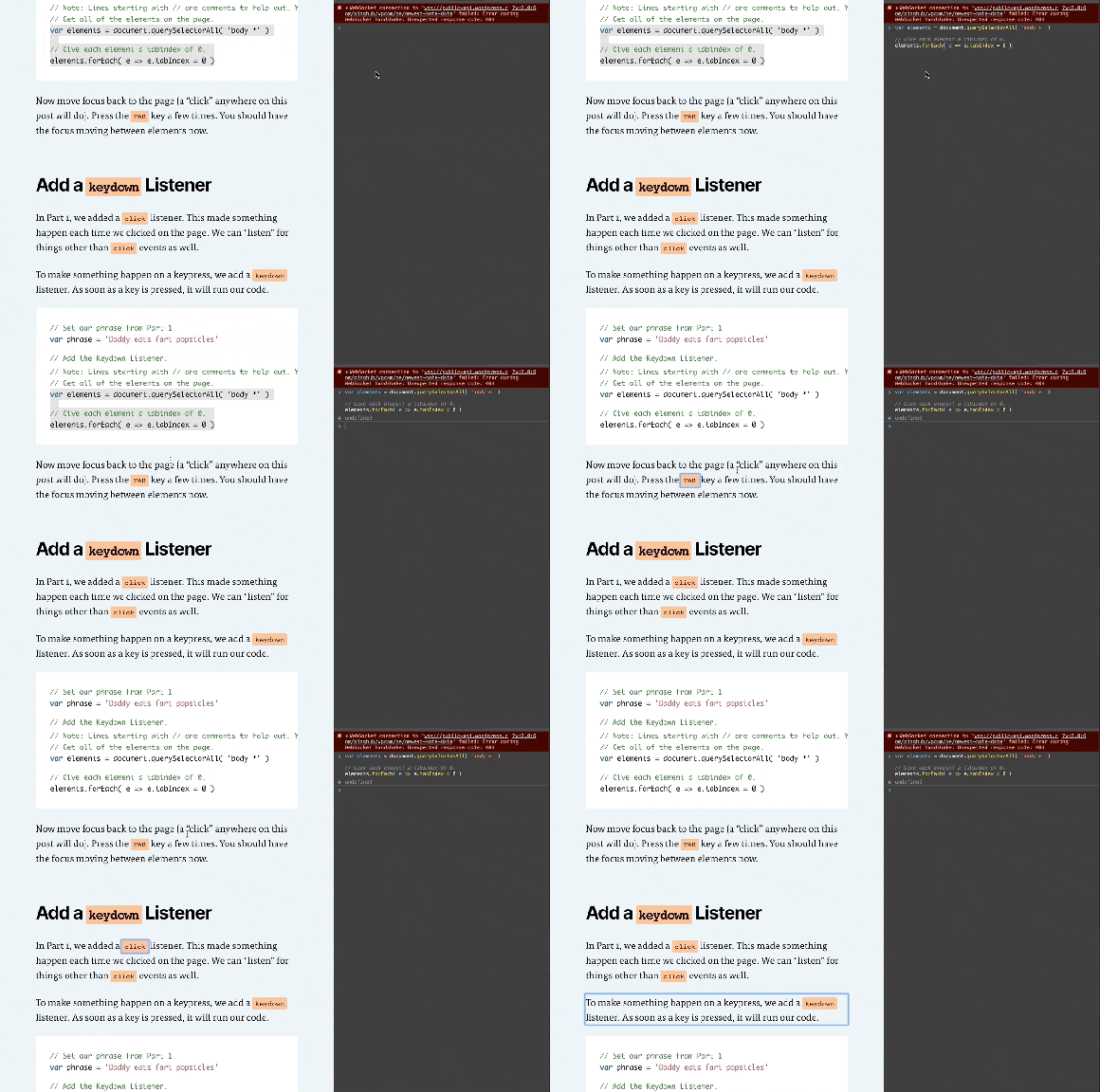
Now move focus back to the page (a “click” anywhere on this post will do). Press the TAB key a few times. You should have the focus moving between elements now.
Add a keydown Listener
In Part 1, we added a click listener. This made something happen each time we clicked on the page. We can “listen” for things other than click events as well.
To make something happen on a keypress, we add a keydown listener. As soon as a key is pressed, it will run our code.
// Set our phrase from Part 1
var phrase = 'Daddy eats fart popsicles'

// Add the Keydown Listener.
document.addEventListener( 'keydown', e => {
  // if our keypress is a Space or Enter key, change the phrase
  if( e.code === 'Space' || e.code === 'Enter' ) {
    e.preventDefault()
    e.target.innerHTML = phrase
  }
})
Play Around!
Now if you press TAB you should see the focus move to the next element. You can use Shift + TAB to move focus backwards. The highlighted focus indicator will show you the element you’re on.
Each time you press Enter or Space, your element should get its text changed to whatever the phrase equals.
What’s Next
Part 3 is coming up. We’ll go over two things that bring a ton of power to JavaScript: arrays and functions.
Be sure to follow me on Twitter or sign up to my email newsletter to find out when Part 3 is finished.
JavaScript is pretty fun. You don’t need to know much to start playing around with it. Let’s jump in with a Terrible Idea that You Should Never Do.™️
Note: This article is intended for beginners (and kids!), but has plenty of extra tidbits along the way. I’ll be intentionally glossing over most topics, but give you enough info to be dangerous. Read along, and have fun. 🙂
Daddy Eats Fart Popsicles
I asked my son what he’d think was funny to do to my website. He immediately said, “Change that title to ‘Daddy eats fart popsicles.’” So, I opened the Console, and we changed it.
To make it better, we added a way to change any text you clicked turn into “Daddy eats fart popsicles.” He clicked many more times than I would have liked.
This article shows you how to recreate this in a few steps.
Open the Console
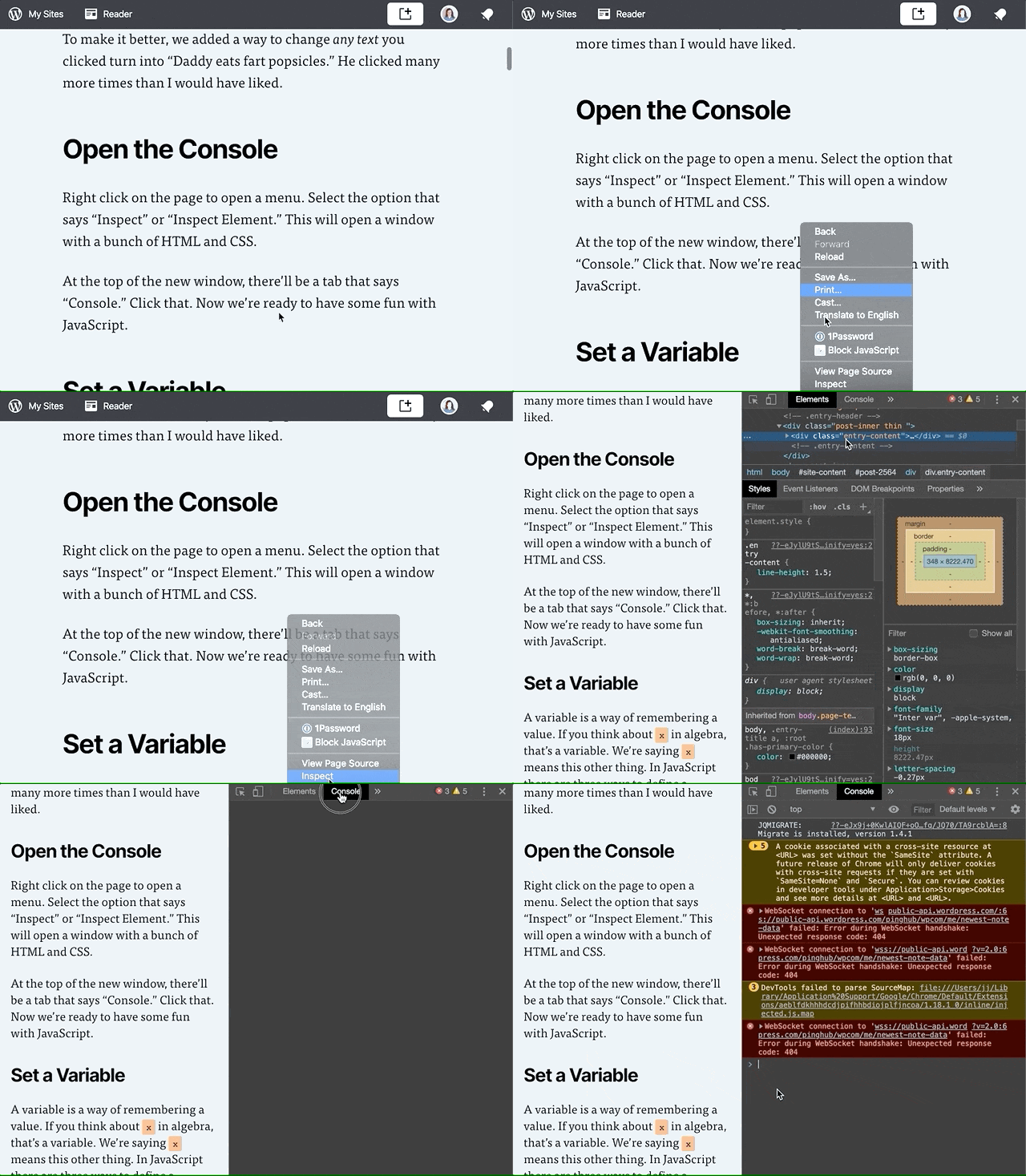
Opening up the Console.
Right click on the page to open a menu. Select the option that says “Inspect” or “Inspect Element.” This will open a window with a bunch of HTML and CSS.
At the top of the new window, there’ll be a tab that says “Console.” Click that. Now we’re ready to have some fun with JavaScript.
Set a Variable
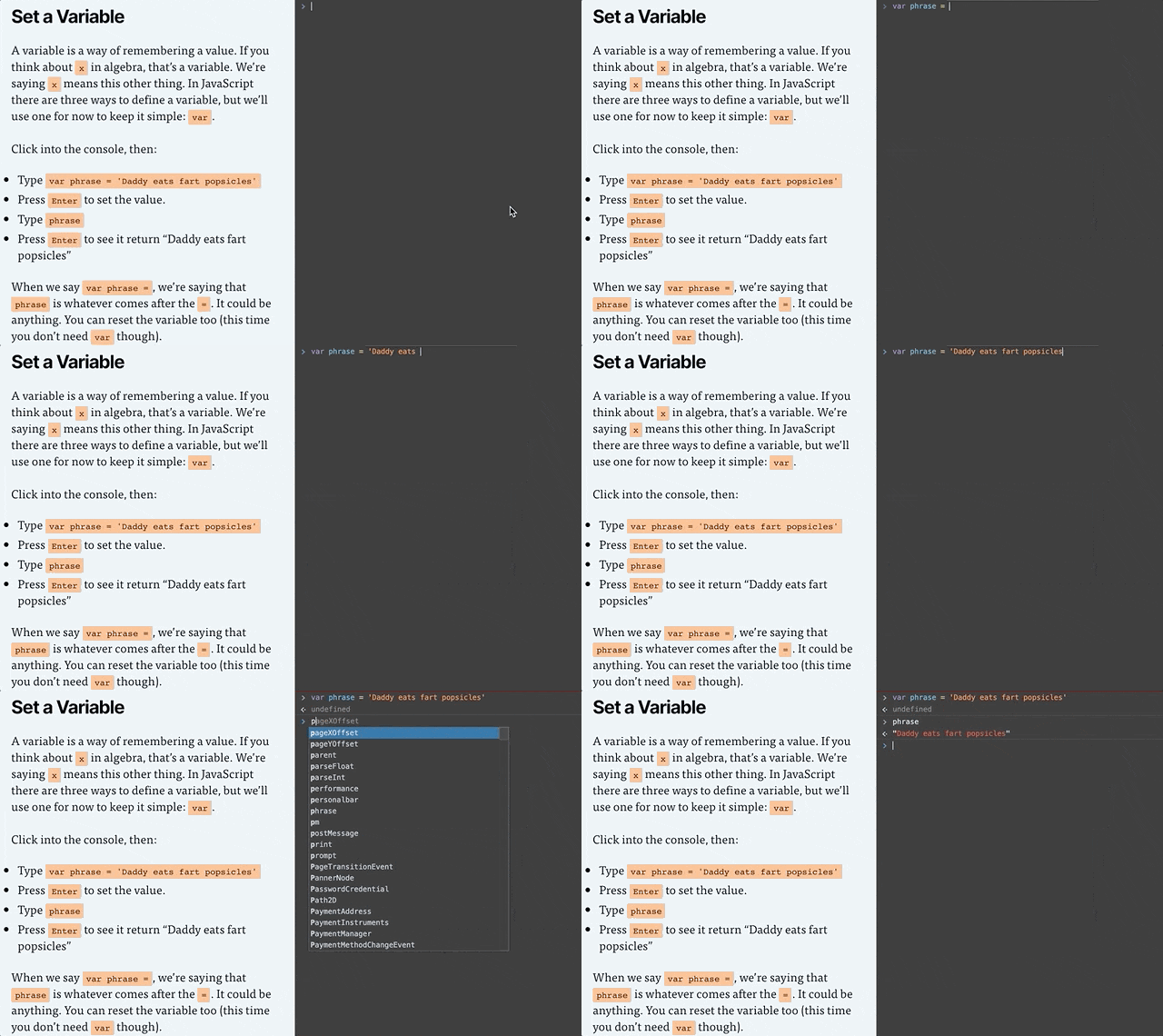
Setting the phrase variable in the console.
A variable is a way of remembering a value. Remember x in algebra? That’s a variable. We’re saying x means this other thing. In JavaScript there are three ways to define a variable, but we’ll just use one for now: var.
Click into the console, then:
Type or copy/paste var phrase = 'Daddy eats fart popsicles'
Press Enter to set the value.
Type phrase
Press Enter to see it return “Daddy eats fart popsicles”
If you get red error message after you press enter, something isn’t right. Check to make sure you typed everything exactly like in the example. A common issue is not including both single quotes ' around the text. Finding typos is approximately 75% of being a web developer.
When we say var phrase =, we’re saying that phrase is whatever comes after the =. It could be anything. You can also change what the variable equals.
Because phrase is already defined, we don’t need to type var before phrase. We only need to do that the first time.
Type or copy/paste phrase = 'My son eats fart popsicles'
Press Enter to set the value.
Type phrase
Press Enter to see it return “My son eats fart popsicles”
Clickity, Click
A webpage is made of a bunch of “elements” that together, form the DOM (I say it like “dawm” or the name “Don” but with an “m” at the end). We’ll make it so any element you click ends up saying whatever phrase equals.
In my son’s case, he reset it back to phrase = 'My daddy eats fart popsicles' 🙈
To make something happen when you click, we add an “Event Listener.” An Event Listener waits around for something to happen. It’s like a racer waiting for the signal to go. In our case, the signal is a click.
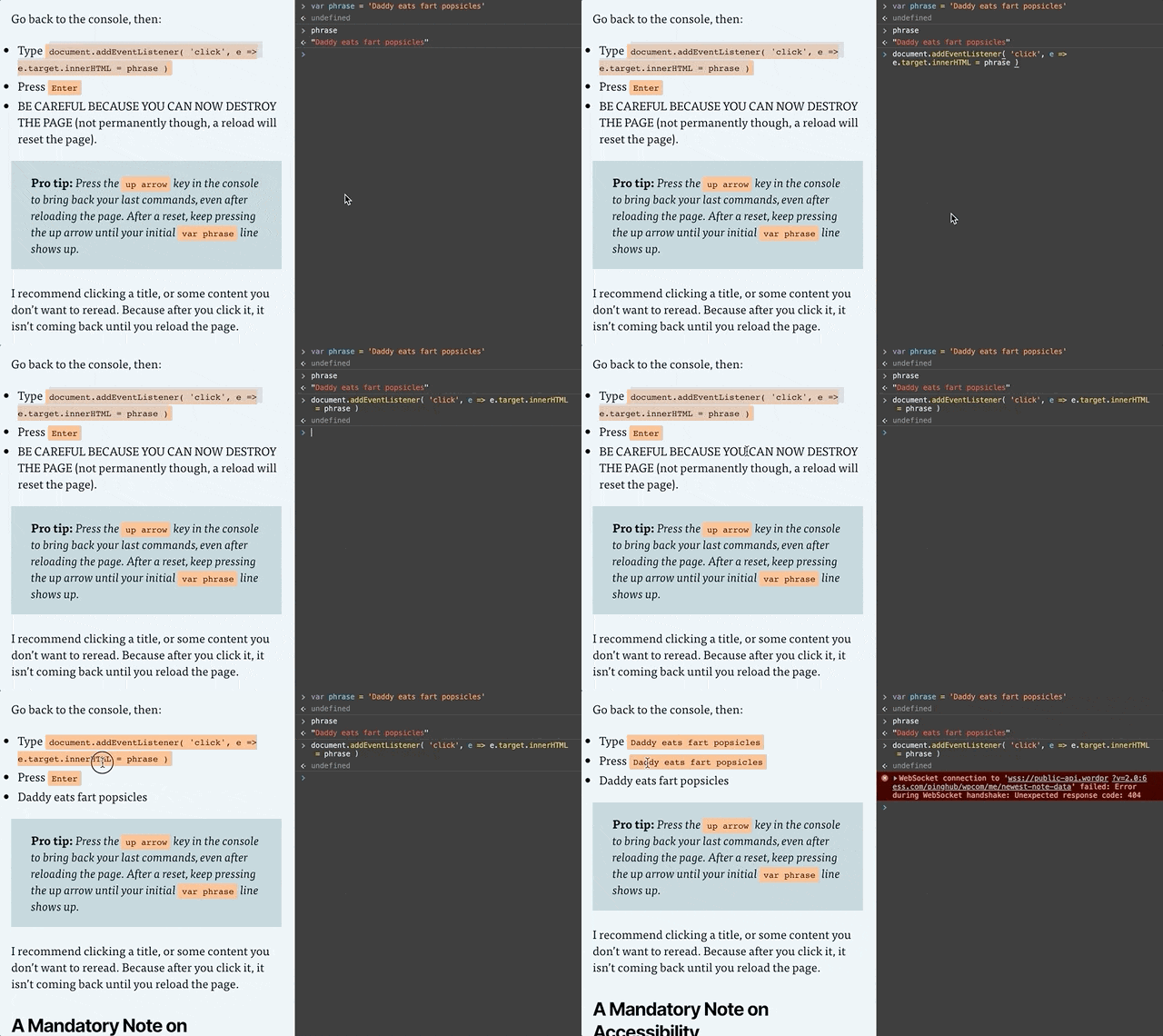
Setting the Click Listener
Go back to the console, then:
Type or copy/paste document.addEventListener( 'click', e => e.target.innerHTML = phrase )
Press Enter
BE CAREFUL BECAUSE YOU CAN NOW DESTROY THE PAGE (not permanently though, a reload will reset the page).
Pro tip: Press the up arrow key in the console to bring back your last commands, even after reloading the page. After a reset, keep pressing the up arrow until your initial var phrase line shows up. And if nothing is working, reload the page and try again!
I recommend clicking a title, or some content you don’t want to reread. Because after you click it, it isn’t coming back until you reload the page.
Event Listener Code, Explained
Let’s break down document.addEventListener( 'click', e => e.target.innerHTML = phrase ).
document: The entire page. The DOM we talked about earlier.
document.addEventListener: Add an event listener to the document. We’re adding it to the document, but we could add a click listener to any element of the page.
'click': There are several kinds of event listeners, such as an event when something changes, or when a key is pressed. Our code is saying we want to listen for a click.
e => e.target.innerHTML = phrase: e means “event.” We’re getting the target of the event (the target is the element that was clicked) and changing its text to whatever phrase equals.
Putting it All Together
If you’re getting stuck or things aren’t working, reload the page, then copy and paste this into the console:
var phrase = 'Daddy eats fart popsicles'

document.addEventListener( 'click', e => e.target.innerHTML = phrase )
A Mandatory Note on Accessibility
Accessibility (or a11y) means letting people interact with your website however they want to.
Maybe that means they have the ability to see and move their arms and hands around. If so, they probably use websites with their eyes to see and a mouse cursor to click on things.
Some people like using a keyboard and pressing the TAB button and arrow keys to move around the website. Some people use a Screen Reader that will read a webpage to them.
Either way, it doesn’t matter how a person interacts with your website. That’s for them to decide. But what you need to do is make sure people can interact with your website however they choose to.
That’s exactly what we’ll learn how to do next time.
Part 2 is in the Works
Subscribe to my email list below or follow me on Twitter to find out when I release Learning via Terrible Ideas: Replacing Text on Click, Part 2.
In 1917, the artist Michael Duchamp submitted his work, “Fountain” to an art exhibition. It’s a used urinal. And it stirred up yet another conversation about, “What is art?”
I’ve only taken one art history class, so forgive my simplification here. Essentially, art is subjective. If you personally don’t like Duchamp’s urinal, it doesn’t make it any less art.
JavaScript and CSS are the focus of most web designer/developer’s learning, but they’re subjective to the end user. There are better and worse ways to write your CSS and JS, but none are 100% right or wrong (as long as your page still works, is secure, etc).
HTML has clearly right and wrong ways to write it, and this is too often ignored. Here are several examples I’ve seen in the wild:
A “button” that’s actually a clickable <div> and not a <button>.
A “title” that’s actually a<div> and not a heading element (<h1>, <h2>, etc).
A “label” for an <input> that’s actually a <div>.
An “input” that’s actually a <div> with keydown listeners.
Notice a pattern? Looking at you, <div>. 👀
The essential issue is using a non-semantic element when a semantic element should have been used.
What Do We Mean by Semantic?
Semantic means that the element has a meaning. It says something about the content or its relationship to another thing. In HTML, basically anything that isn’t a <div> or <span> is semantic.
There’s also a continuum to what a tag tells us about the meaning of its content. For example, a <section> tells us less about its contents than an <article>.
<section> is still semantic, as it tells us that its contents should be considered as a group. But, an <article> tells its contents are grouped together and that it’s a cohesive article.
For more examples, I’ll walk through the Heading and Button elements to demonstrate how they are semantic.
Heading Elements
An <h1> is a title of a page, and an <h2> beneath it gives a hierarchy to the page.
<!-- h1, the most important part -->
<h1>The Importance of HTML</h1>
<!-- "What Do We Mean by Semantic?" is a subsection of "The Importance of HTML" -->
<h2>What Do We Mean by Semantic?</h2>
<!-- "Headings" is a subsection of "What Do We Mean by Semantic?" -->
<h3>Headings</h3>
Using an appropriate heading structure, you can automatically create a table of contents. Here’s how this article could be built into a table of contents just based off of the heading levels:
<h1>: The Importance of HTML
<h2>: What Do We Mean by Semantic?
<h3>: Headings
<h3>: Buttons
<h2>: Non-Semantic Elements
<h2>: Correct HTML Does Not Bring You Glory, But You Need to Do It
You can see the structure of the whole article being communicated just via the HTML. If I had used all <div>s, then the structure would look like:
<div>: The Importance of HTML
<div>: What Do We Mean by Semantic?
<div>: Headings
<div>: Buttons
<div>: Non-Semantic Elements
<div>: Correct HTML Does Not Bring You Glory, But You Need to Do It
There’s no meaning attached to the <div>, so it would be a flat structure. Just by using the correct HTML we bring clarity and structure to the DOM.
Buttons
A button submits or changes the state of something. By definition, it’s always:
focusable
activated on space bar or enter key presses
activated on mouse click.
When you make a <div> with a click listener, you’re not using the semantic interactions that come for free when you use a <button>. You have to manually build out the:
focus state
keyboard interactions
mouse interactions
Not only that, but when a screen reader comes to a <button>Submit</button>, it will use those semantics and announce, “Submit, button.”
The same thing using a <div> would look like:
<!-- Just kidding, I'm not going to make an accessible div button. -->
<!-- Use a <button> please! 😂-->
When we use semantic HTML elements, we elevate the content’s meaning. It gives the content life.
Non-Semantic Elements
<div>s and <span>s are non-semantic elements. The <div> does not give the content any additional meaning. It’s just a <div>.
I’m not being totally fair, as there is a tiny bit of meaning behind a <div> vs a <span>:
A <div> is a block-level element, as in, it should wrap things together.
A <span> is an inline element. It should be used within another element, like <p><span class="dropcap">I</span>nline elements</p>.
If there are no HTML elements that make sense for the content, then use a <div> or <span>. There’s 100% a place for <div>s and <span>s. Not every piece of content or HTML element needs additional semantics.
When writing HTML, use as specific of an element as makes sense for your content. If there’s nothing specific enough, then keep going for less and less meaningful tags. <div> and <span> are always the last choice.
Correct HTML Does Not Bring You Glory, But You Need to Do It
You’re not going to get a Webby Award or thousands of views on Codepen for how amazingly crafted your HTML is. You’ll need to be OK going unrecognized for your work. But know that every time I use a screen reader or keyboard on a site and it works correctly, I have a little spark of joy. I’m sure I’m not alone here.
In the end, you’ll have to be OK with knowing you did your best to make your work accessible to everyone.
In order to access posts by a taxonomy query via the v2 WP REST API, you’ll need to do a little set-up first. Let’s say we’re starting a beer blog, and we’re attaching two custom taxonomies to our posts: “styles” and “breweries”.
Creating the Taxonomies
When you register the taxonomy using register_taxonomy, you have to make sure you set it to be available via the API. To do this, make sure you have 'show_in_rest' => true to make it accessible in the API and provide thename you want to access it with in the URL with 'rest_base' => 'beers'. Here’s sample code for registering our taxonomies called “styles” and “breweries” that’s accessible via the API:
Now you can find all terms in the Breweries taxonomy with /wp-json/wp/v2/breweries and all the Styles with /wp-json/wp/v2/styles
WP REST API Taxonomy Query
In order to get posts attached to a specific beer style in the styles taxonomy, you can query it by style term ID in the URL by appending ?style=[term_id].
For example, let’s say IPAs have a term_id of 25. To find all posts with the term IPA, you can do: /wp-json/wp/v2/posts/?styles=25
For multiple terms, add more comma separated IDs, like: /wp-json/wp/v2/posts/?styles=25,26,27
Note, this will not find all posts that include ALL of the styles (25, 26, and 27) but find posts that have at least one of the terms (25, 26, or 27).
Multiple Taxonomy Queries
If we want to find posts by both beer style and brewery, we simply add more parameters to the URL. If we want all posts with the term IPAs (term_id 25) from Boulevard Brewery (term_id 33), we’d do: /wp-json/wp/v2/posts/?styles=25&breweries=33
Because the structure is so simple, ?[rest_base]=[comma_separated_term_ids], it doesn’t allow you to have all the power of WP_Query(). From looking at the WP core code, it looks like the following are NOT supported out of the box:
Relationship "OR" queries
Querying by slug instead of term_id
Setting include_children to true.
Using the operator argument to set if you want it to find posts that are in all the terms you passed (using operator=>'AND') or finding posts that are NOT IN the term(s) you passed.
As of this writing in WordPress v4.9.4, to do any of those more complicated queries, you’d have to add custom filters to the API to make them accessible.
One of the studies with the Center for Media Engagement needed a straightforward way to maintain and deploy a single JS file. I didn’t want to use a big fancy WebPack or Gulp setup when all we needed was to minify and version a single JS file, so I turned to using npm scripts.
tl;dr
The following package.json file, when you do npm run production will:
Check your package.json version and increase it by 0.0.1
Minify your script.js file as script.min.js
Add the new version number and build time to the header of your script.min.js file
Thanks to the A11y Dialog project, as that’s where I got the command for reading the version number from package.json.
The Set-up
To get started, create a new directory and script file to host your project. I’ll use terminal commands to do this stuff because it’s useful to know and we’ll need to be in terminal when we start running npm commands anyways.
# create the directory
mkdir my-rad-project

# change directory (cd) into your new project directory
cd my-rad-project

# create a scripts file
touch scripts.js

# create a package.json file
touch package.json
Now, make sure you’re in your my-rad-project directory (you didn’t change it, did you!?!?) and run in terminal:
npm install
This will install any packages in the devDependencies and dependencies sections of your package.json file. In this case, it’s only uglify-js, which is what we’re using to minify our JavaScript file.
Now, when you build production assets it will take whatever is in your scripts.js, minify it into scripts.min.js and add the new version number into the header of scripts.min.js.
While still in your my-rad-project directory to kick off the minification process, run in terminal:
npm run production
How it Works
Our package.json file contains a scripts object where we can define shortcuts for running terminal commands. Each of those scripts we could run via terminal, but why would we when can just do npm run production?
When we do npm run production, it runs whatever is in the production section of the scripts. In our case, it’s this:
"production": "npm run version:bump --silent && rm -f scripts.min.js && npm run minifyJS --silent && npm run version:add --silent"
This one command, npm run production, ends up running multiple other commands, chaining them together with &&.





![Playlist with current track highlighted and "[track title], current item, button, [podcast title], group" in the screen reader area.](https://jerryjones.dev/wp-content/uploads/2020/05/podcast-player-current-item-1.gif?w=1024)
![Navigating the buttons with the screen reader to see that the current track displays "Playing: [track title]"](https://jerryjones.dev/wp-content/uploads/2020/05/podcast-player-playing.gif?w=640)
![Screen reader showing "Loading: [track title] [track description]" when a new track is selected.](https://jerryjones.dev/wp-content/uploads/2020/05/podcast-player-loading.gif?w=640)



 Jerry Jones